The term of office of the board member(s) and/or daily manager(s), and/or the auditor of the business accounts, has expired
Explanation
The term of office of one or more board members and/or daily managers and/or the auditor of the business accounts has expired. If any of these persons is no longer in office, you must delete them from the list of board members, daily managers or auditors of the business accounts and, where applicable, register a new person performing the relevant function. If the person is still in office, you simply need to renew their term of office. Updating this information ensures that your entity’s situation is correctly reflected.
How can the term of office of board members, daily managers and/or the auditor of the business accounts be corrected?
To update this information, you must submit a modification filing with the RCS. Two situations may arise:
- The term of office has expired and has not been renewed: in this case, you must delete the person concerned, as they are no longer in office.
- The term of office has expired but the person concerned remains in office: in this case, it is sufficient to update the information by modifying the duration of their term of office.
These adjustments help ensure that the information relating to board members, daily managers and/or auditors of the business accounts remains accurate and up to date.
The information presented is standard and provided for guidance purposes only. Depending on the legal form of your entity, the documents to be provided or the steps to be followed may differ.
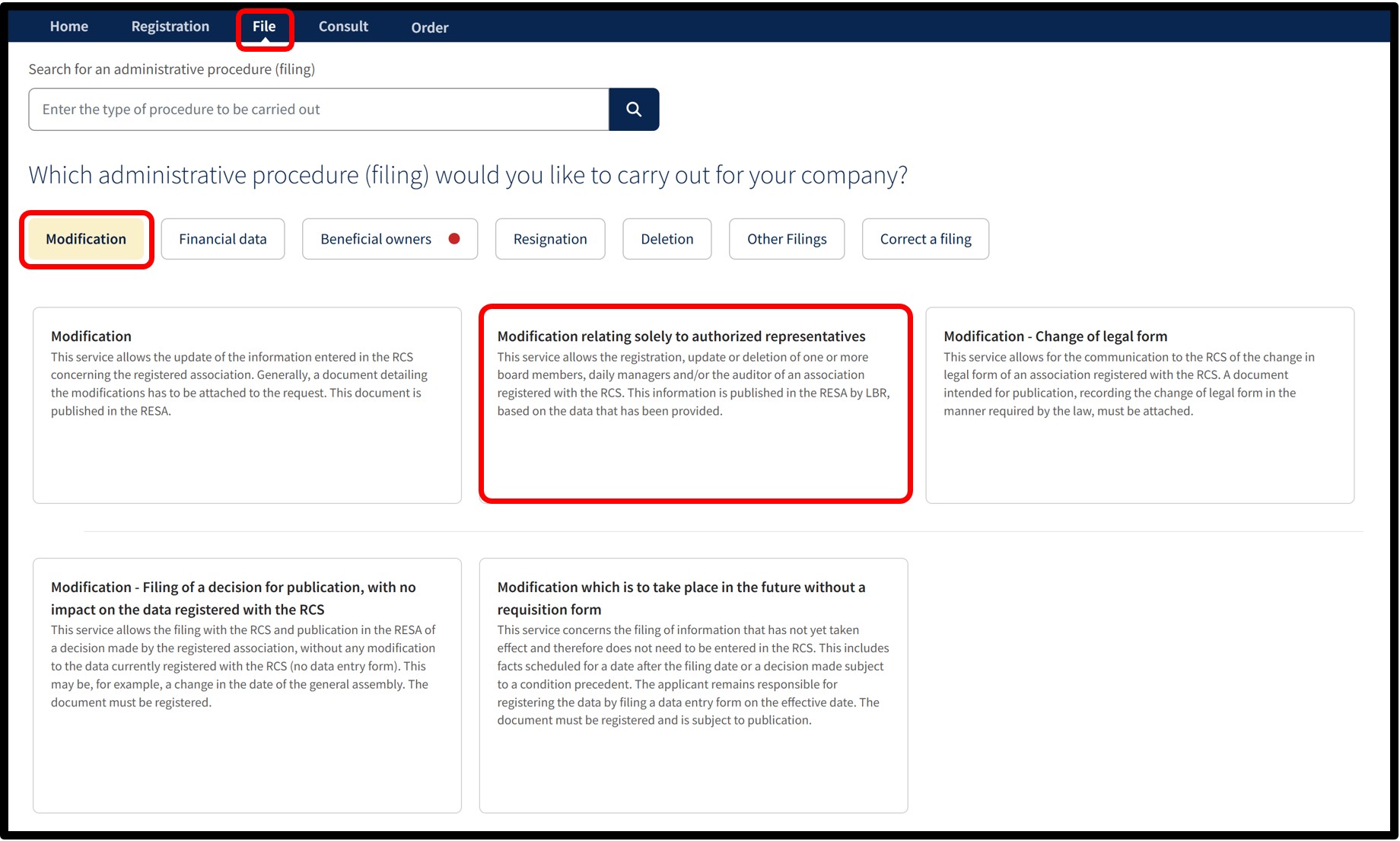
After selecting the service Modification relating solely to authorized representatives, you will access a screen where you must choose the language of the form.
For this type of filing, publication in the RESA is generated automatically by the manager of the RCS based on the information provided in your application.
Once the language has been selected, click on Next. You will then be redirected to the data entry form to complete the amendment.
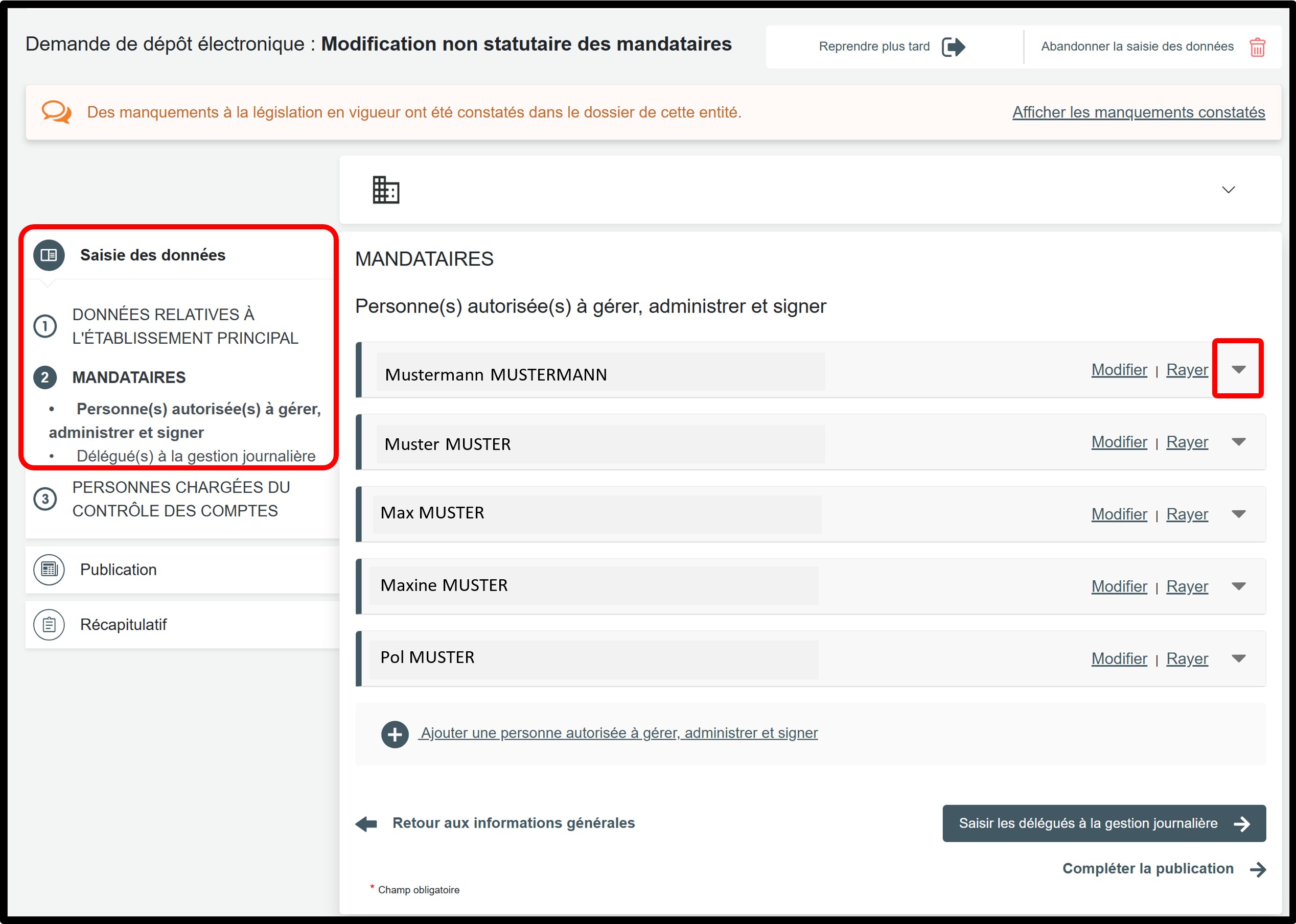
In the part Saisie des données, select the Mandataires section to access the information to be updated.
Scenario 1 – The mandate has expired and has not been renewed
In this case, you must remove the authorized representative from the list, as they are no longer in office. To do so, simply click on the Rayer option.
To add a board member, click on Ajouter une personne autorisée à gérer, administrer et signer, select the Type de personne, then complete the required information.
Scenario 2 – The mandate has expired but the authorized representative remains in office
In this case, you only need to update the information by amending the duration of the mandate. First, click on the small arrow to display the details of the authorized representative to be updated.
Remember to check the information provided in the following sections:
- in the Mandataires section:
- Administrateurs / Gérants;
- where applicable, Délégués à la gestion journalière.
- and, where applicable, in the section Personnes chargées du contrôle des comptes.
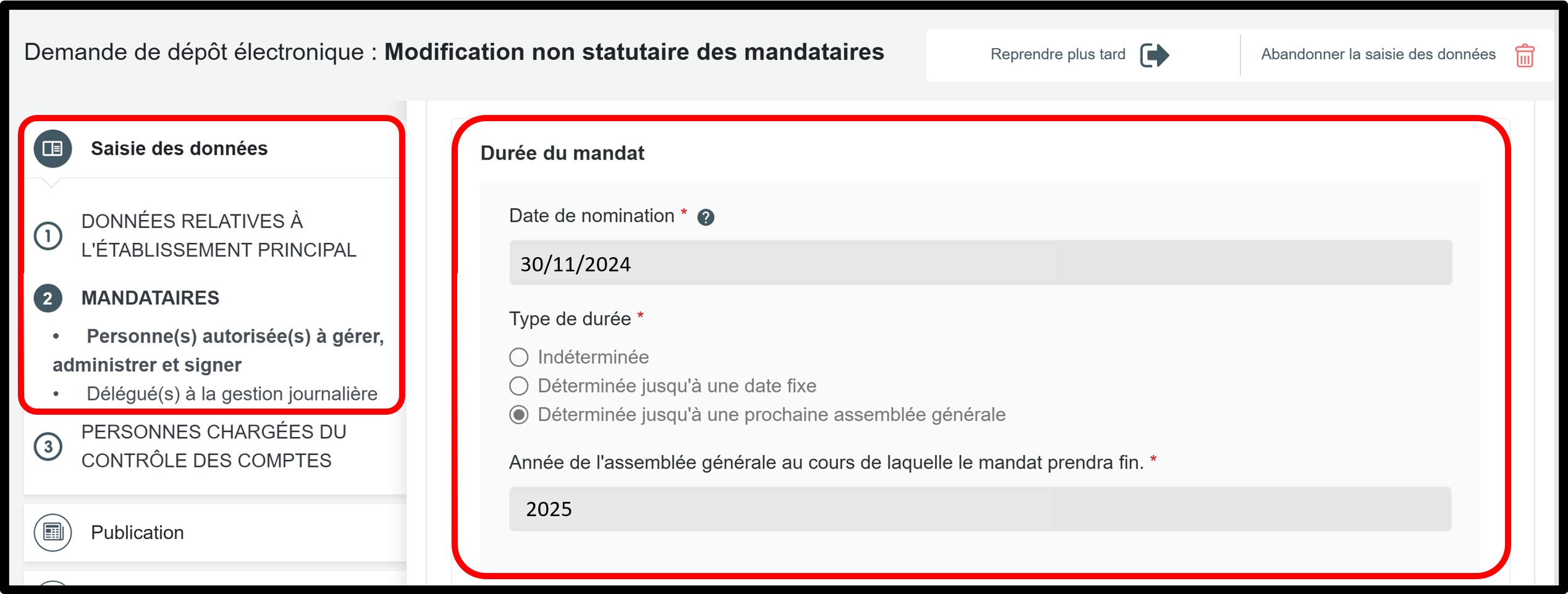
In the example provided as part of the explanations, you can see in the Durée du mandat section that the mandate expired in 2025.
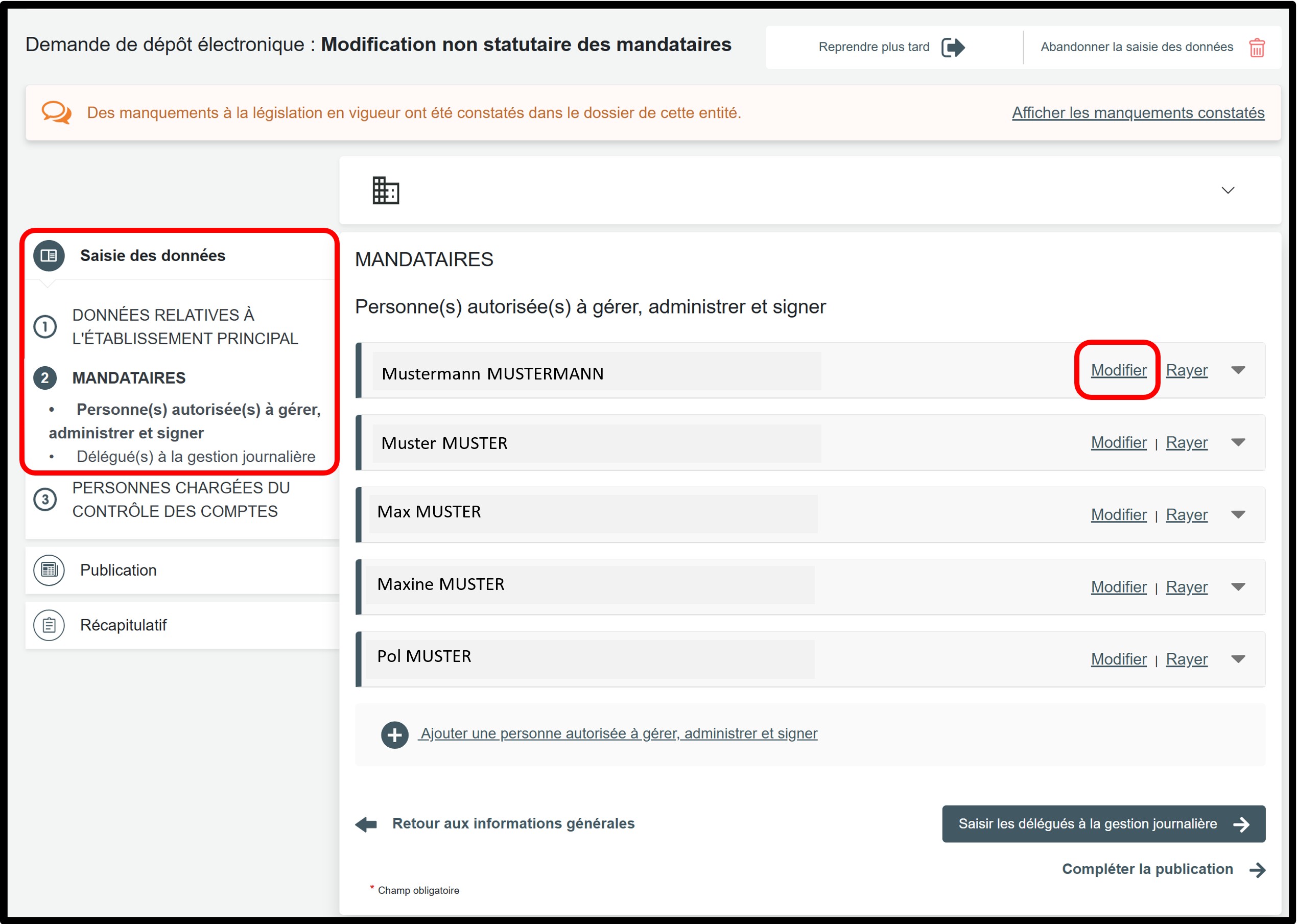
To renew the mandate, click on the Modifier option to unlock the input fields and make the necessary changes.
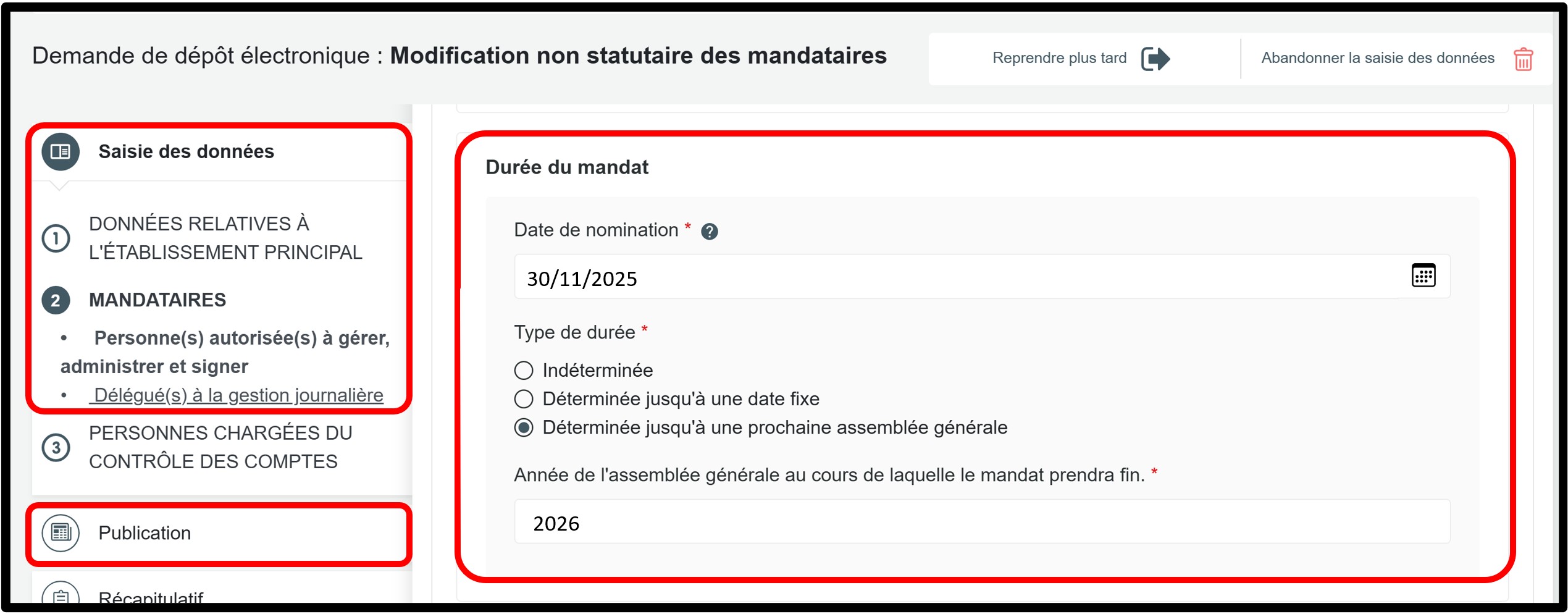
Then go to the Durée du mandat section to correct the information, depending on the scenario applicable to your entity.
The duration of the mandate may be determined or indeterminate:
- If no duration is provided in the appointment deed, select Indéterminée.
- If the appointment deed provides for a specific duration, select Déterminée jusqu’à une date fixe or Déterminée jusqu’à une prochaine assemblée générale, and indicate the end date of the mandate.
In all cases, the new start date of the mandate must be entered. This corresponds to the date on which the mandate is renewed. This date must be entered in the Date de nomination field.
Once the changes have been made, click either on the Publication section or on the Compléter la publication button to proceed to the next step.
Form: Additional information
Publication
When using this procedure, there is no need to create and attach a document for publication. As an administrative simplification, publication in the RESA for this type of filing is generated automatically by the manager of the RCS based on the information provided in your application. Once this step has been completed, click on the Récapitulatif section to proceed to the next step.
Récapitulatif
Section of the request where you can check the summary of your request before sending it to the cart. To do this, click on Visualiser le récapitulatif de ma demande en français to open the PDF document. If you spot an error, you can go back using the previous step button to the section where the information has to be corrected.
If all the information is correct, check the box J’ai contrôlé mon document récapitulatif. You can also add a personal reference in the field Ma référence de dépôt to better organise your requests. Once you have finished verifying, click on Ajouter la demande au panier to confirm your procedure.