One or more permanent representatives are registered for the subsidiary(ies) of a Luxembourg company, even though their file has been deleted from the RCS
Explanation
One or more legal persons are registered as permanent representatives for the subsidiary(ies), even though their own file has been deleted from the RCS. These persons can therefore no longer perform this function. You must update the information relating to your permanent representatives in order to correct this situation.
How to correct the information relating to permanent representatives (following the deletion of their file from the RCS)?
To update this information, you must submit a modification filing with the RCS. This involves verifying, among your permanent representatives that are legal persons, which one has been deleted from the RCS and then removing it from the list of permanent representatives of the subsidiary. If necessary, you must then register the person or persons who will henceforth perform this function.
The information presented is standard and provided for guidance purposes only. Depending on the legal form of your entity, the documents to be provided or the steps to be followed may differ.
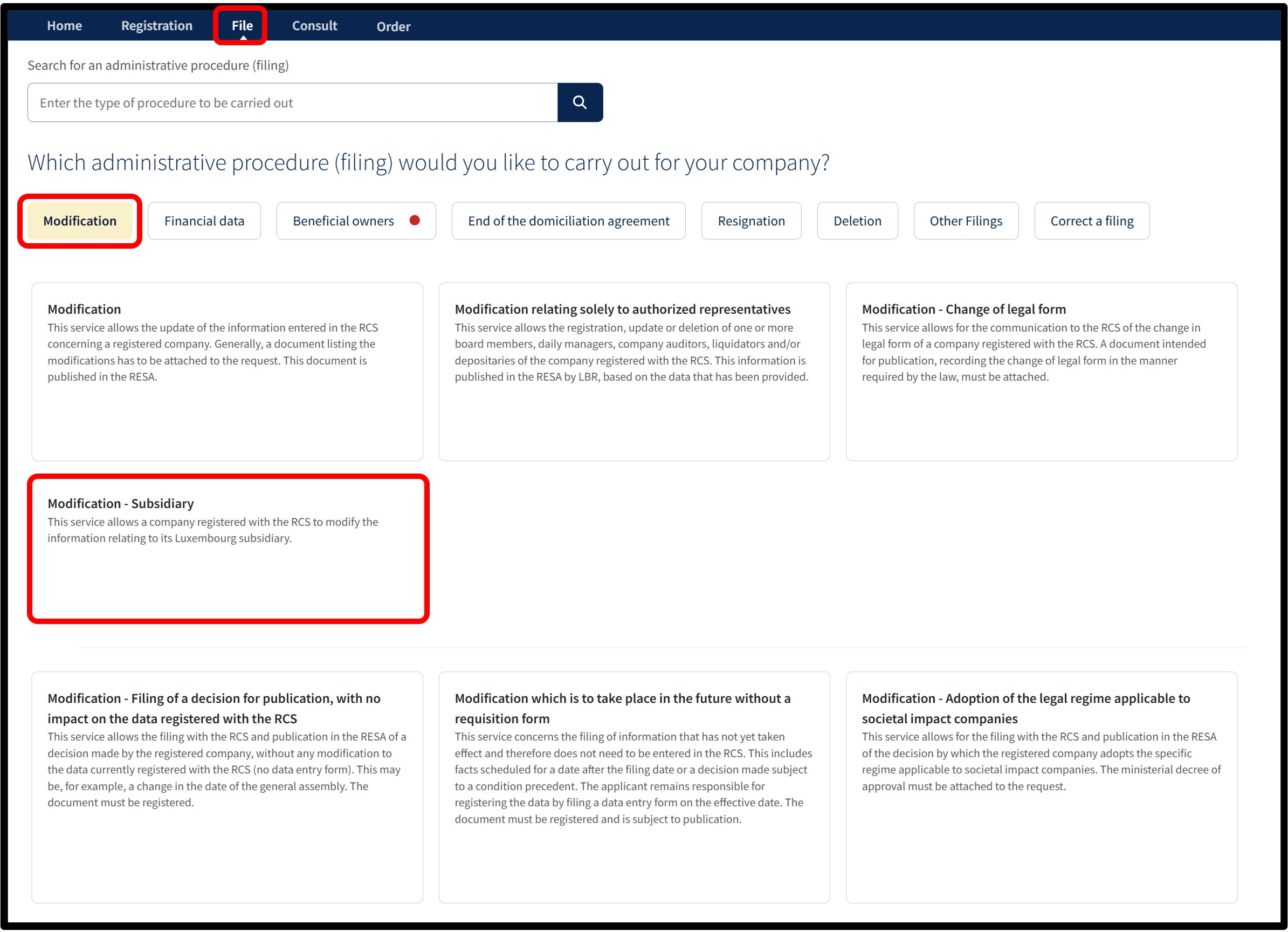
After selecting the Modification - Subsidiary service, you will be taken to the page where you have to select the subsidiary to be modified from the list provided, then choose the language of the form.
Before continuing, ensure you have all the necessary information and documents required to make the modification.
Once you have selected your language, click Next. You will then be automatically redirected to the data entry form to complete the modification.
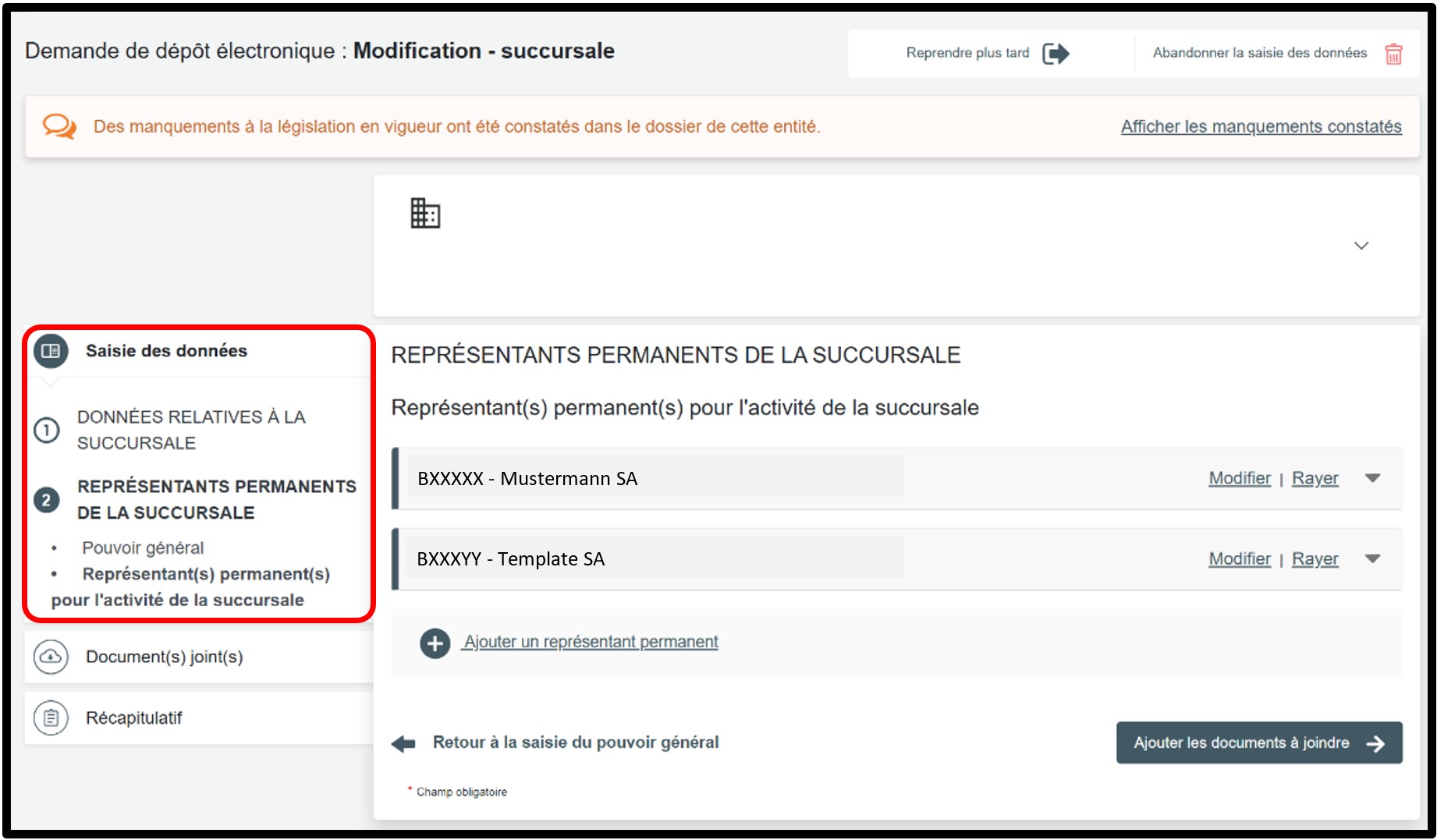
In the part Saisie des données, select the Représentants permanents de la succursale section to access the information to be modified.
You must verify, among your permanent representatives that are legal persons, which one has been deleted from the RCS by searching for its file directly in the RCS.
Once identified, you must remove it from your list of permanent representatives.
If necessary, then add the natural or legal persons who now have the power to bind the subsidiary by clicking the Ajouter un représentant permanent option.
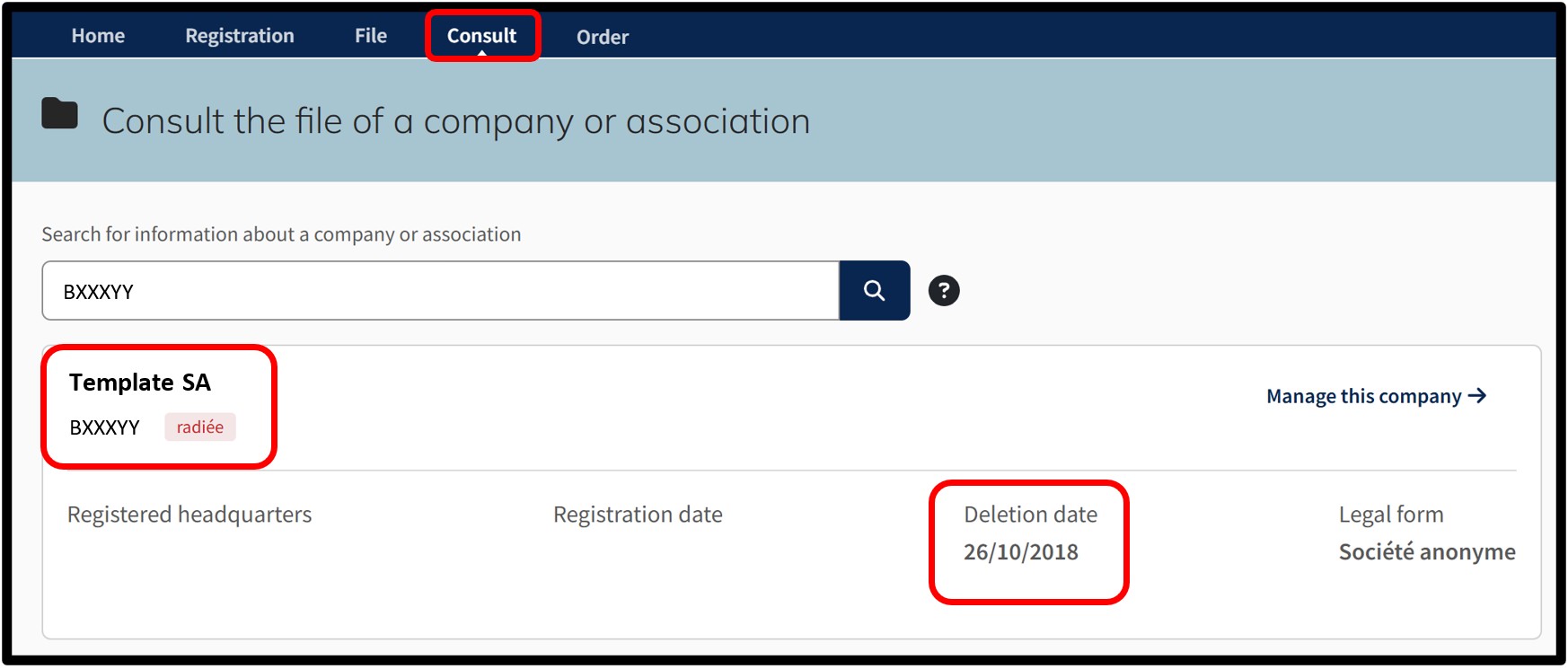
To search for a file in the RCS, go to the Consult menu and click on File of a company or association.
In the search tool that appears, enter the RCS number of the legal person registered as an permanent representative of the subsidiary.
After consulting the various RCS files of your permanent representatives that are legal persons, you will be able to identify the permanent representative whose file has been deleted. This is the legal person that you must remove from the list of permanent representatives registered in your entity’s RCS file.
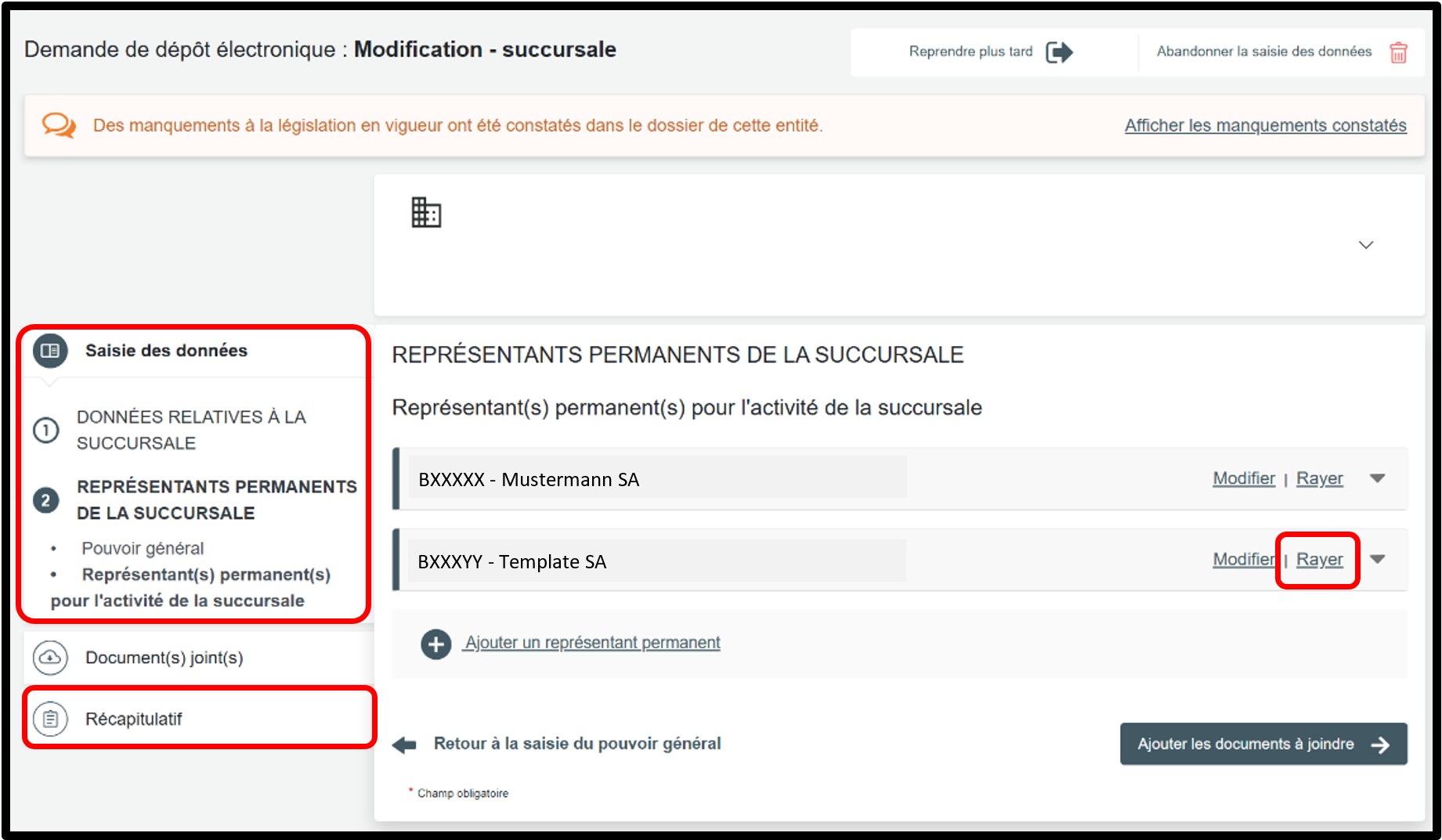
Once the legal person acting as a permanent representative whose RCS file has been deleted has been identified, you must remove it from your list of permanent representatives by simply clicking the Rayer option.
If necessary, then add the legal or natural persons who now have the power to bind the subsidiary.
To add a permanent representative, click the Ajouter un représentant permanent option, choose the Type de personne, then complete the required information.
Once the information has been modified, click the Récapitulatif section to proceed to the next step.
Form: Additional information
Récapitulatif
Section of the request where you can check the summary of your request before sending it to the cart. To do this, click on Visualiser le récapitulatif de ma demande en français to open the PDF document. If you spot an error, you can go back using the previous step button to the section where the information has to be corrected.
If all the information is correct, check the box J’ai contrôlé mon document récapitulatif. You can also add a personal reference in the field Ma référence de dépôt to better organise your requests. Once you have finished verifying, click on Ajouter la demande au panier to confirm your procedure.