My subscriptions
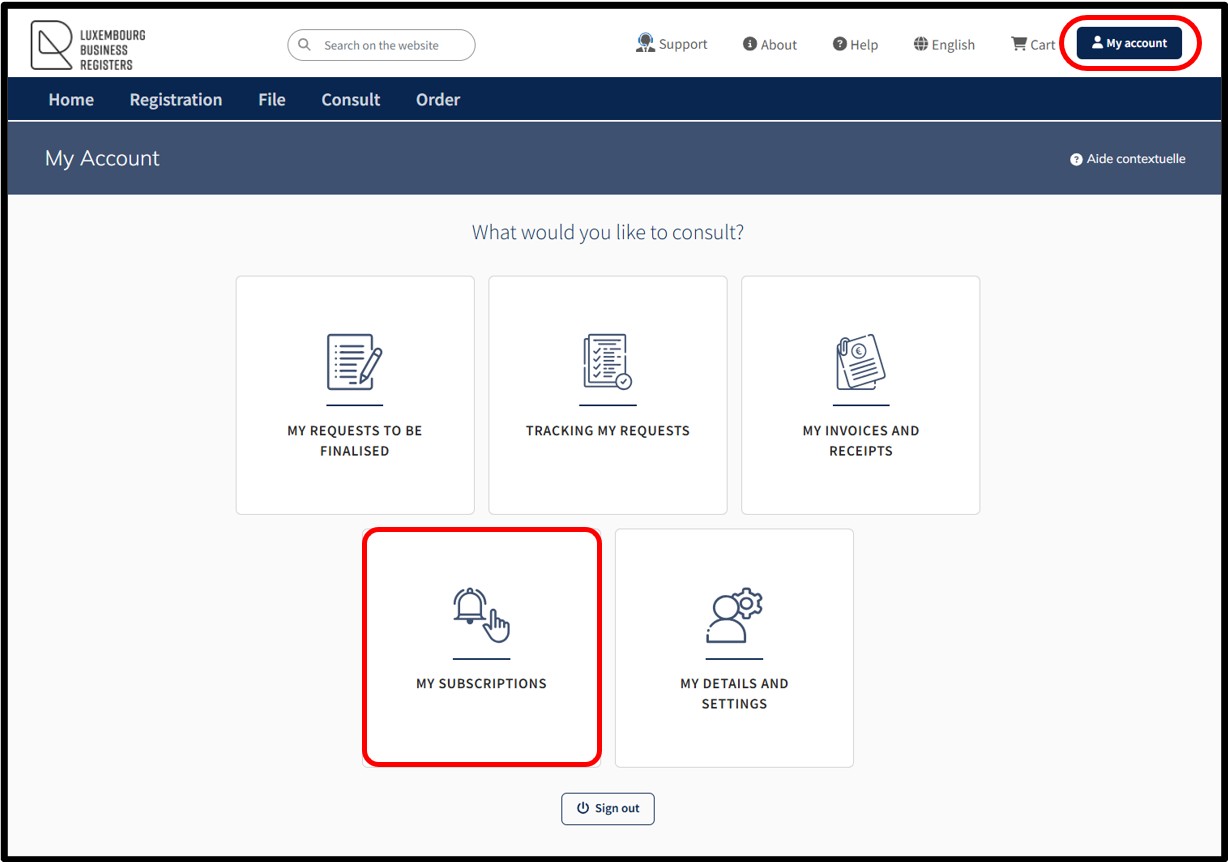
This functionality allows the user to access their customer space where they have the following options:
- Consult the list of all their subscriptions related to the monitoring of filings.
- Renewing an existing subscription.
- Consult the list of filings for all entities for which a subscription has been ordered.
Each filing made on behalf of the entities for which subscriptions have been taken out is notified to the user by email.
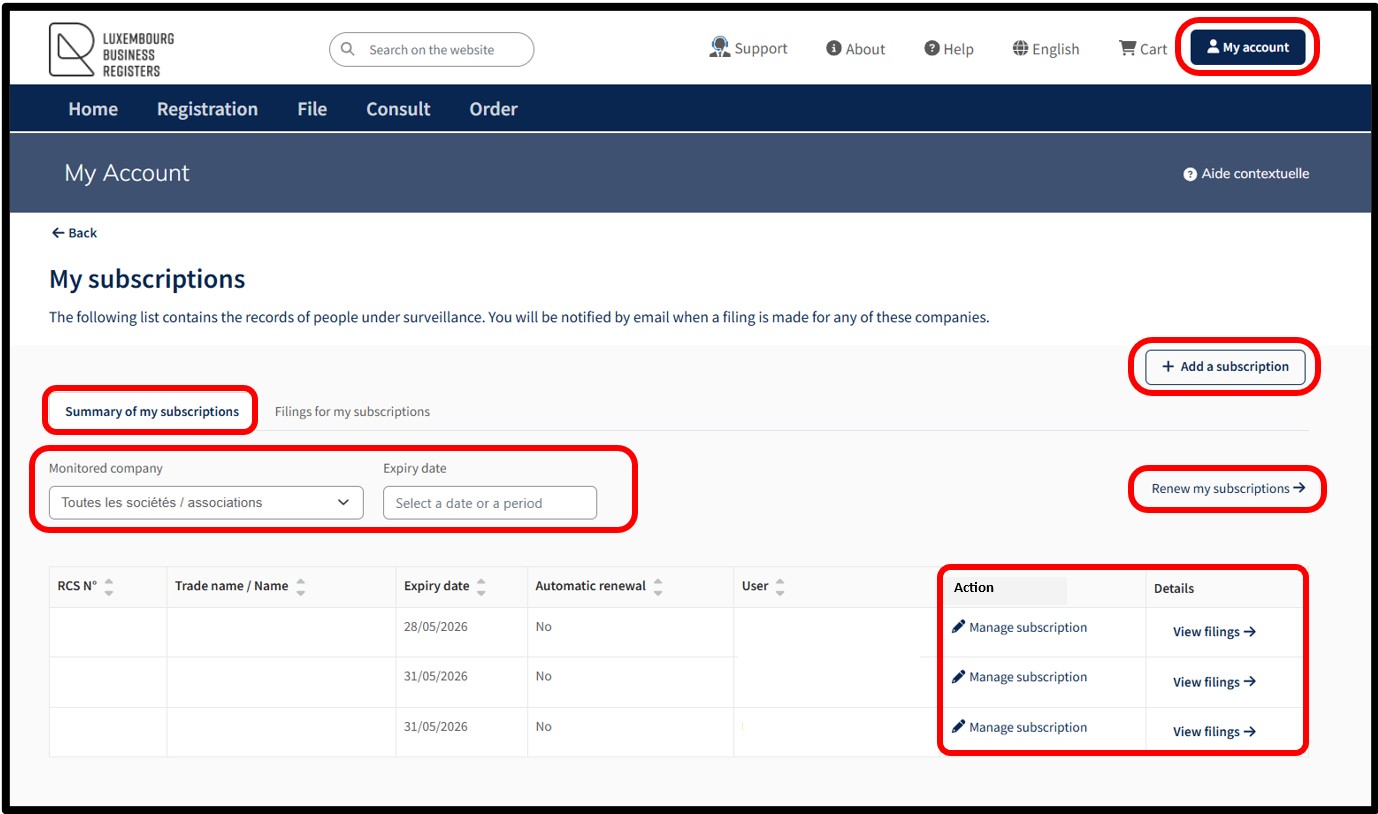
On the page My subscriptions, the user can access information about their subscriptions by means of a menu consisting of two tabs:
Summary of my subscriptions
In this tab, the user will find a list of all their subscriptions and be able to manage their current subscriptions.
The user also has access to two types of filters enabling them to sort their subscriptions according to the following criteria:
- Monitored company
- Expiry date
- By clicking on the link Renew my subscriptions , the user can select the subscription they would like to renew.
- The user can access the details of the entity by clicking on the RCS N° of the entity that is the subject of the subscription.
- By clicking on the Manage subscription link, the user can manage their subscription details.
- By clicking on the View filings link, the user is redirected to the page displaying the list of filings made during the last 12 months for the selected entity.
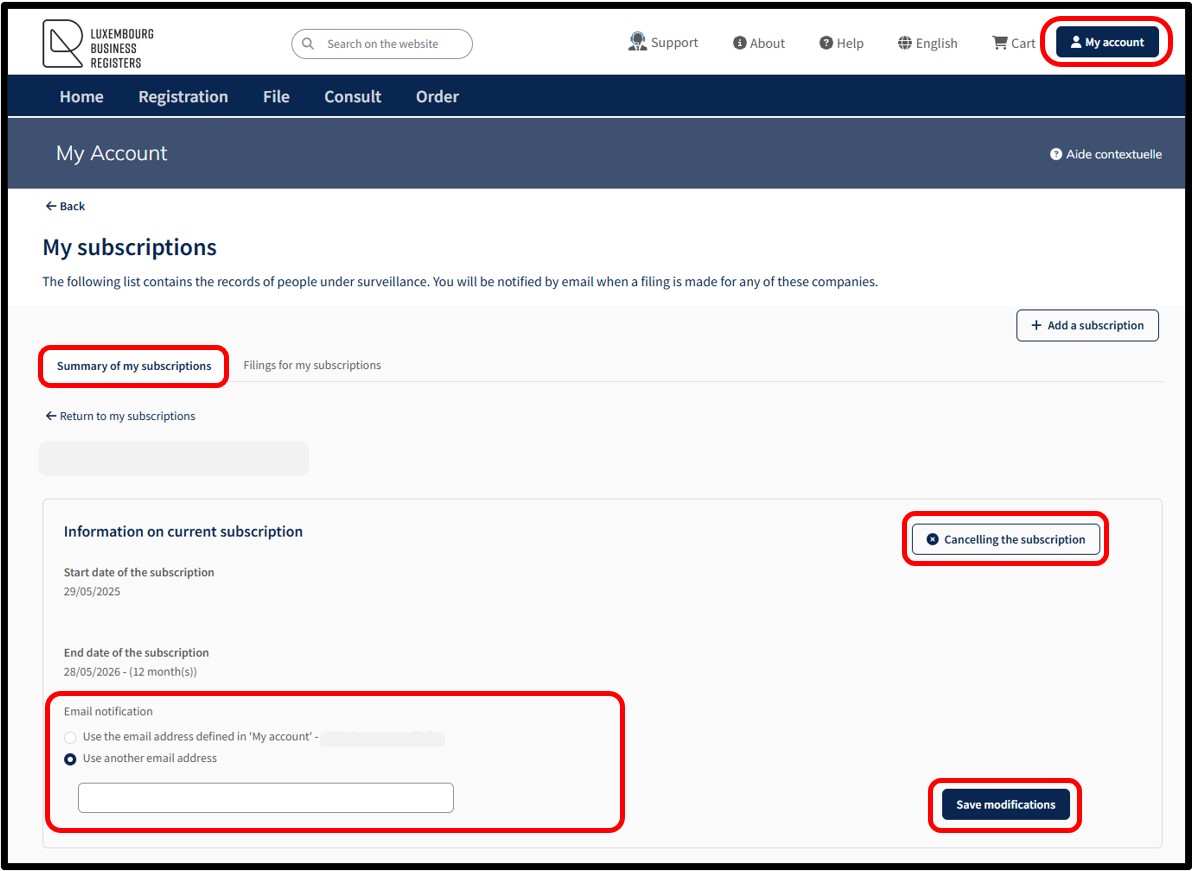
By clicking on the link Manage subscription, the user can:
- Cancel their subscription by clicking on the button Cancel subscription.
By confirming the cancellation, the subscription will end immediately.
- Modify the notification email address.
To do this, they have to check the box Use another email address and enter the new address to be used.
- Save their modifications by clicking on the button Save modifications.
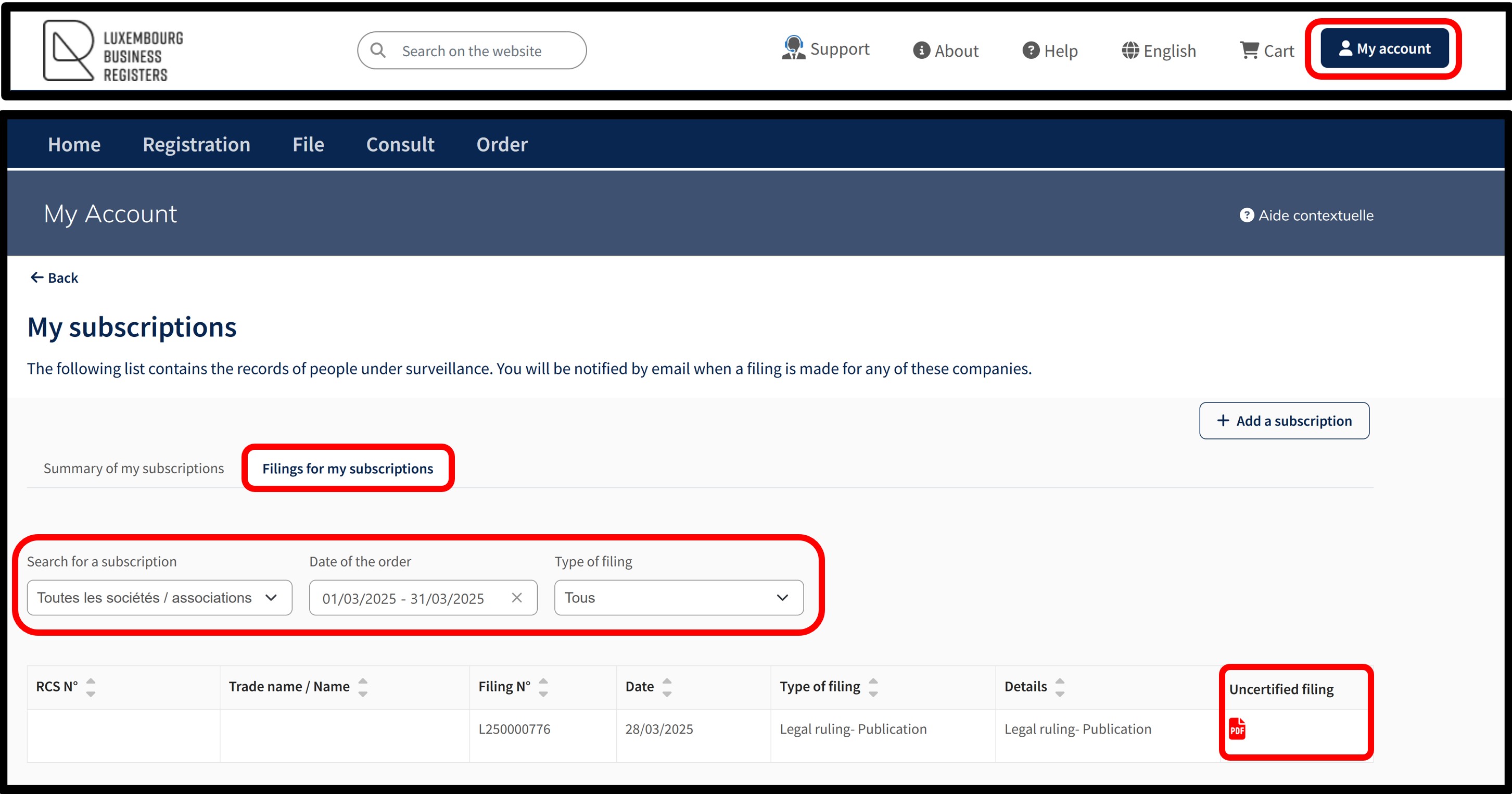
Filings for my subscriptions
The user will find in this tab the list of filings made during the last 12 months for all their subscriptions.
The user also has access to three types of filters enabling him to sort among the filings according to the following criteria:
- Search for a subscription
- Date of the order
- Type of filing
The user can consult information relating to the type of filing by clicking on the PDF icon, which allows them to download the document.
Available service
Add a subscription
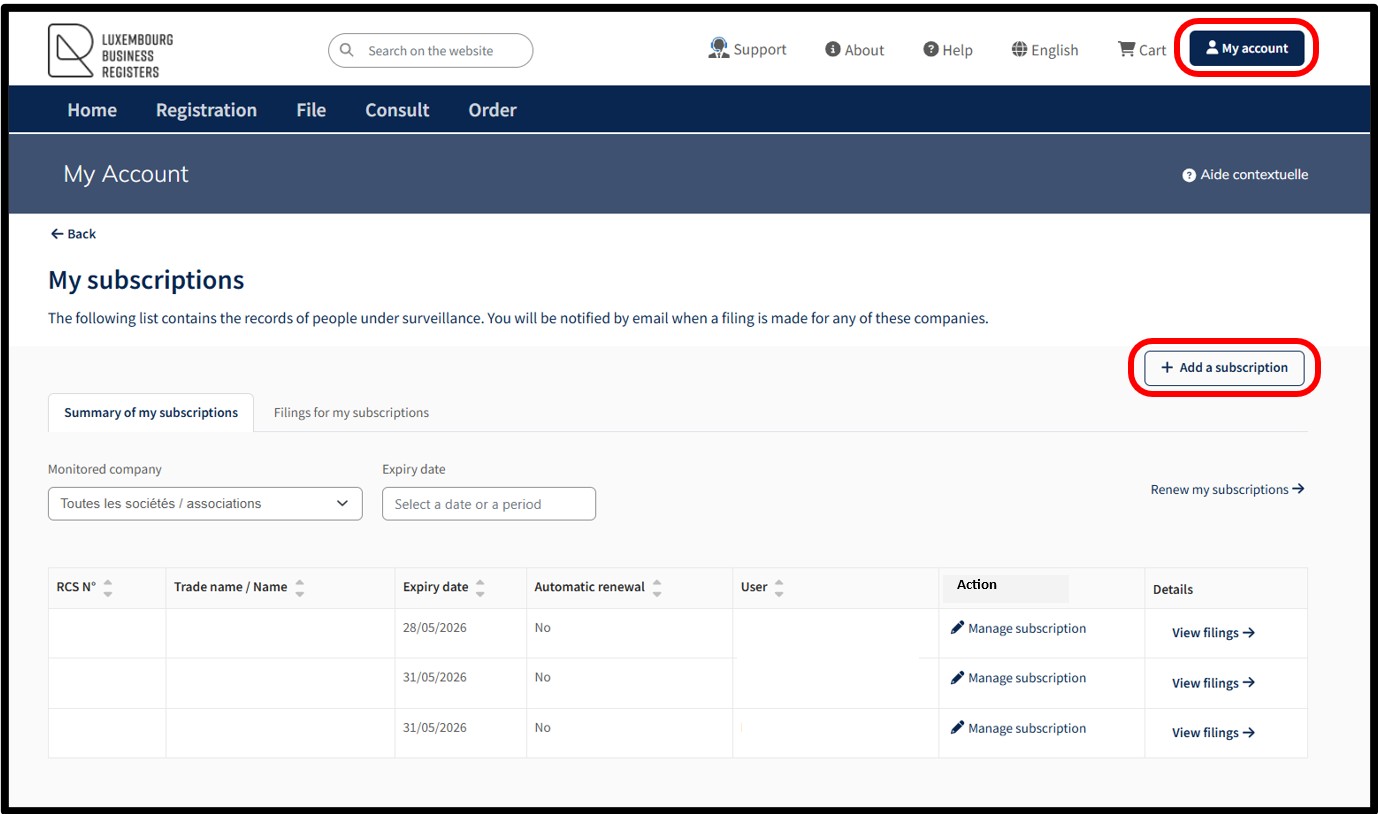
By clicking on the button Add a subscription, the user is redirected to the page where they can add a new subscription to the list of their existing subscriptions.
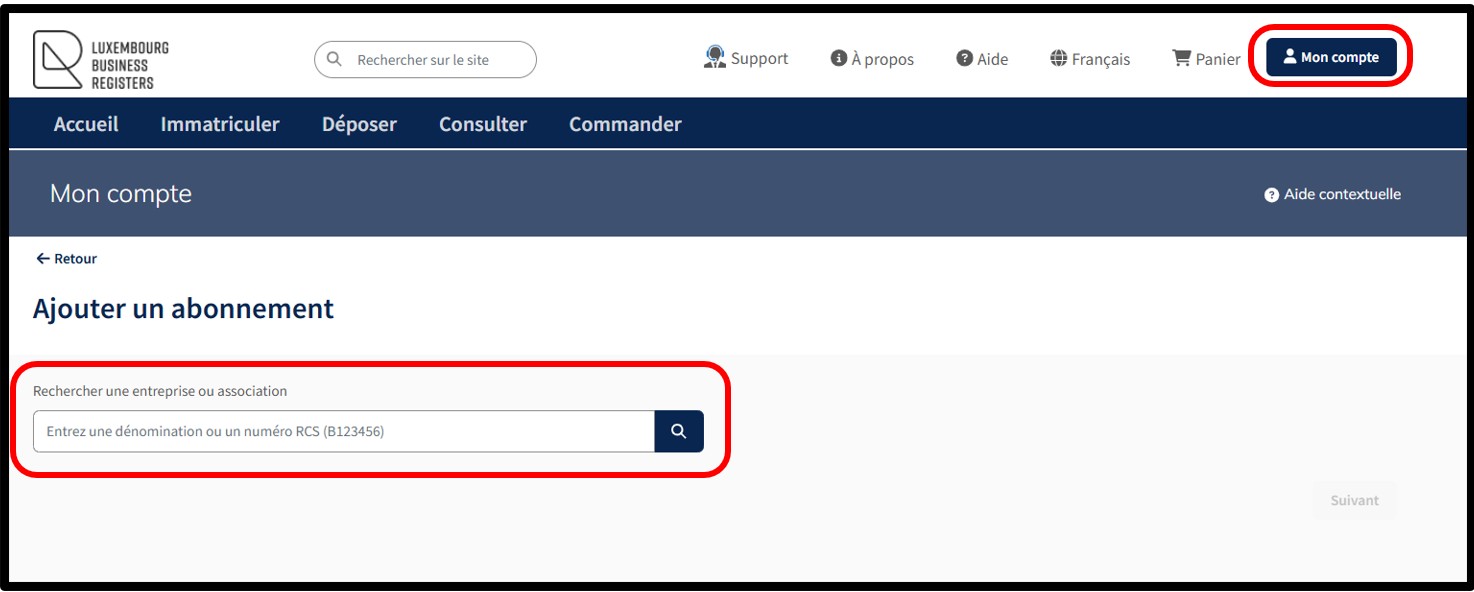
The user is invited to use the search functionality to identify the entity concerned for which they would like to order a subscription, by entering either its RCS number or its trade name as a search criterion. Once the search has been carried out and the relevant entity selected, the user is directed to the page where they can order an annual subscription relating to the monitoring of filings for the selected entity.
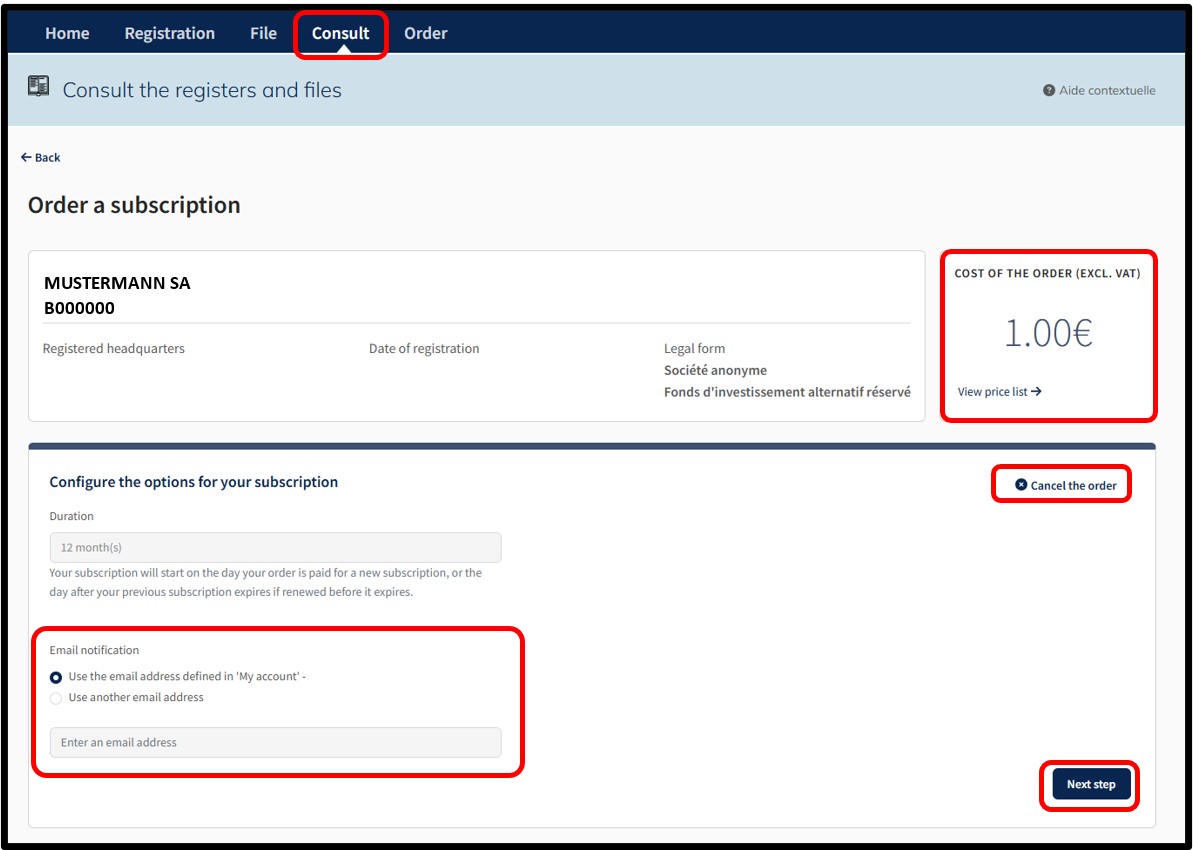
The user can cancel their order by clicking on the Cancel the order option.
The amount of the order is displayed in the Cost of the order (excl. VAT) field at the top right of the page. The View price list link informs the user of the current prices for the type of service selected.
To order the annual subscription of filings, the user has to confirm the notification email address. By default, the notification email corresponds to the one entered when creating the user account. However, the user has the option of indicating another notification email address by selecting the option Use another email address and indicating a new email in the field provided for this purpose.
Once the information has been confirmed, the user has to click on the button Next step. On the next page, the user is redirected to the page for the verification of the order. The user finalises their order by clicking on the Add to cart button.
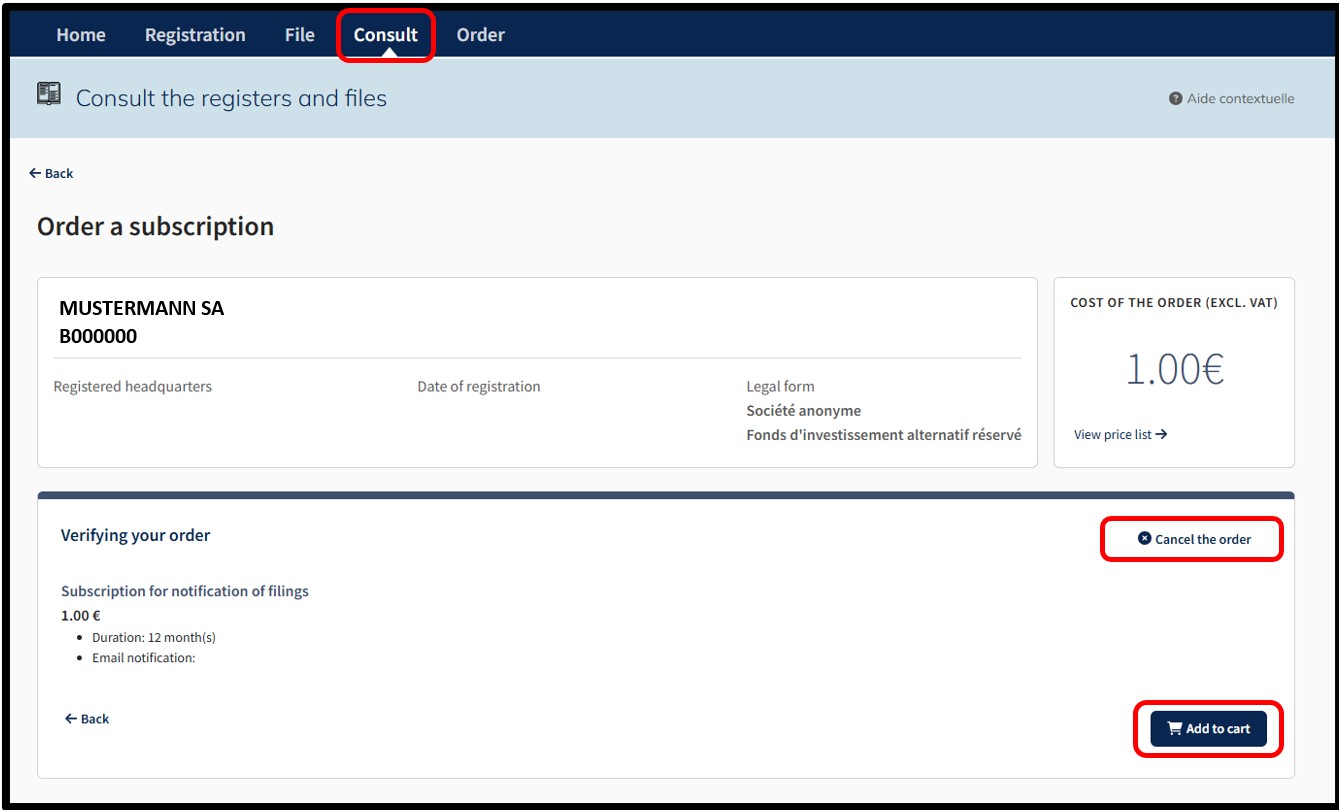
After confirming their order by clicking on the Add to cart button, the user accesses the Details of their cart, which presents a summary of their order.
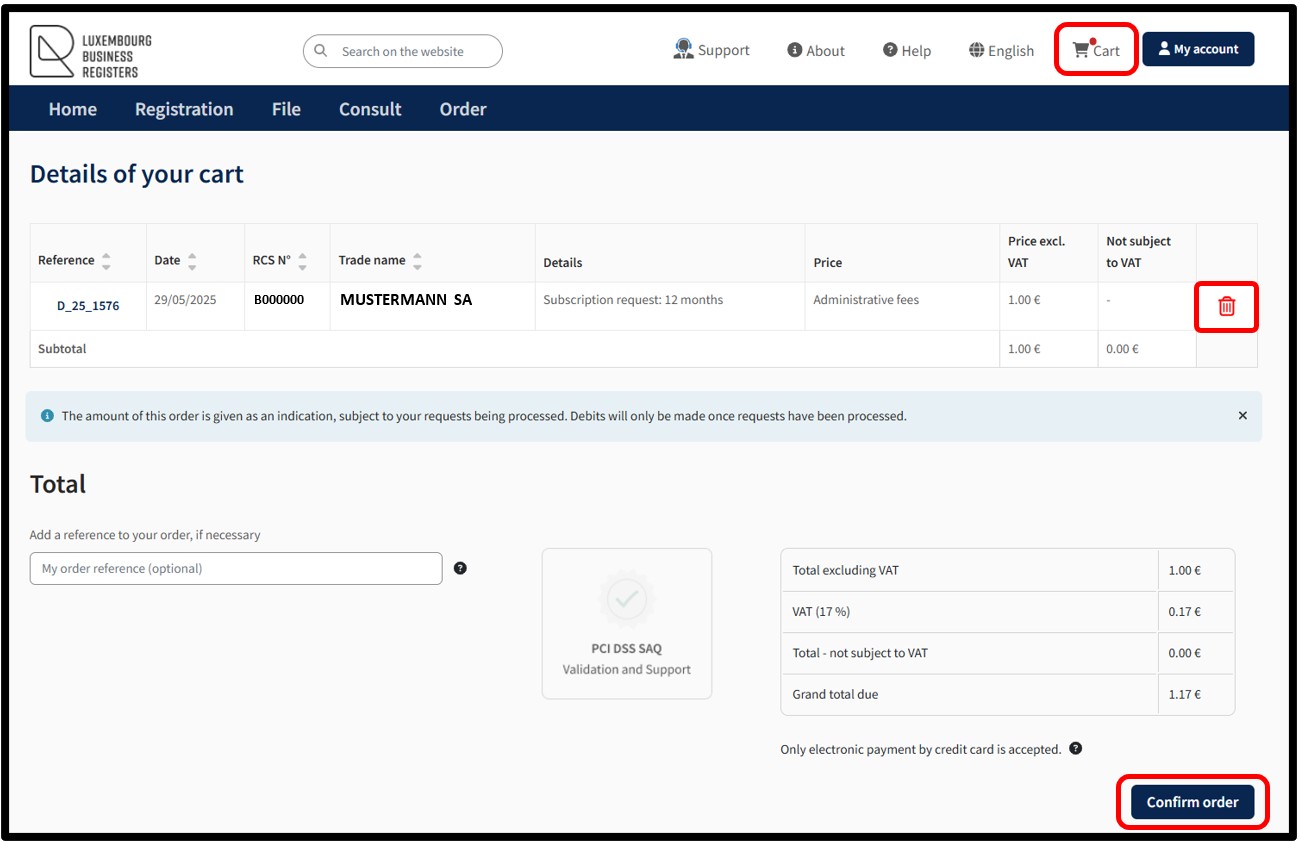
The user can delete an order from their cart by clicking on the Trash icon.
In order to confirm the order, the user has to click on the button Confirm order. By this action, the user indicates their willingness to proceed with the payment of all the requests in the cart. All the requests constitute an order. Payment is made by means of the secured electronic payment platform Saferpay from SIX Card Solutions.
After clicking on the Confirm order button, the user is redirected to the next screen Option to save a credit card, offering the possibility of saving a credit card for future payments. The user has to choose whether or not they wish to register their payment method.
Please note: The functionality of recording credit card data mandatorily requires an authentication by certificate of the user. An authentication by anonymous connection does not allow the use of this functionality.
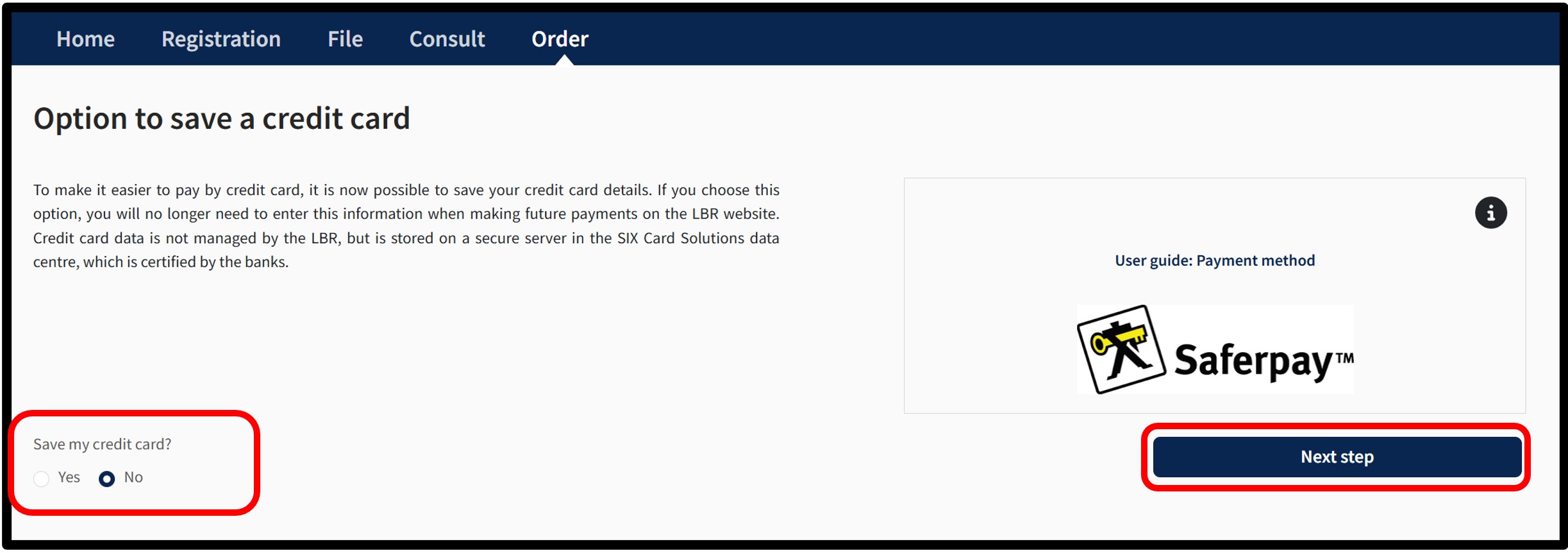
To do this, the user has to indicate their choice by checking either:
- The Yes box indicating their wish to register their payment method.
- The No box indicating their wish not to register their payment method.
To confirm their choice, the user is invited to click on the button Next step. After clicking Next step, an information pop-up about the payment process will appear on the page.
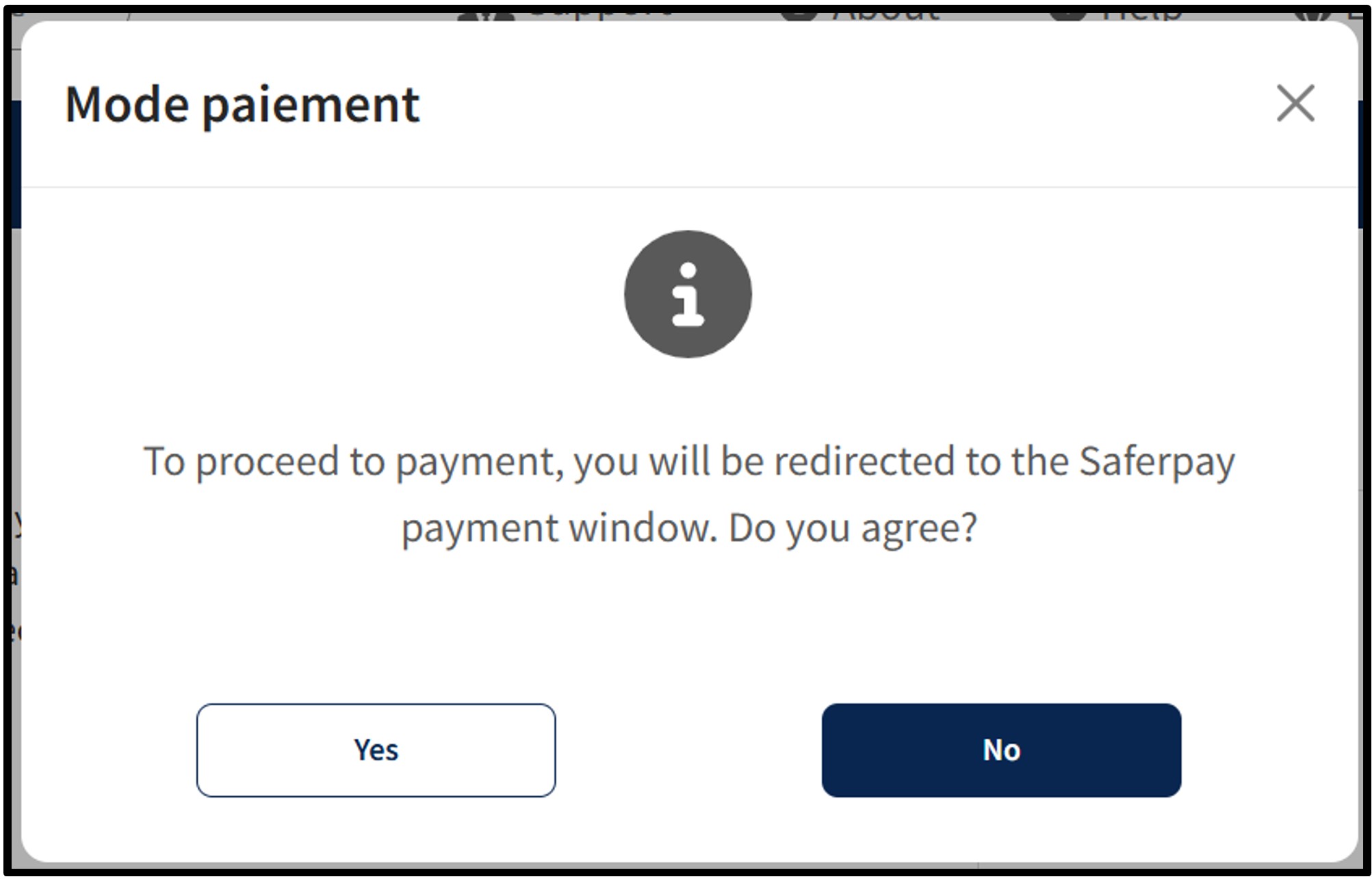
To continue the payment procedure, click on the button Yes. The user is redirected to the secured payment platform Saferpay. The user simply has to follow the instructions on the page to finalise the payment process. To cancel the payment procedure, click on the No button.
Once the payment process has been finalised and provided that the payment is accepted, the user is then redirected to the Confirmed order form page.
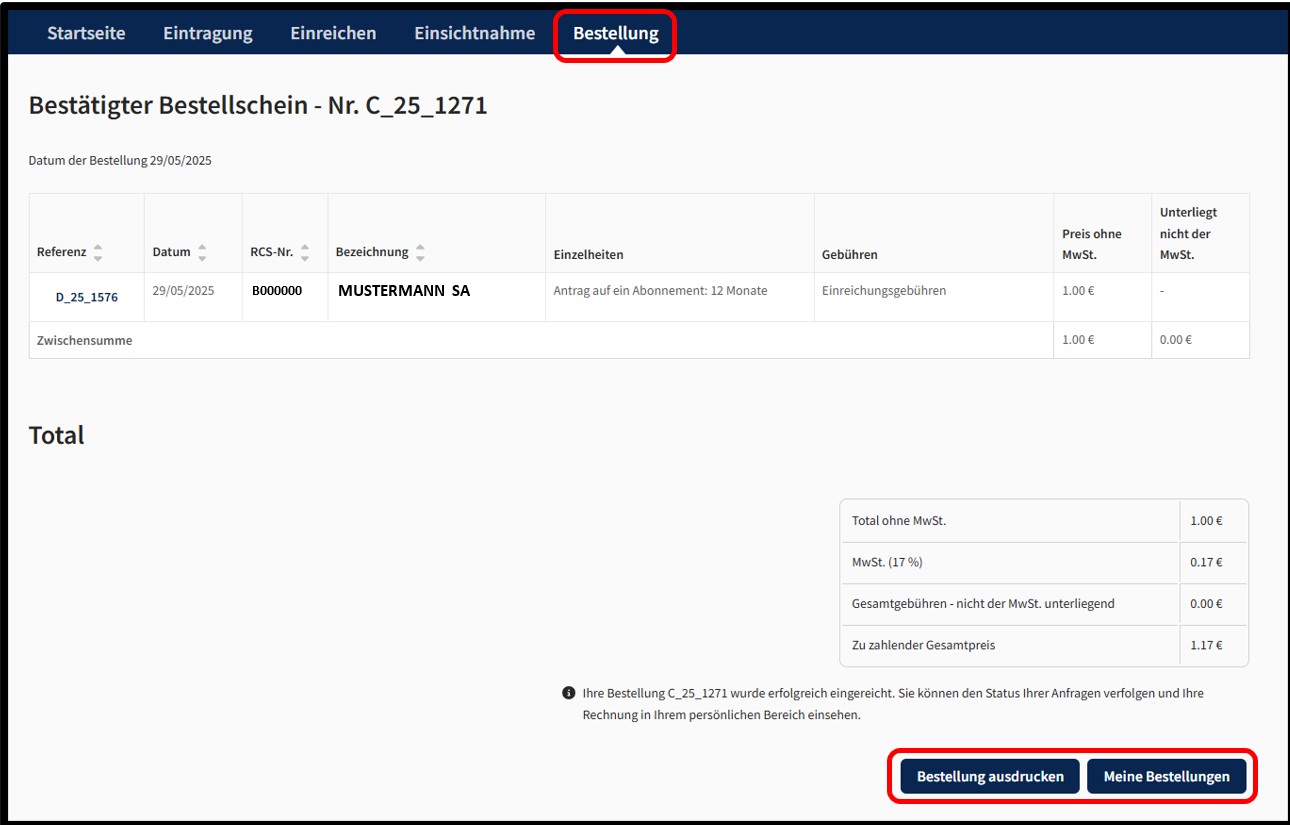
The user can print their Confirmed order form in PDF format by clicking on the Print the order button. The user will find their subscriptions for filings in the My subscriptions section of their customer space, which can be accessed via the My Account menu.