Modification of beneficial owners
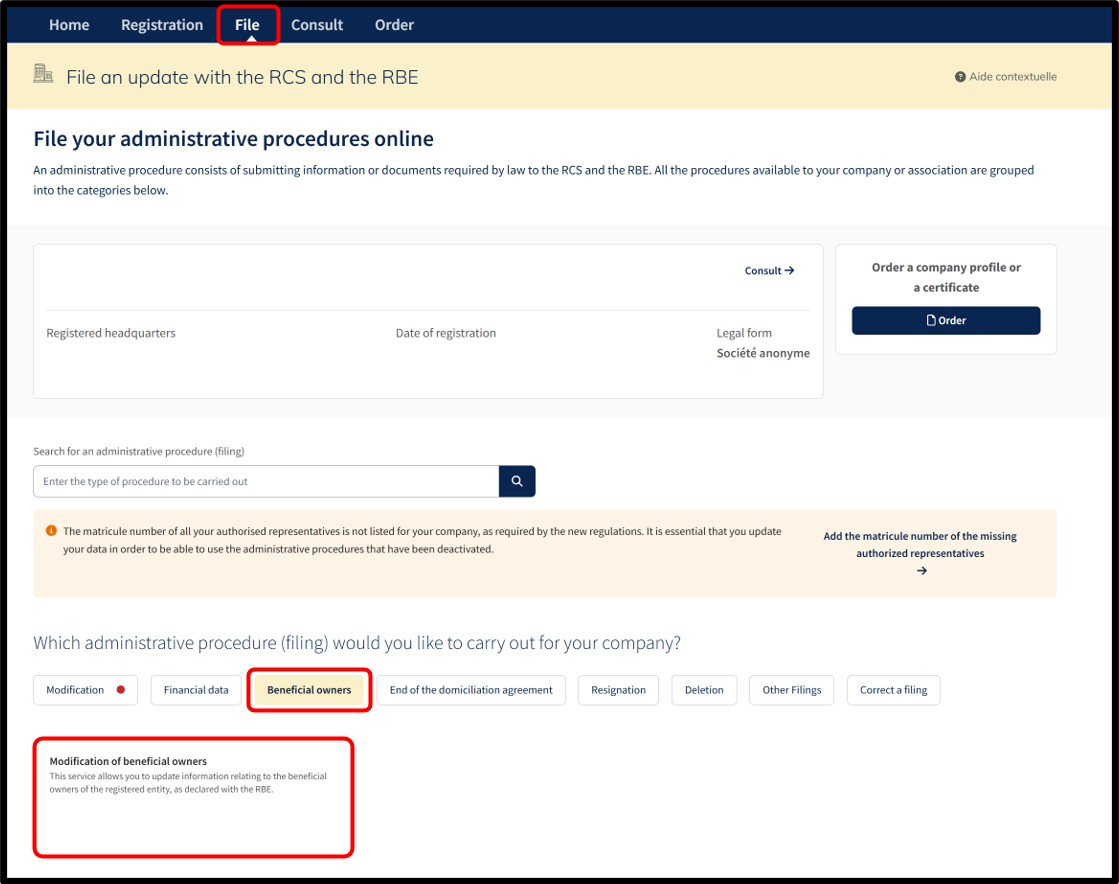
Entities registered with the RCS wishing to modify information relating to their beneficial owner(s) must submit a declaration of modification with the RBE using the Beneficial owners procedure and by selecting the service Modification of beneficial owners.
The modification of one or more beneficial owners requires that the entity has previously made an initial declaration with the RBE.
In order to facilitate modifications to the information entered in the RBE, the data entry forms for filing modifications are pre-filled with the data entered in the RBE at the time the request is made available.
In order to modify the beneficial owners, the user must have authenticated themselves using a LuxTrust electronic certificate, via the GouvID application or an eIDAS certificate.
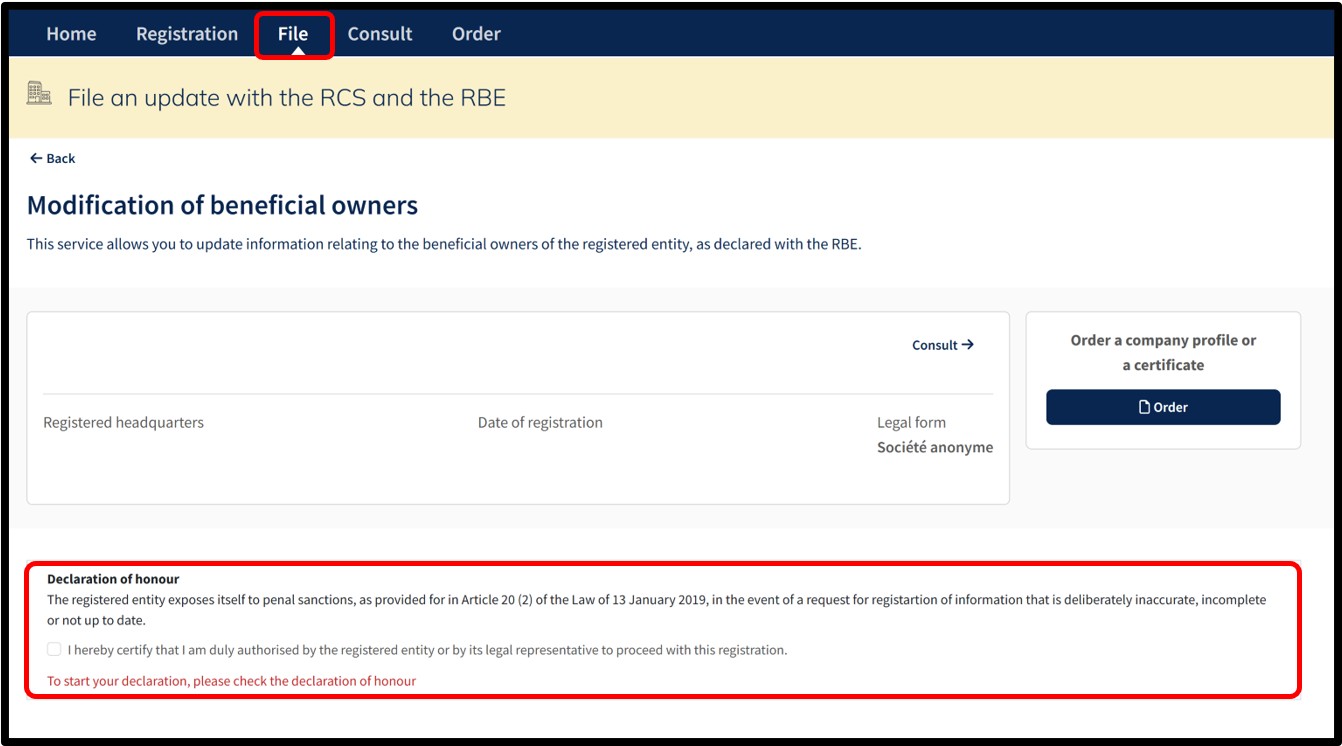
After selecting this service, the user moves on to the next page where they must check the box relating to the Declaration of honour in order to certify that they are duly mandated to make the modification.
Without this action, it is impossible for the user to continue with the procedure for modifying the beneficial owners.
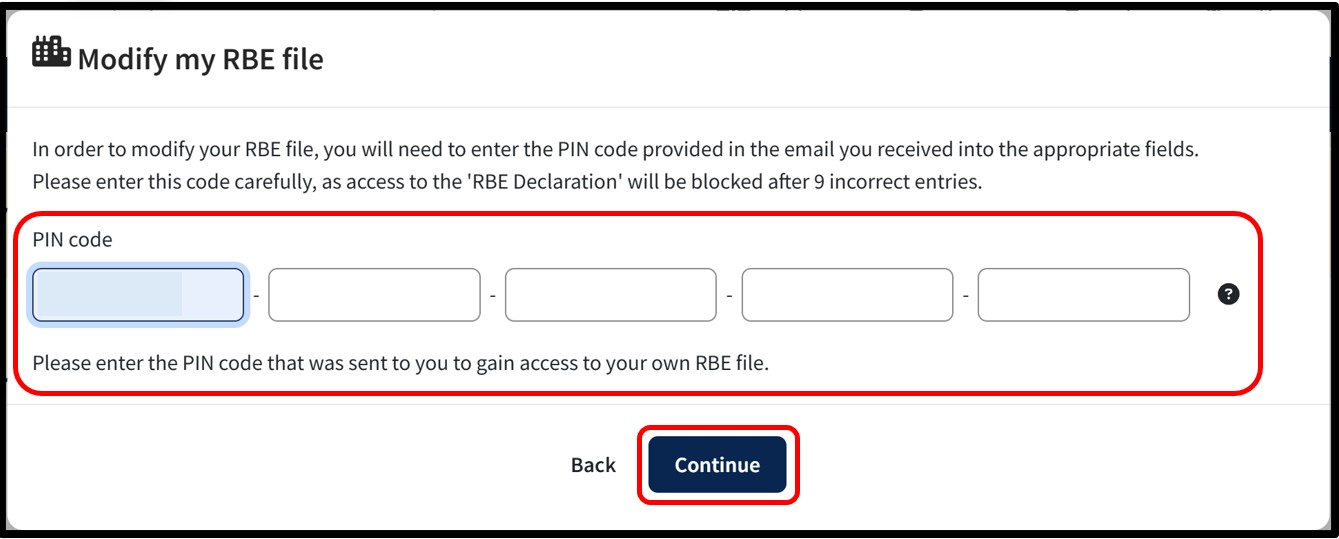
Once the Declaration of honour box has been checked, the user will see a pop-up window where they can enter the PIN code that was sent to them by post to access their own RBE file.
After entering the PIN code, the user is prompted to click on the Continue button.
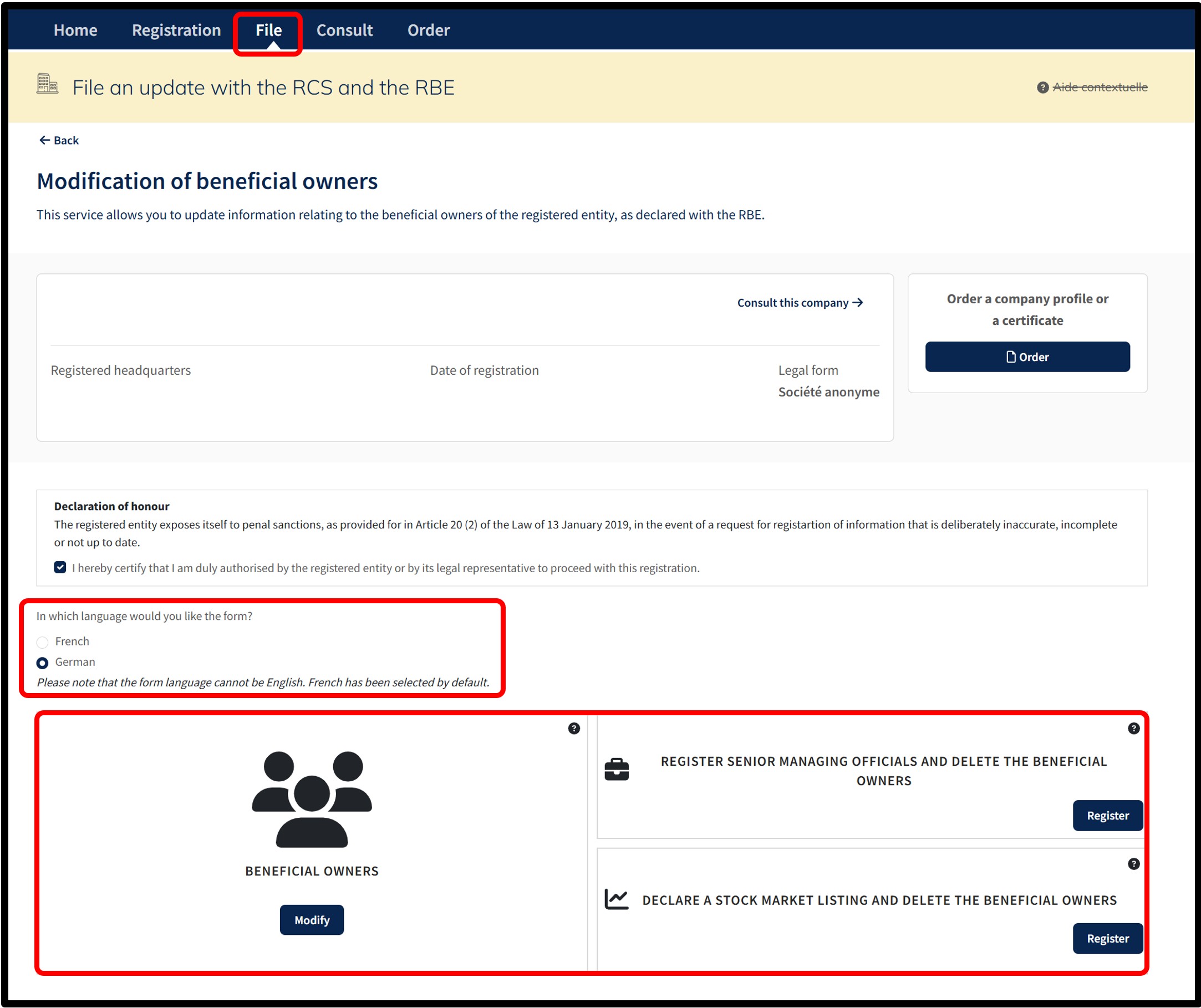
Specific case 1 : After clicking on the Continue button, the user is taken to the page where they are asked to select the language of the data entry form for the modification request.
If the modification concerns beneficial owners, the user will be offered three options:
- Modify beneficial owners
- Register senior managing officials and delete beneficial owners
- Declare a stock exchange listing and delete beneficial owners
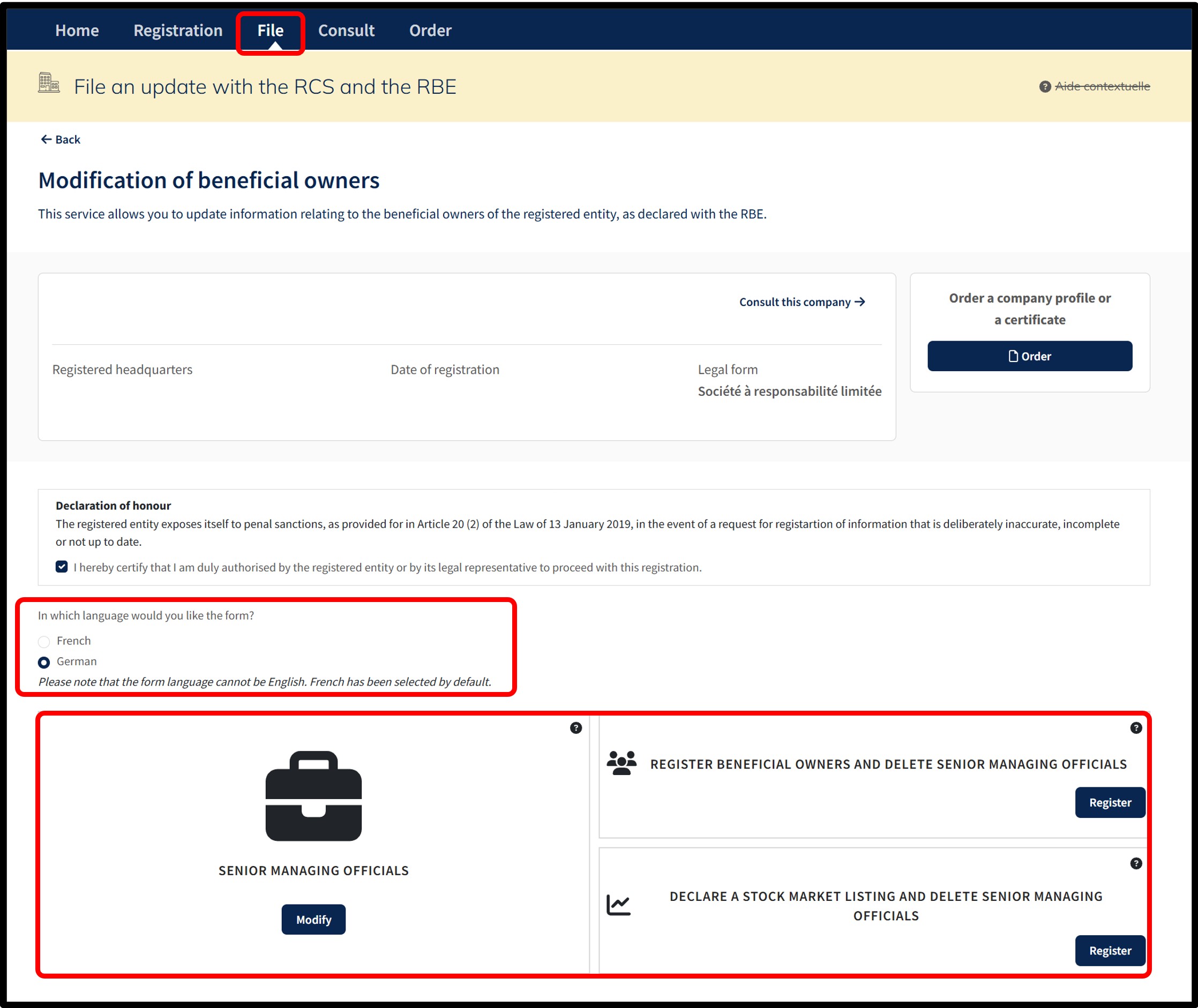
Specific case 2 : After clicking on the Continue button, the user is taken to the page where they are asked to select the language of the data entry form for the modification request.
If the modification concerns senior managing officials, the user is offered three options:
- Modify senior managing officials
- Register beneficial owners and delete senior managing officials
- Declare a stock exchange listing and delete senior managing officials
The user validates the creation of their modification request by clicking on the Modify / Register button corresponding to the type of modification they wish to file with the RBE. The user is then redirected to the data entry form corresponding to the selected service.
Modification of beneficial owners
Data entry form: Things to know
Beneficial owners
In the section Saisie des données à inscrire (Enter data to be registered), the user can access the list of beneficial owners declared for their entity. The user has two options:
- The Modifier (Modify) option allows them to modify the data relating to the beneficial owner(s) registered with the RBE.
- The Rayer (Delete) option allows them to delete the beneficial owner(s) registered with the RBE.
The user also has the option of:
- Adding a beneficial owner by clicking on the Ajouter un bénéficiaire effectif (Add a beneficial owner) link.
- Modify a beneficial owner who cannot be consulted (Art. 15) (if applicable).
- Delete a beneficial owner who cannot be consulted (Art. 15) (if applicable).
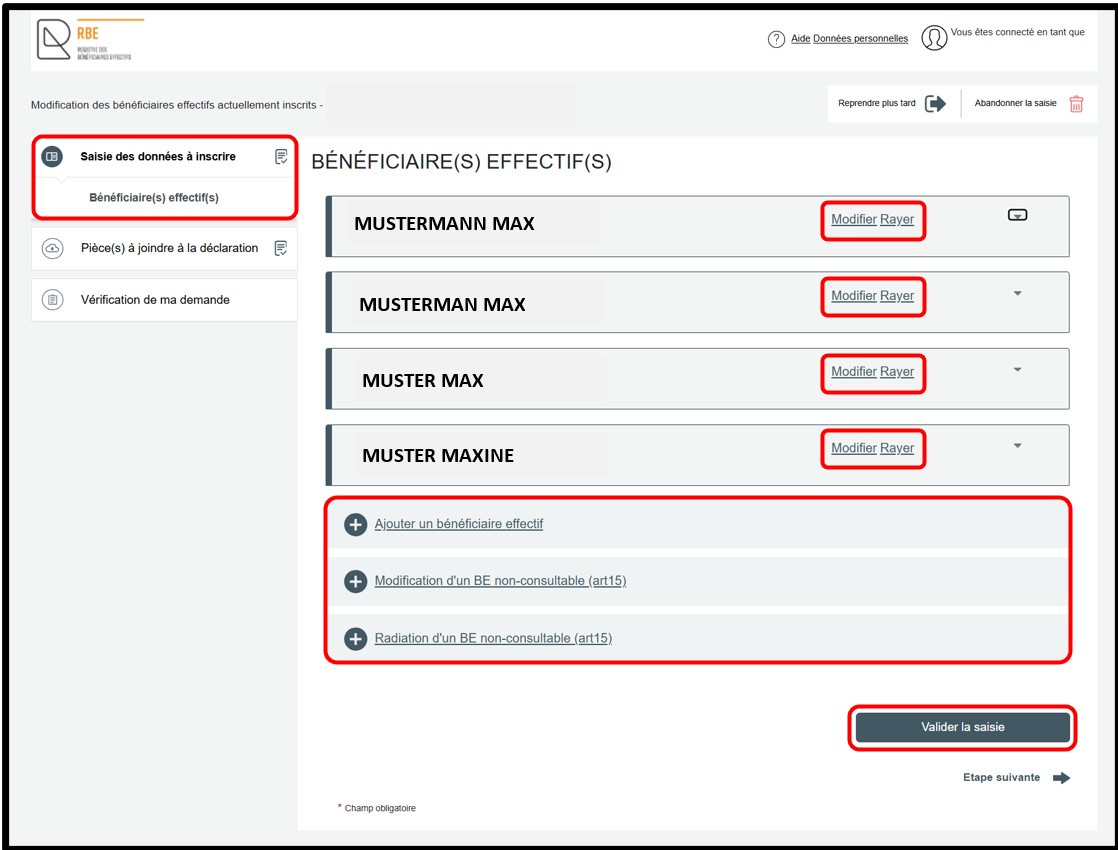
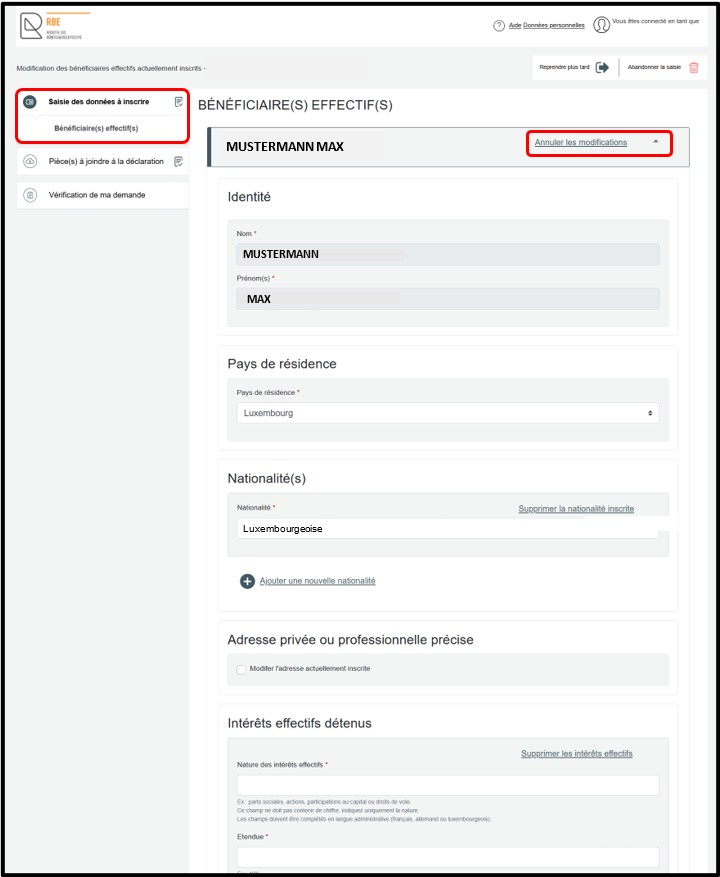
In order to modify one or more pieces of information concerning the beneficial owner, the user has to click on the Modifier (Modify) option. By clicking on this option, the user unlocks the fields available for modification, allowing them to make the desired changes. The user is invited to click in the input field to activate the cursor and thus enable them to modify the data.
The user can cancel their modification by clicking on the Annuler la modification (Cancel modification) option. The original data will reappear in the field concerned. Once the modifications have been entered, the user has to click on the Valider la saisie (Validate entry) button. This action triggers a verification of the data entered. Any errors or missing data are highlighted in red on the page. The user is then asked to correct them before continuing.
If applicable, depending on the type of modification entered or the addition of a beneficial owner, the user proceeds to the next step by clicking on the section Pièce(s) à joindre à la déclaration (Documents to be attached to the declaration).
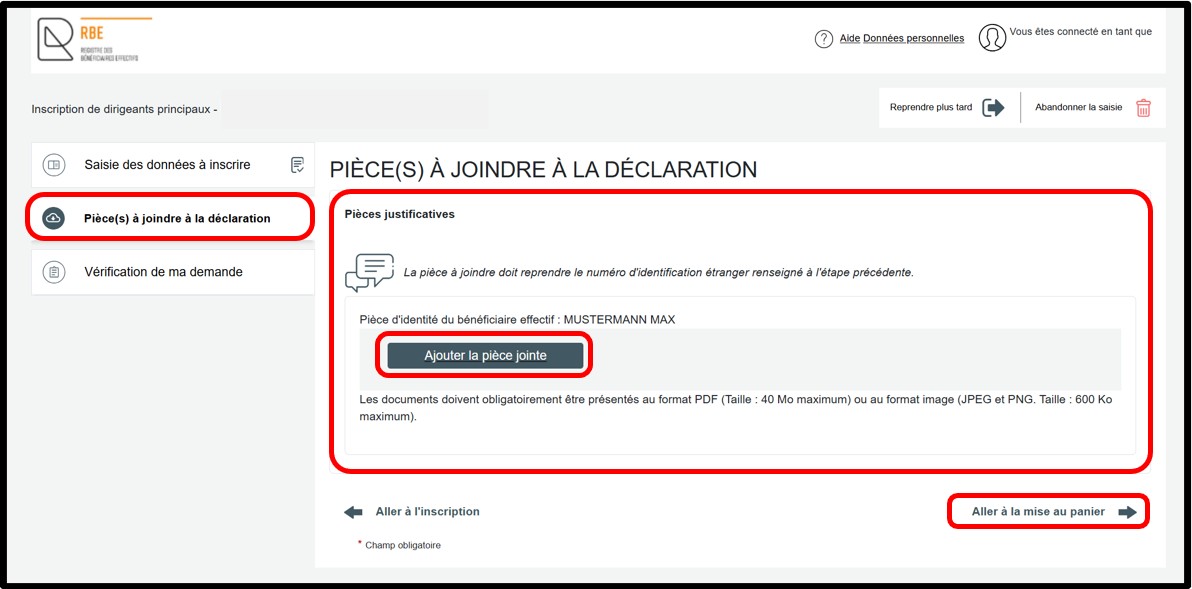
If applicable, in the section Pièce(s) à joindre à la déclaration (Documents to be attached to the declaration), the user must attach the required documentary evidence in the Pièces justificatives (Documentary evidence) field by clicking on the Ajouter la pièce jointe (Add attachment) button. The list of documents to be attached is provided based on the information entered in the Saisie des données à inscrire (Enter data to be registered) section. To continue with the modification declaration, the user must then click on the Aller à la mise au panier (Go to cart) link.
The Vérification de ma demande (Verification of my application) section contains a summary of the request for verification purposes by the user before it is placed in the cart.
The user is invited to view the summary of their declaration in PDF format by clicking on the link Visualiser le récapitulatif de ma demande en français (View a summary of my request in French). In the event of an error found when verifying the summary document, the user can return to the request by clicking on the previous step until reaching the section or sub-section for which the information needs to be corrected.
If, at this stage of reviewing the summary document, the user confirms that the information entered is correct, they must check the box J’ai contrôlé mon document récapitulatif (I have verified my summary document).
The user can also indicate a declaration reference in the Ma référence de déclaration (My declaration reference) field, which can be defined freely, to better organize their requests. The user then validates their declaration by clicking on the Ajouter la demande au panier (Add request to cart) button.

Senior managing officials
In the section Saisie des données à inscrire (Enter data to be registered), the user can access the list of senior managing officials declared for their entity. The user has two options:
- The Modifier (Modify) option allows them to modify the data relating to the senior managing official(s) registered with the RBE.
- The Rayer (Delete) option allows them to delete the senior managaing official(s) registered with the RBE.
The user also has the option of:
- Adding a senior managing official by clicking on the Ajouter un dirigieant principal (Add a senior managing official) link.
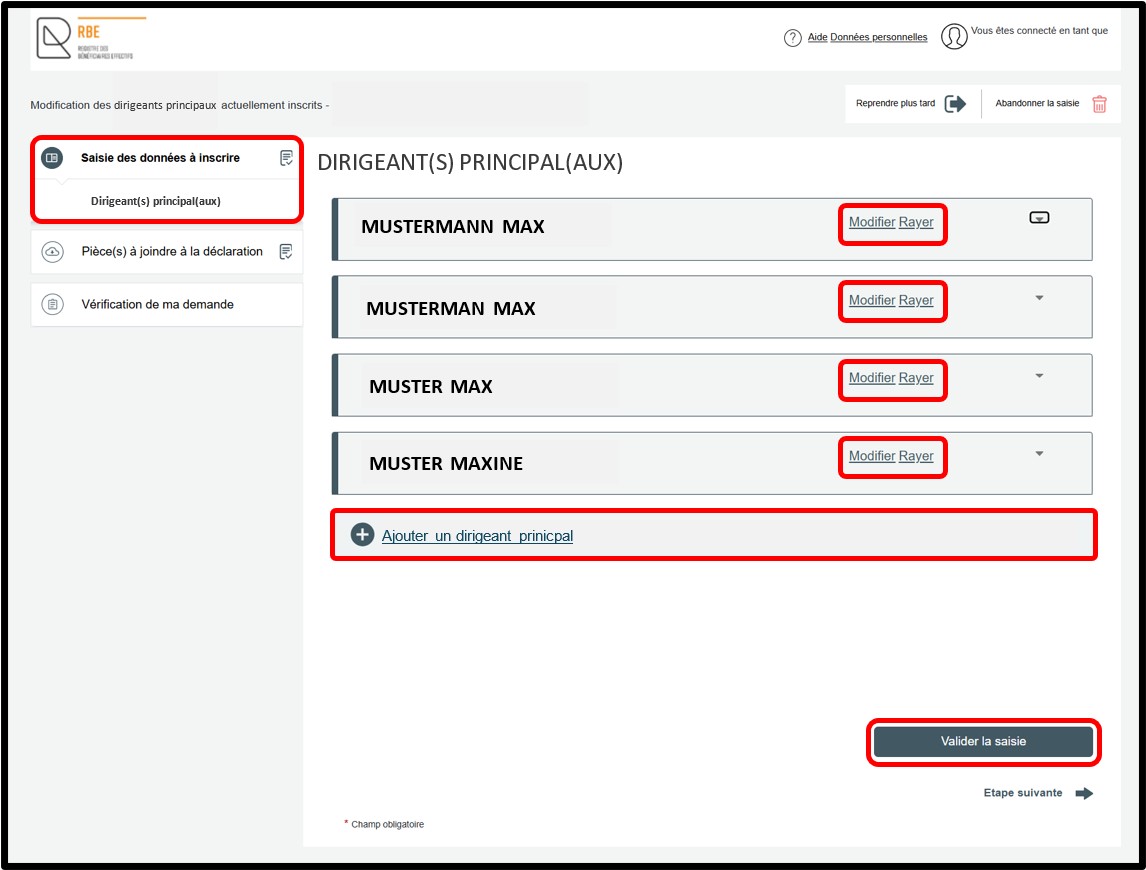
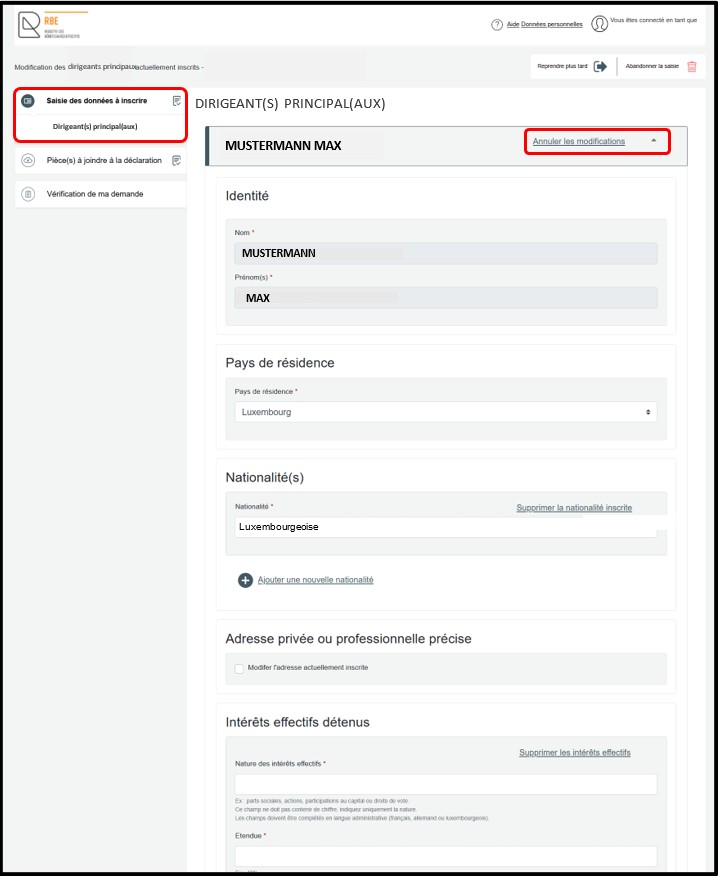
In order to modify one or more pieces of information concerning the senior managing official, the user has to click on the Modifier (Modify) option. By clicking on this option, the user unlocks the fields available for modification, allowing them to make the desired changes. The user is invited to click in the input field to activate the cursor and thus enable them to modify the data.
The user can cancel their modification by clicking on the Annuler la modification (Cancel modification) option. The original data will reappear in the field concerned. Once the modifications have been entered, the user has to click on the Valider la saisie (Validate entry) button. This action triggers a verification of the data entered. Any errors or missing data are highlighted in red on the page. The user is then asked to correct them before continuing.
If applicable, depending on the type of modification entered or the addition of a senior managing official, the user proceeds to the next step by clicking on the section Pièce(s) à joindre à la déclaration (Documents to be attached to the declaration).
If applicable, in the section Pièce(s) à joindre à la déclaration (Documents to be attached to the declaration), the user must attach the required documentary evidence in the Pièces justificatives (Documentary evidence) field by clicking on the Ajouter la pièce jointe (Add attachment) button. The list of documents to be attached is provided based on the information entered in the Saisie des données à inscrire (Enter data to be registered) section. To continue with the modification declaration, the user must then click on the Aller à la mise au panier (Go to cart) link.
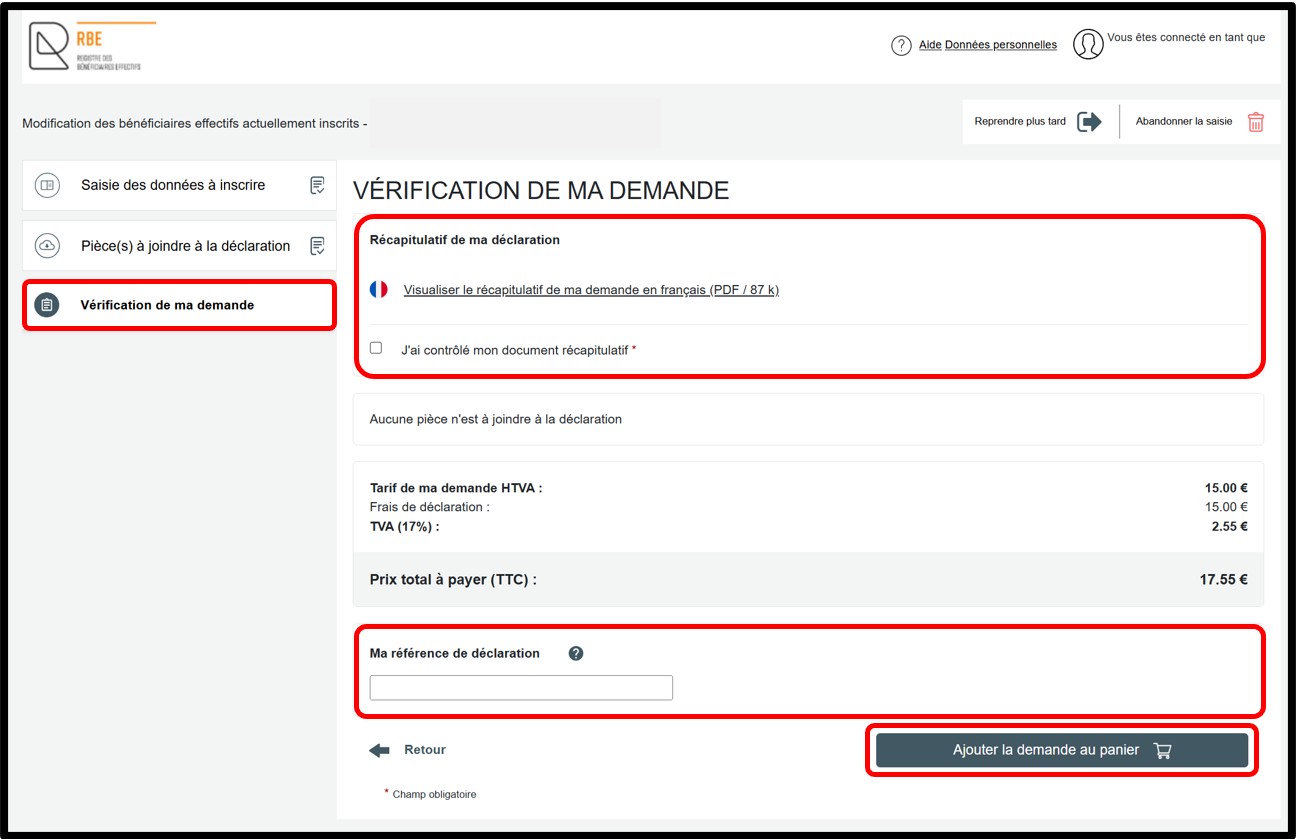
The Vérification de ma demande (Verification of my application) section contains a summary of the request for verification purposes by the user before it is placed in the cart.
The user is invited to view the summary of their declaration in PDF format by clicking on the link Visualiser le récapitulatif de ma demande en français (View a summary of my request in French). In the event of an error found when verifying the summary document, the user can return to the request by clicking on the previous step until reaching the section or sub-section for which the information needs to be corrected.
If, at this stage of reviewing the summary document, the user confirms that the information entered is correct, they must check the box J’ai contrôlé mon document récapitulatif (I have verified my summary document).
The user can also indicate a declaration reference in the Ma référence de déclaration (My declaration reference) field, which can be defined freely, to better organize their requests. The user then validates their declaration by clicking on the Ajouter la demande au panier (Add request to cart) button.
Deletion of beneficial owners
Data entry form: Things to know
Beneficial owners
In the section Saisie des données à inscrire (Enter data to be registered), the user can access the list of beneficial owners declared for their entity. The user has two options:
- The Modifier (Modify) option allows them to modify the data relating to the beneficial owner(s) registered with the RBE.
- The Rayer (Delete) option allows them to delete the beneficial owner(s) registered with the RBE.
The user also has the option of:
- Adding a beneficial owner by clicking on the Ajouter un bénéficiaire effectif (Add a beneficial owner) link.
- Modify a beneficial owner who cannot be consulted (Art. 15) (if applicable).
- Delete a beneficial owner who cannot be consulted (Art. 15) (if applicable).
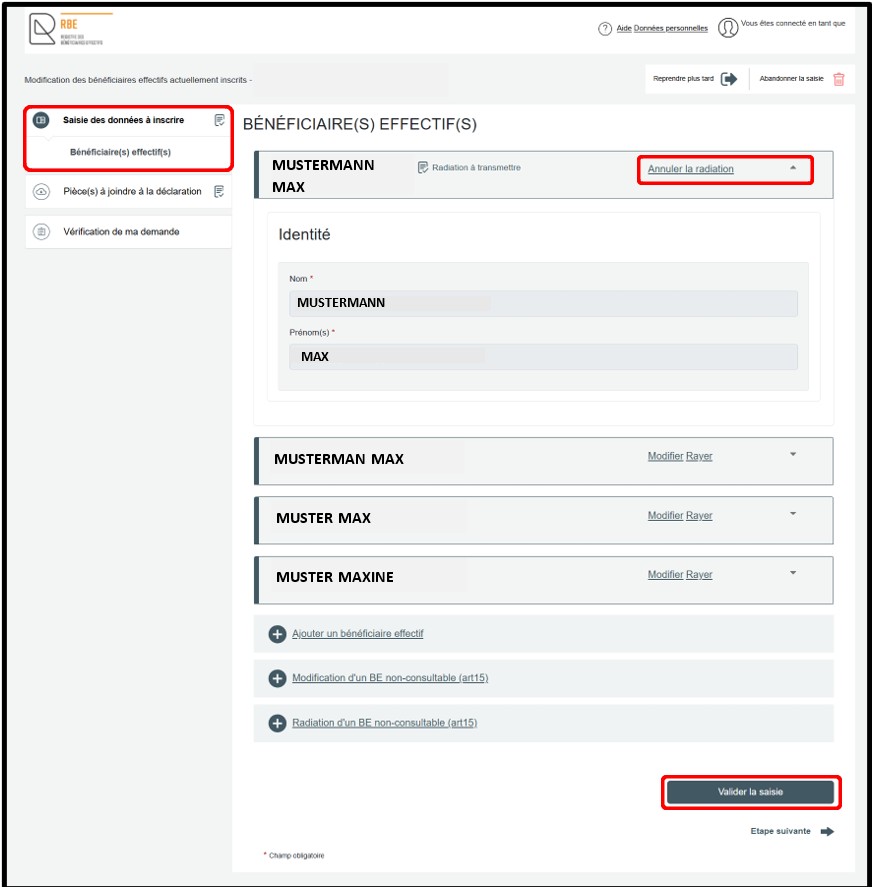
In order to delete the beneficial owner, the user has to click on the Rayer (Delete) option. By clicking on this option, the user deletes the beneficial owner registered with the RBE. The user can cancel the deletion by clicking on the Annuler la radiation (Cancel deletion) option. After validating the entry, the user can proceed to the next step by clicking on the Vérification de ma demande (Verification of my request) section.
The Vérification de ma demande (Verification of my application) section contains a summary of the request for verification purposes by the user before it is placed in the cart.
The user is invited to view the summary of their declaration in PDF format by clicking on the link Visualiser le récapitulatif de ma demande en français (View a summary of my request in French). In the event of an error found when verifying the summary document, the user can return to the request by clicking on the previous step until reaching the section or sub-section for which the information needs to be corrected.
If, at this stage of reviewing the summary document, the user confirms that the information entered is correct, they must check the box J’ai contrôlé mon document récapitulatif (I have verified my summary document).
The user can also indicate a declaration reference in the Ma référence de déclaration (My declaration reference) field, which can be defined freely, to better organize their requests. The user then validates their declaration by clicking on the Ajouter la demande au panier (Add request to cart) button.
Senior managing officials
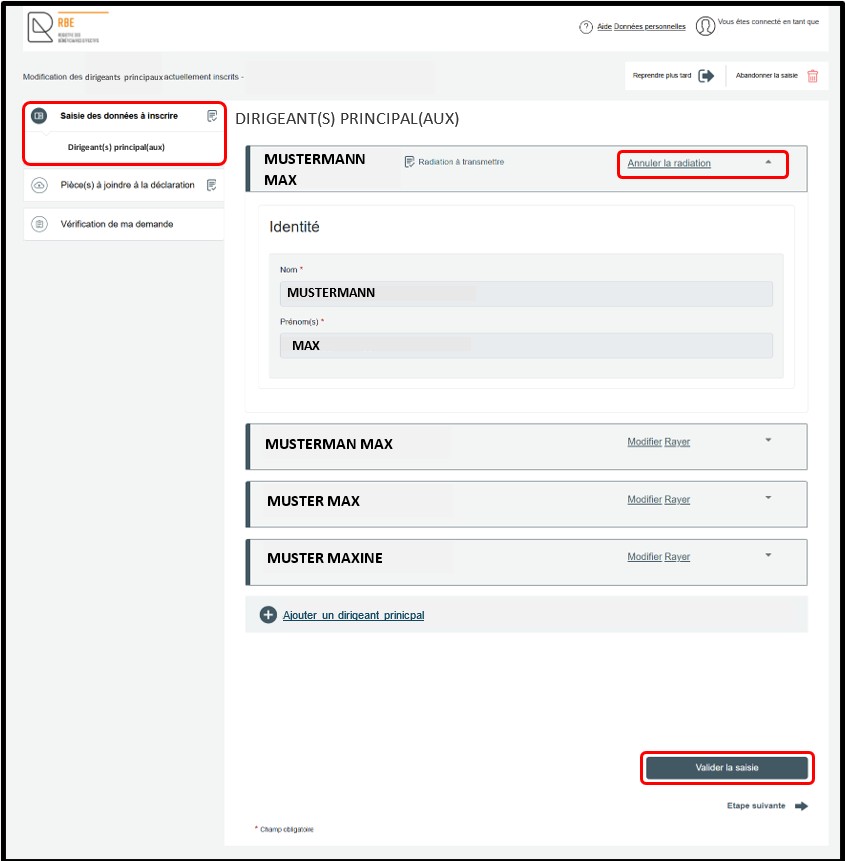
In the section Saisie des données à inscrire (Enter data to be registered), the user can access the list of senior managing officials declared for their entity. The user has two options:
- The Modifier (Modify) option allows them to modify the data relating to the senior managing official(s) registered with the RBE.
- The Rayer (Delete) option allows them to delete the senior managaing official(s) registered with the RBE.
The user also has the option of:
- Adding a senior managing official by clicking on the Ajouter un dirigieant principal (Add a senior managing official) link.
In order to delete the senior managing official, the user has to click on the Rayer (Delete) option. By clicking on this option, the user deletes the senior managing official registered with the RBE. The user can cancel the deletion by clicking on the Annuler la radiation (Cancel deletion) option. After validating the entry, the user can proceed to the next step by clicking on the Vérification de ma demande (Verification of my request) section.
The Vérification de ma demande (Verification of my application) section contains a summary of the request for verification purposes by the user before it is placed in the cart.
The user is invited to view the summary of their declaration in PDF format by clicking on the link Visualiser le récapitulatif de ma demande en français (View a summary of my request in French). In the event of an error found when verifying the summary document, the user can return to the request by clicking on the previous step until reaching the section or sub-section for which the information needs to be corrected.
If, at this stage of reviewing the summary document, the user confirms that the information entered is correct, they must check the box J’ai contrôlé mon document récapitulatif (I have verified my summary document).
The user can also indicate a declaration reference in the Ma référence de déclaration (My declaration reference) field, which can be defined freely, to better organize their requests. The user then validates their declaration by clicking on the Ajouter la demande au panier (Add request to cart) button.