Authentication by LuxTrust certificate - Connection
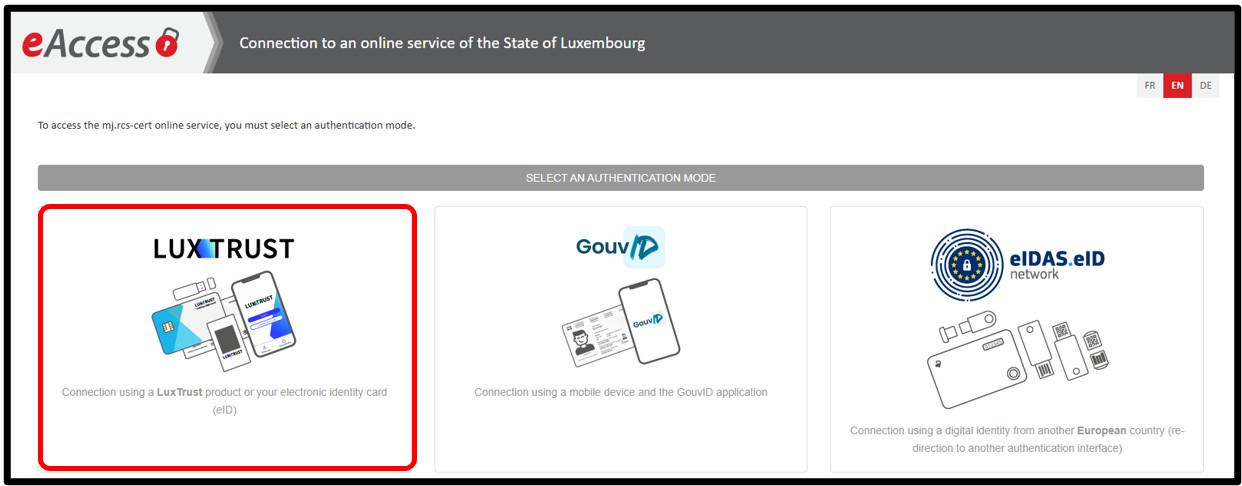
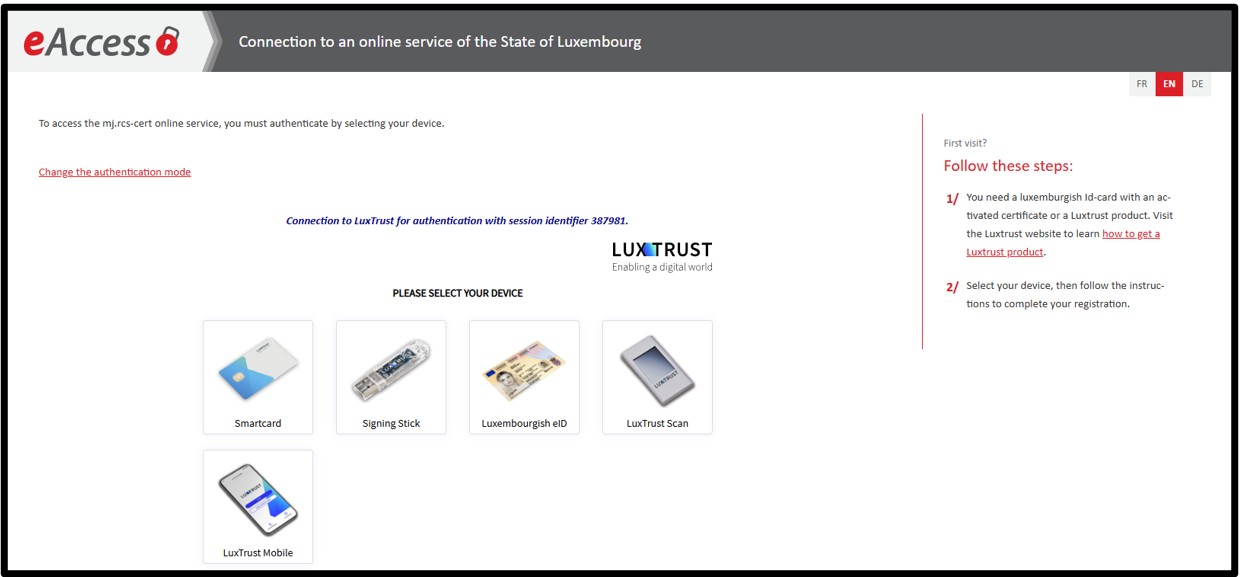
After selecting the LuxTrust certificate authentication mode, the user has to select the device containing the electronic certificate to be used from the options provided on the page.
Connection per Smartcard / Signing Stick USB / eID Card
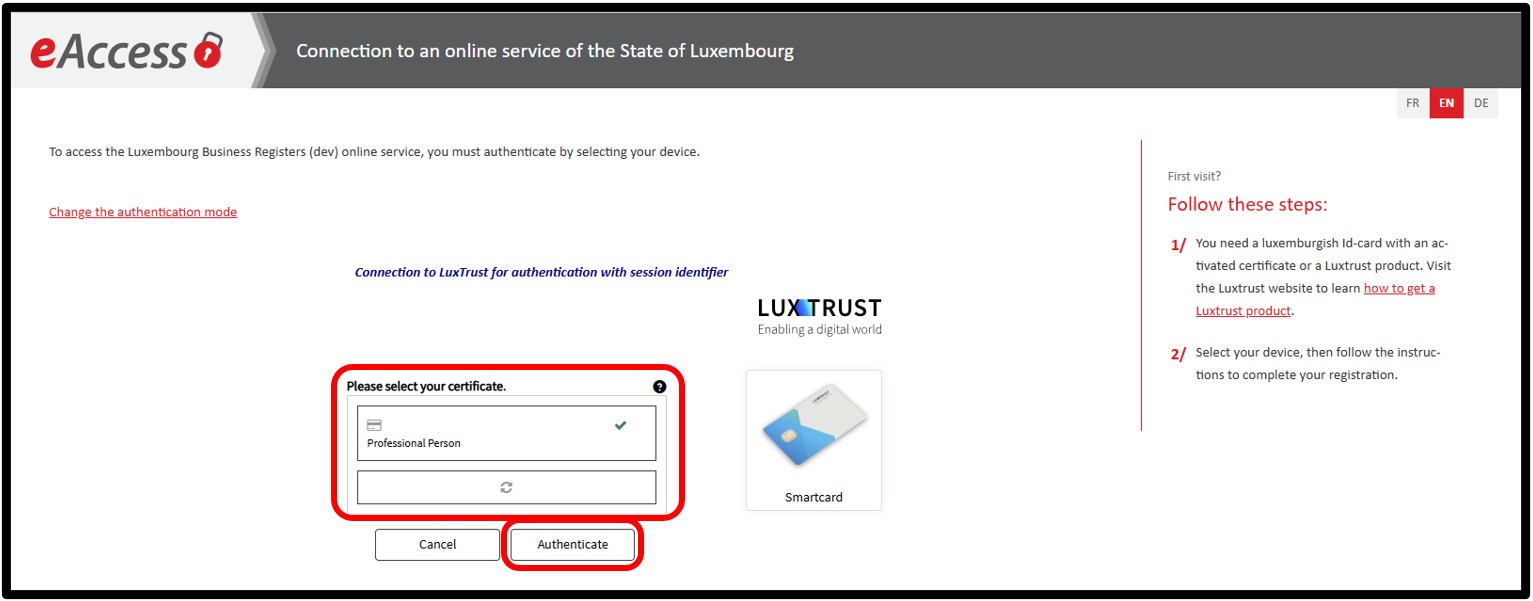
When selecting the LuxTrust Smartcard / USB Signing Stick or eID Card device, the user has to select the certificate from the list and click on the Authenticate button.
Please note: If your certificate does not appear in the list, either your system is not configured correctly or your certificate is not accessible by your system. In either case, please contact the LuxTrust helpdesk or the helpdesk of the “Centre des technologies de l’information de l’Etat” (CTIE).
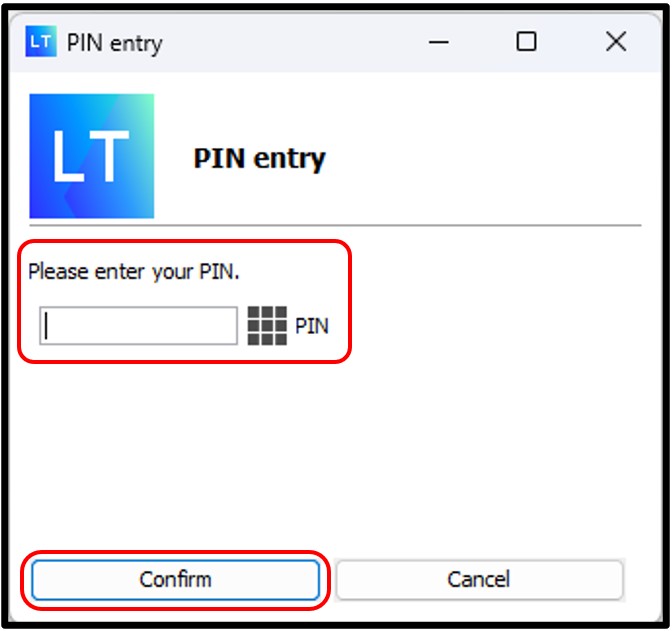
After clicking on the Authenticate button, a pop-up window appears on the page:
- The user has to enter the certificate's PIN code.
- Then click on the Confirm button.
If the certificate used is linked to several LBR accounts, the user is first redirected to the Account Selection page where they will have to indicate the user account to be used.
Once the user account has been selected, the user accesses the website's home page or, if the authentication follows an action requiring authentication, the requested page.
Connection per LuxTrust Scan / LuxTrust Mobile
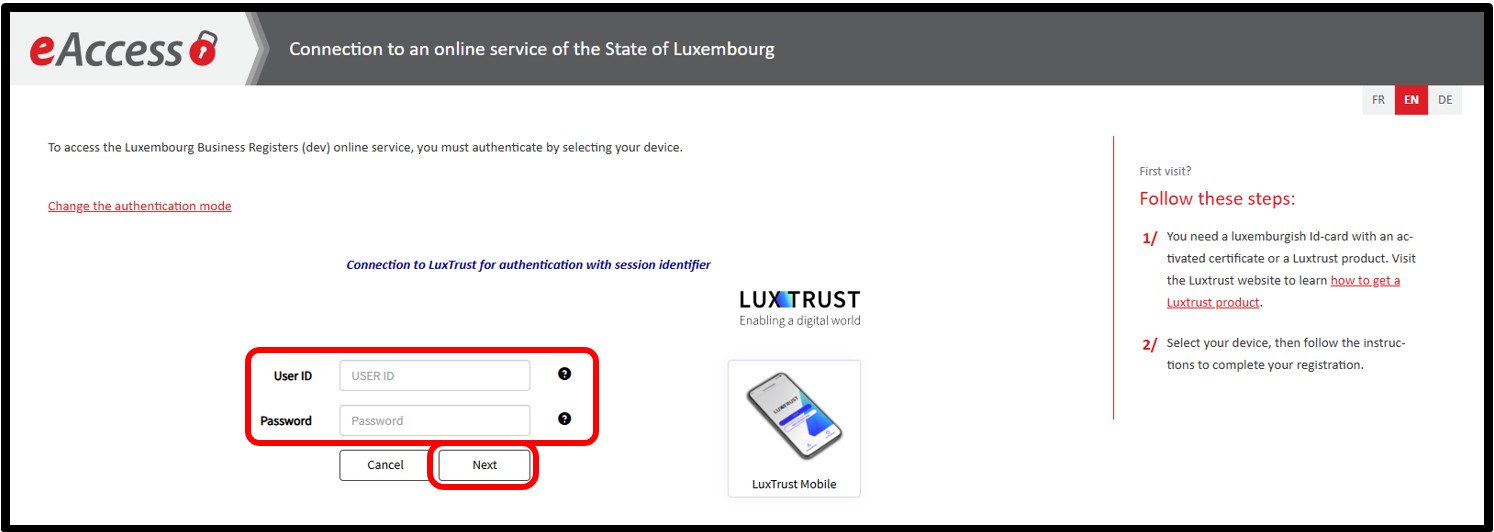
By selecting the LuxTrust Scan or LuxTrust Mobile device, the user has to enter the information requested for authentication.
The user has to enter their:
- LuxTrust User ID, which consists of 4 letters and 4 numbers.
- Password.
- Then click on the Next button.
On the next page, the user has to scan the QR code with the LuxTrust Scan device or the LuxTrust Mobile application, which has been configured on their smartphone.
Depending on the situation:
- The user has to scan the QR code with the LuxTrust Scan device or the LuxTrust Mobile app previously configured on their smartphone.
- The user has to enter their personal PIN code in the LuxTrust Mobile app to confirm their authentication.
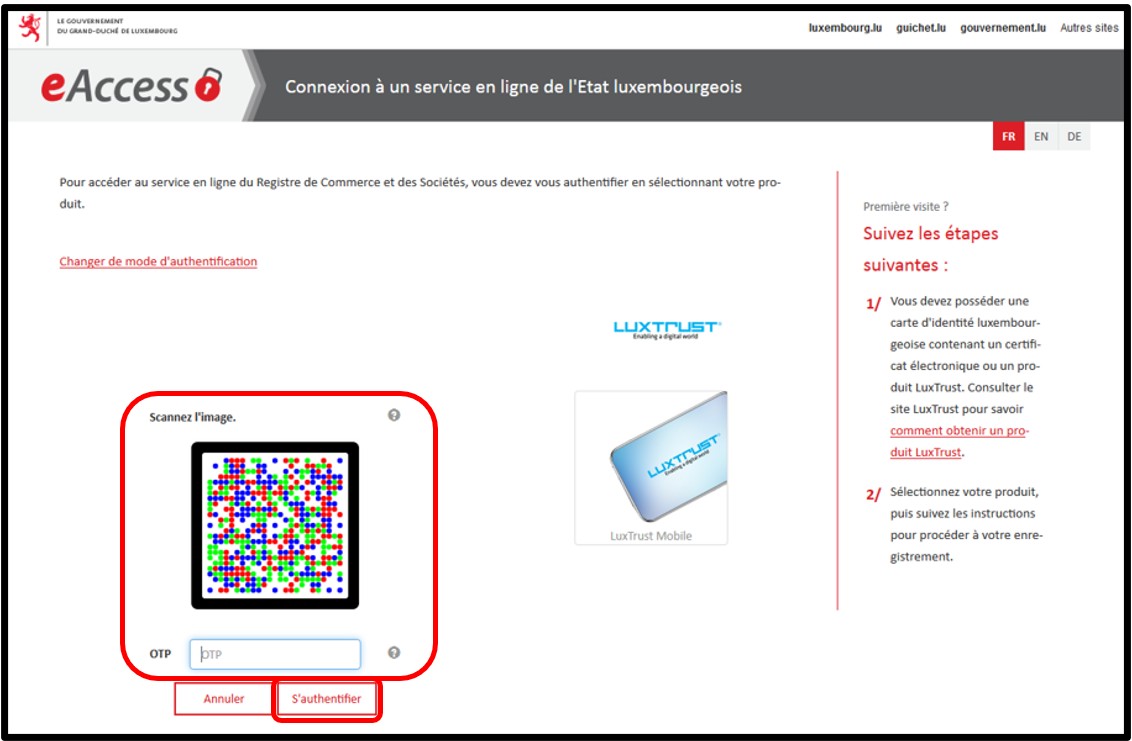
Case scenario: Scan of the QR code
After scanning the QR code on the page, the user has to enter the OTP code (a unique 8-digit code) displayed on their LuxTrust Scan or LuxTrust Mobile device, then click on the Authenticate button to finalise the connection.
If the certificate used is linked to several LBR accounts, the user is first redirected to the Account Selection page where they will have to indicate the user account to be used.
Once the user account has been selected, the user accesses the website's home page or, if the authentication follows an action requiring authentication, the requested page.
Useful information
First connection with a LuxTrust certificate - Account creation
The creation of a new user account via authentication by LuxTrust certificate is done automatically during the first connection, if the chosen certificate has not yet been used on the LBR website.
Please note: If you have an authorisation as a regular client “grand donneur d’ordre” with the LBR, please contact the LBR before creating a new user account with a certificate! The use of a professional or private LuxTrust certificate is mandatory for regular clients. The use of Smartcard PRO or LuxTrust Scan Pro or LuxTrust Mobile Pro products is mandatory for regular clients.
Create an account
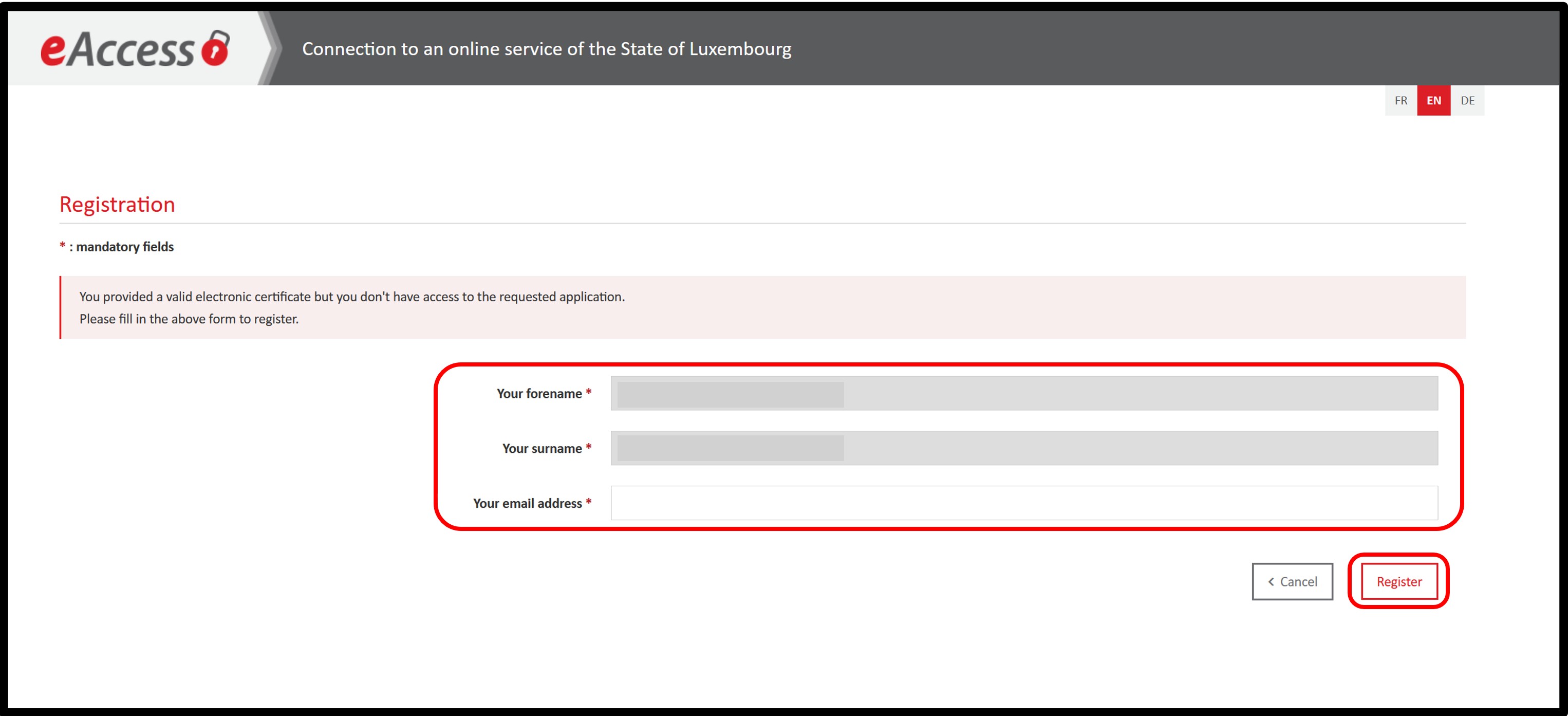
After selecting authentication by LuxTrust certificate and entering the necessary information according to the type of product, the user is invited to confirm / modify their personal details.
After entering the requested information, the user can proceed with the account creation request by clicking on the Register button.
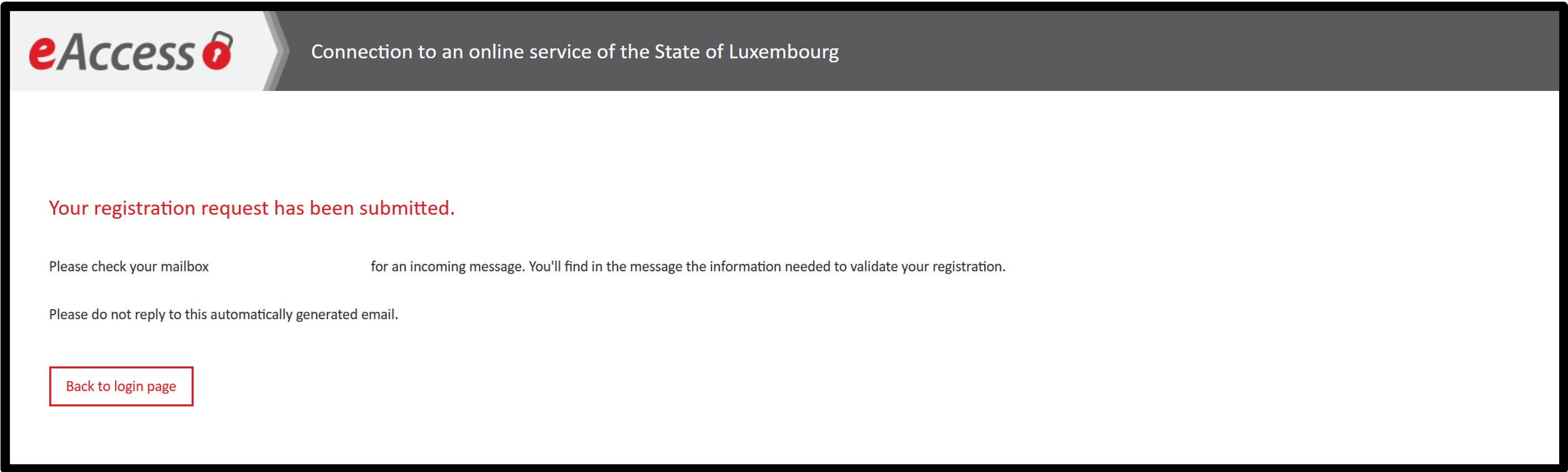
A page will confirm that the registration request has been processed. The user is invited to consult their mailbox for the registration confirmation email.
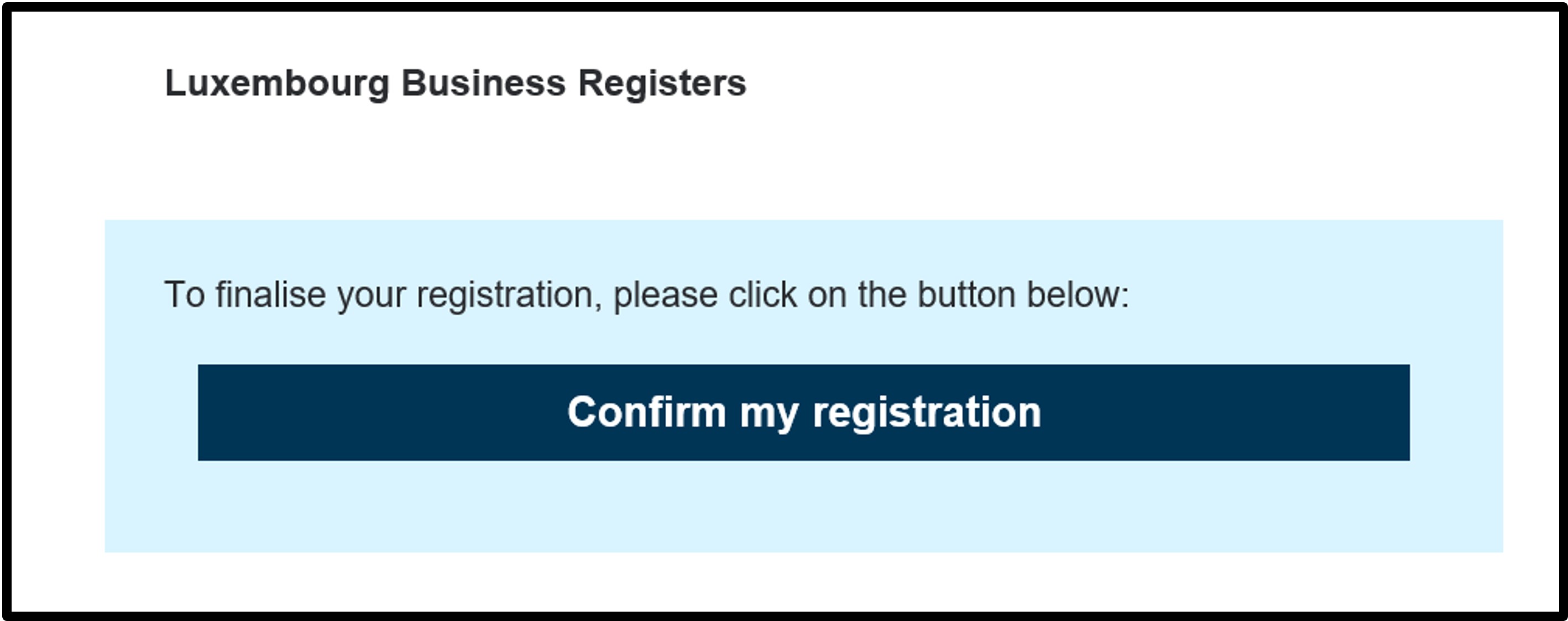
Once the registration request has been sent, the user has to access their email inbox using the address provided on the request form. In the request confirmation email, the user validates their registration by clicking on the Confirm my registration link and then following the instructions on the page.
Once the registration has been confirmed, the user is redirected to a page setting out the conditions of use of the CTIE websites, which they have to accept in order to activate their new account.
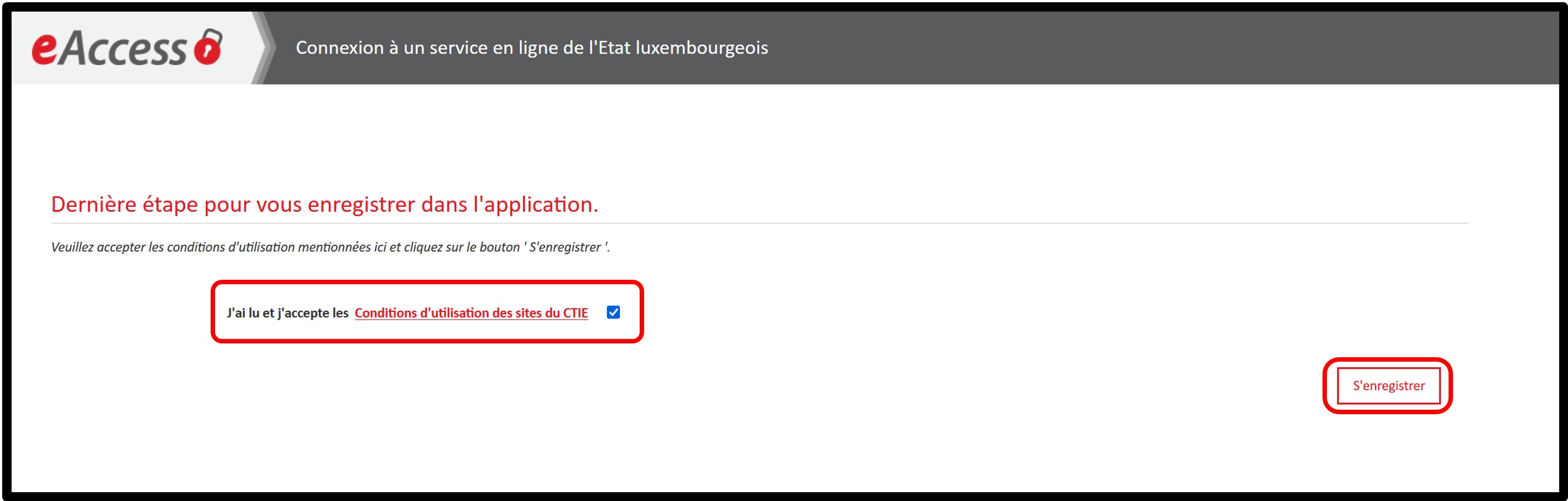
The account can only be activated if the user accepts the conditions of use of the CTIE websites presented on this page by checking the corresponding box. The account will be activated when the user clicks on the Register button.
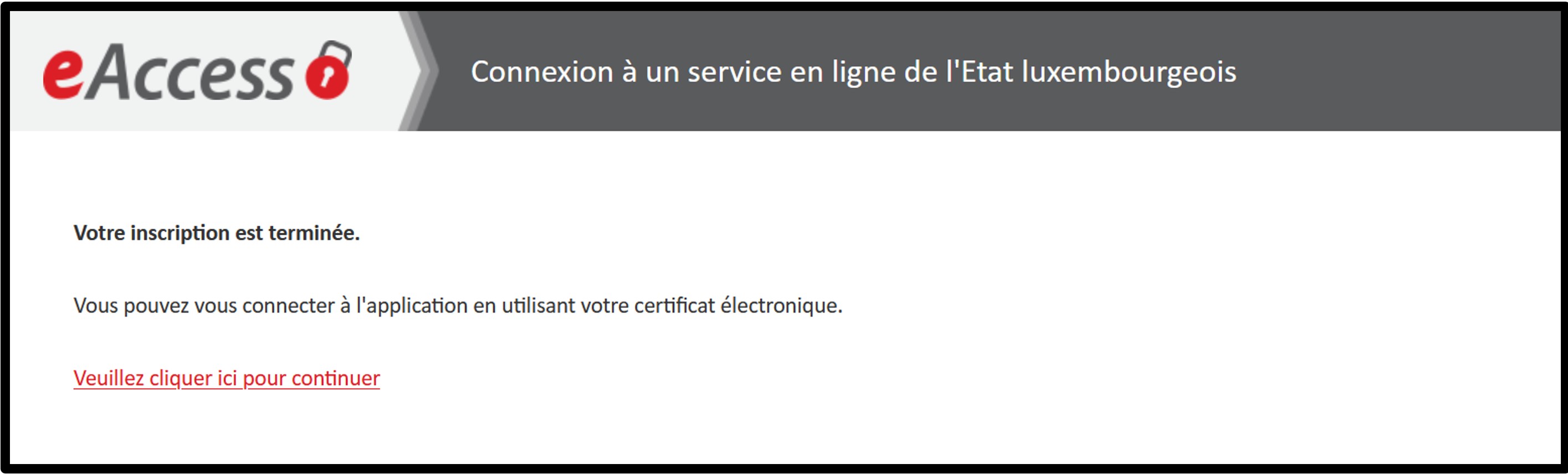
A final page will be displayed to indicate that the operation has been successful. The user is invited to click on the link Please click here to continue, which will take them back to the homepage.
The first time the user logs in, or when the general terms and conditions are modified by LBR, the user will be redirected to a page where they will be asked to accept the LBR general terms and conditions.
The user simply has to check the box I have read and accept the general terms and conditions of the LBR. After accepting the general terms and conditions, the user accesses the website's home page or, if the authentication follows an action requiring authentication, the requested page.