Payment procedure via the SAFERPAY secured platform
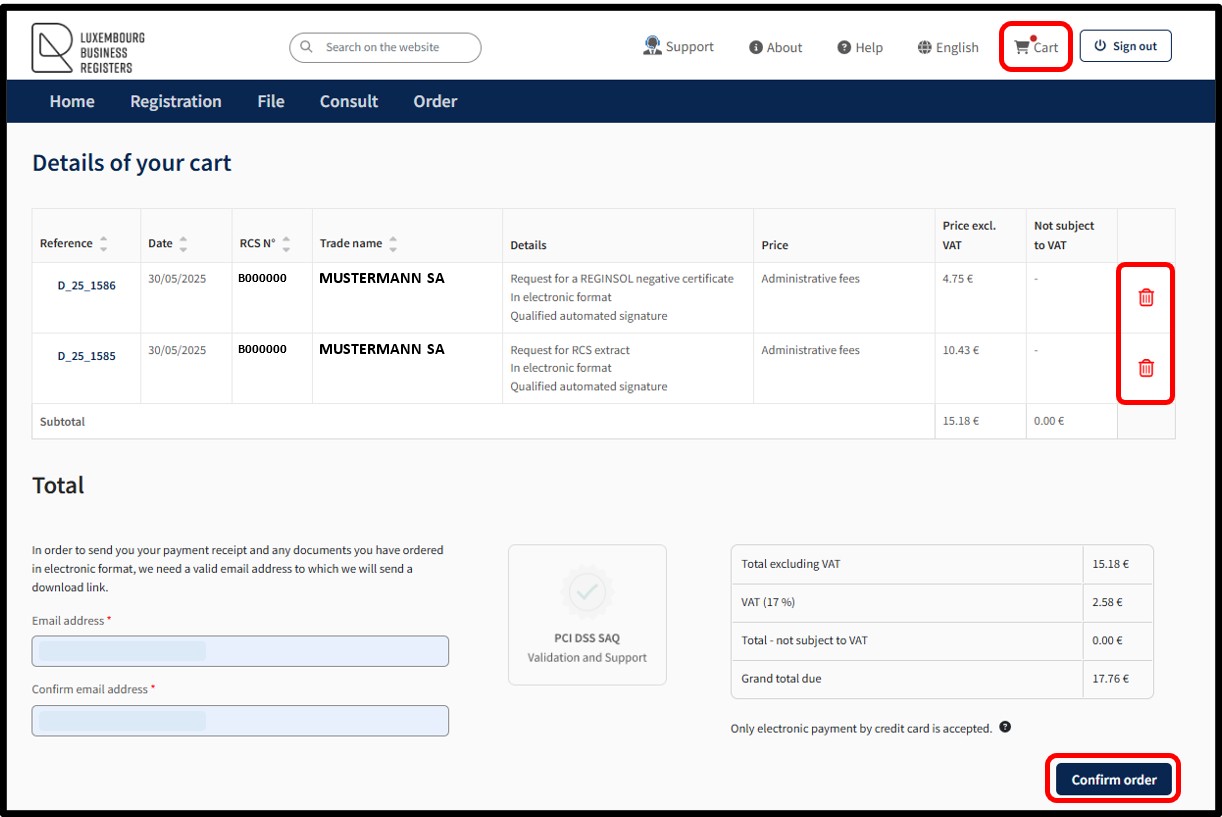
Order of documents that are finalised and ready to be submitted by the user can be accessed in the menu Cart.
By accessing the Cart menu, the user can find all of their orders in their personal cart.
Several order of documents can therefore be grouped into a single order so that the user can make the payment in one go.
The user can delete an order from their cart by clicking on the Trash icon.
To finalise their order of documents, the user must confirm their order by clicking on the button Confirm order.
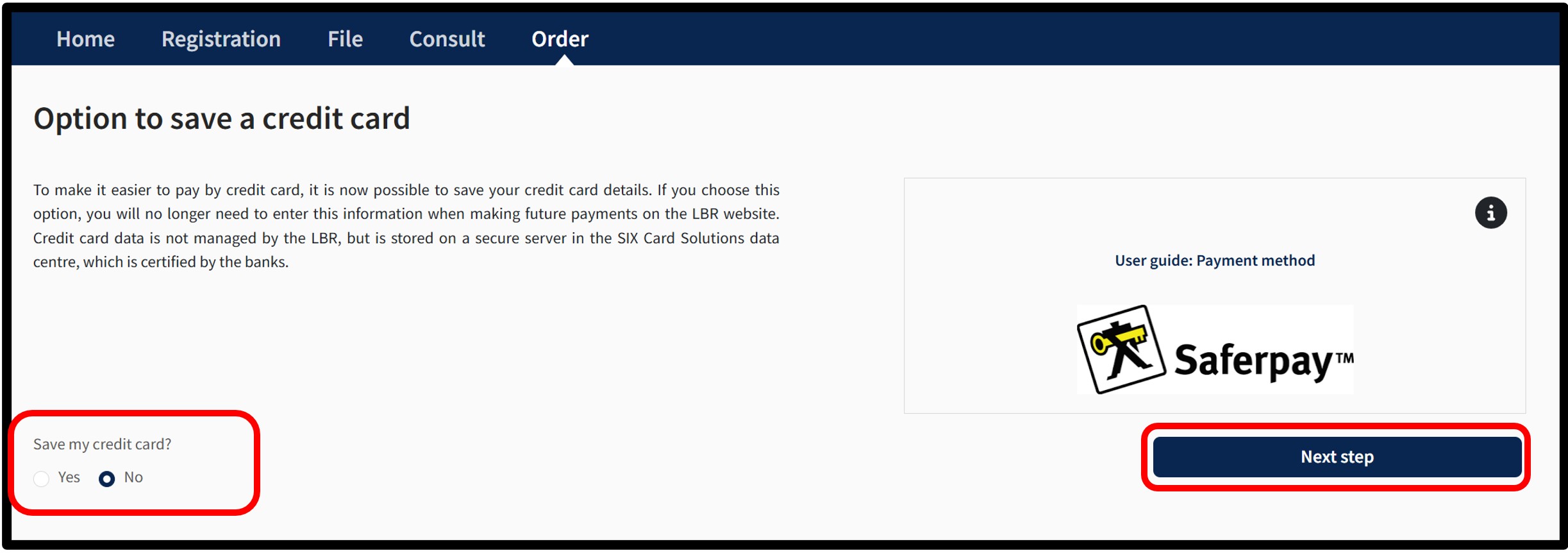
After clicking on the Confirm order button, the user is redirected to the next screen Option to save a credit card, offering the possibility of saving a credit card for future payments.
Credit card details are not managed by LBR but are stored on a secure server in the SIX Card Solution data centre, certified by the banks.
The user has to choose whether or not they wish to register their payment method.
- To save the data, the user has to select the Yes box and click on the Next step button.
The next time payment is made, the user will no longer need to enter the details of their payment method, but simply select the card to be used.
- If the user decides not to save their payment method, the No box has to be selected. Then click on Next step.
The user will always have the option of saving their payment method during a future formality.
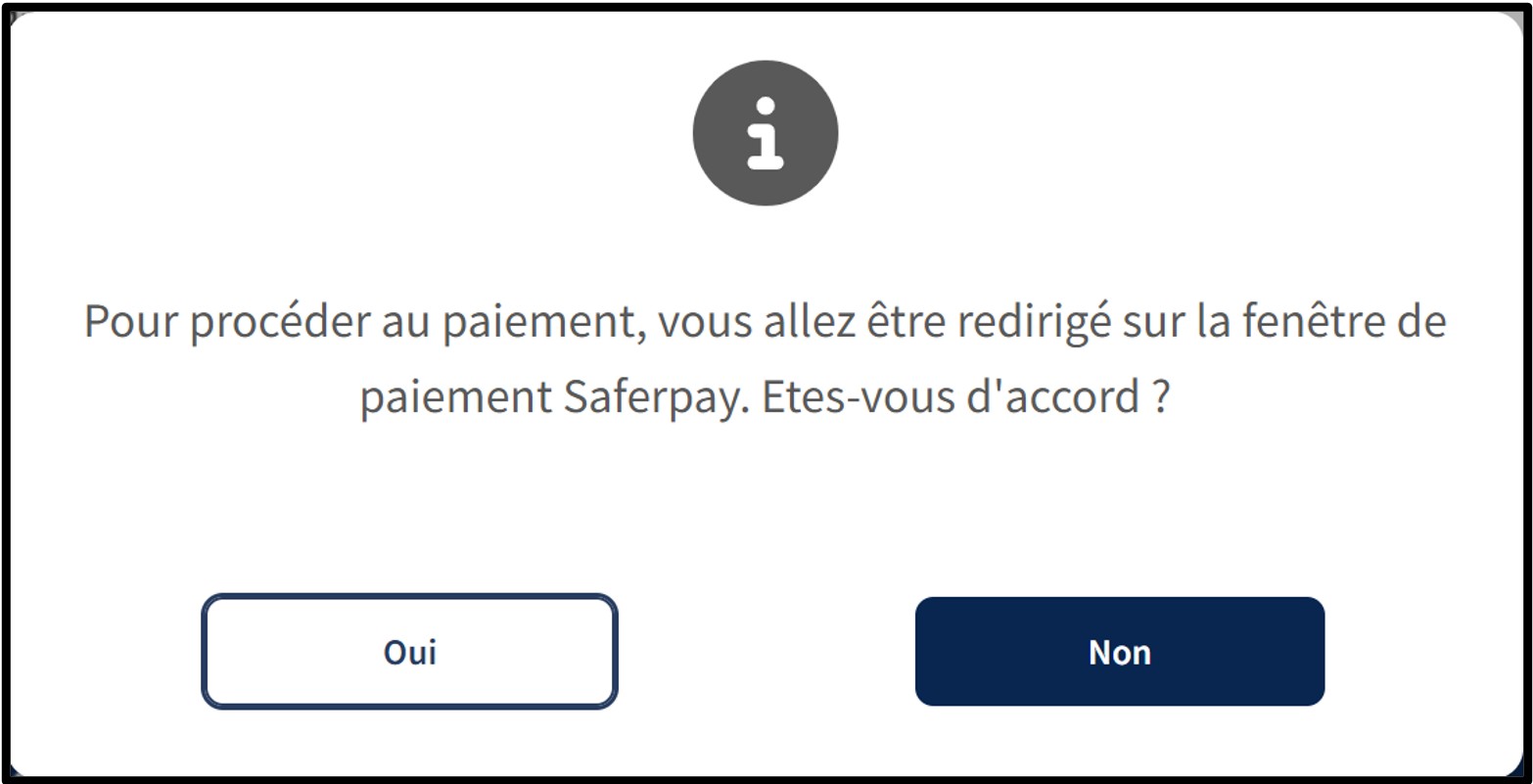
Whatever the user's choice, after clicking on the Next step button, an information pop-up will appear on the page.
To continue the payment procedure, click on the button Yes. The user is redirected to the secured payment platform Saferpay. The user simply has to follow the instructions on the page to finalise the payment process. To cancel the payment procedure, click on the No button.
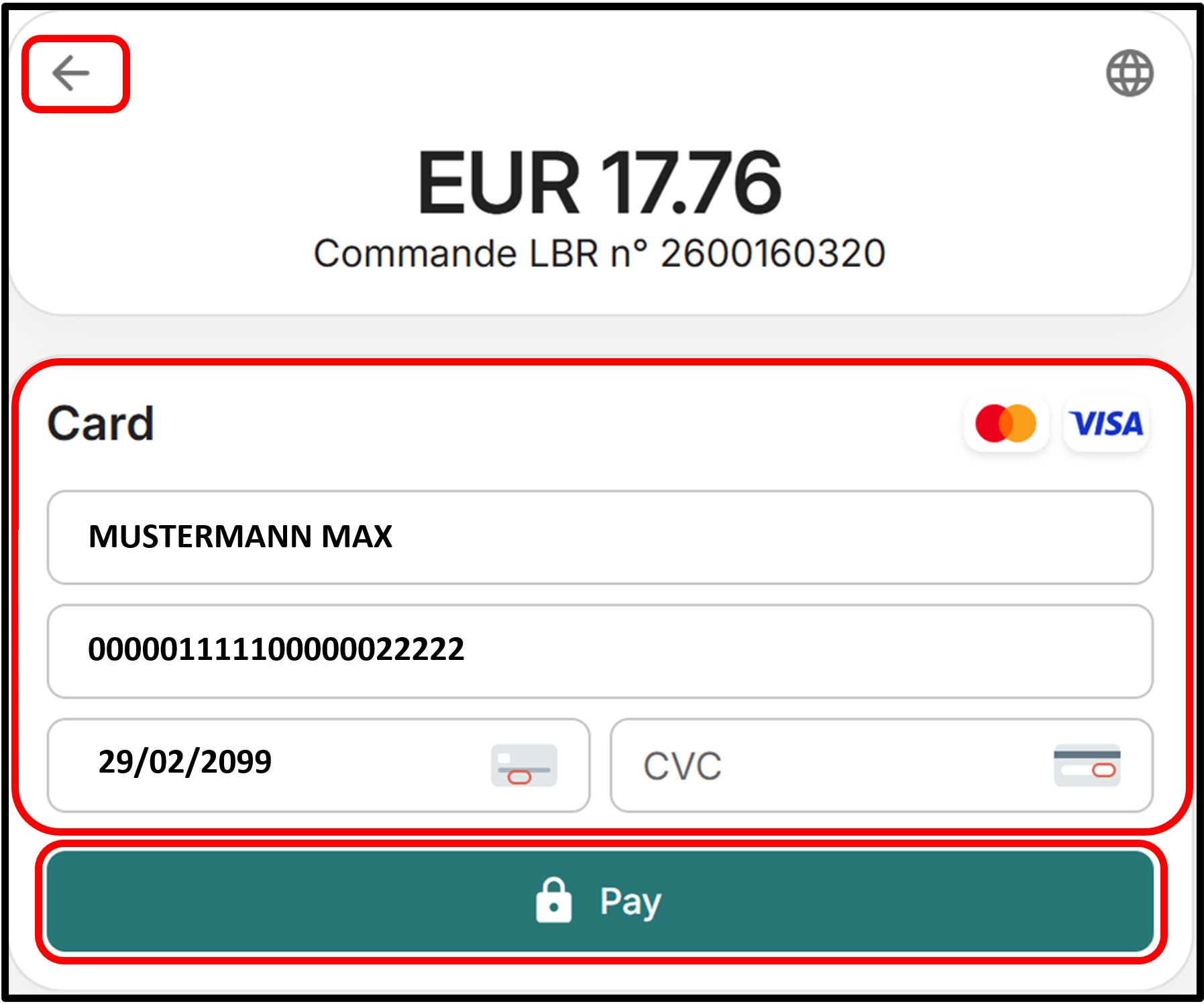
After entering or confirming the information relating to the desired payment method, the user will be taken to a page requesting confirmation of payment with the selected card. The user can also cancel the transaction by clicking on the arrow at the top left of the page.
To confirm their choice, the user has to click on the Pay button. The user then has to follow the instructions on the page to finalise the payment process.
Once the payment process has been finalised and provided that the payment is accepted, the user is then redirected to the Confirmed order form page.
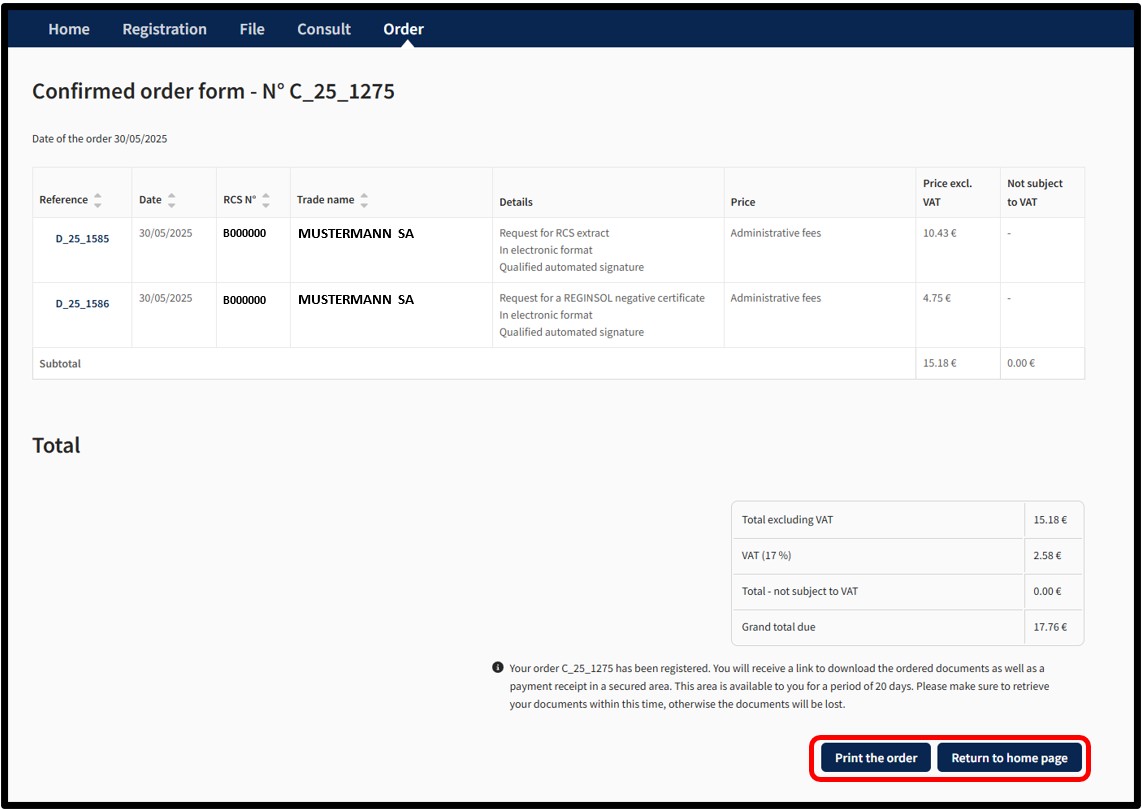
The user can print their Confirmed order form in PDF format by clicking on the Print the order button.
With an Authentication by Anonymous Connection, the documents ordered will be made available in a temporary space, the details of which will be communicated to the user by email to the address that was listed when the order was placed.
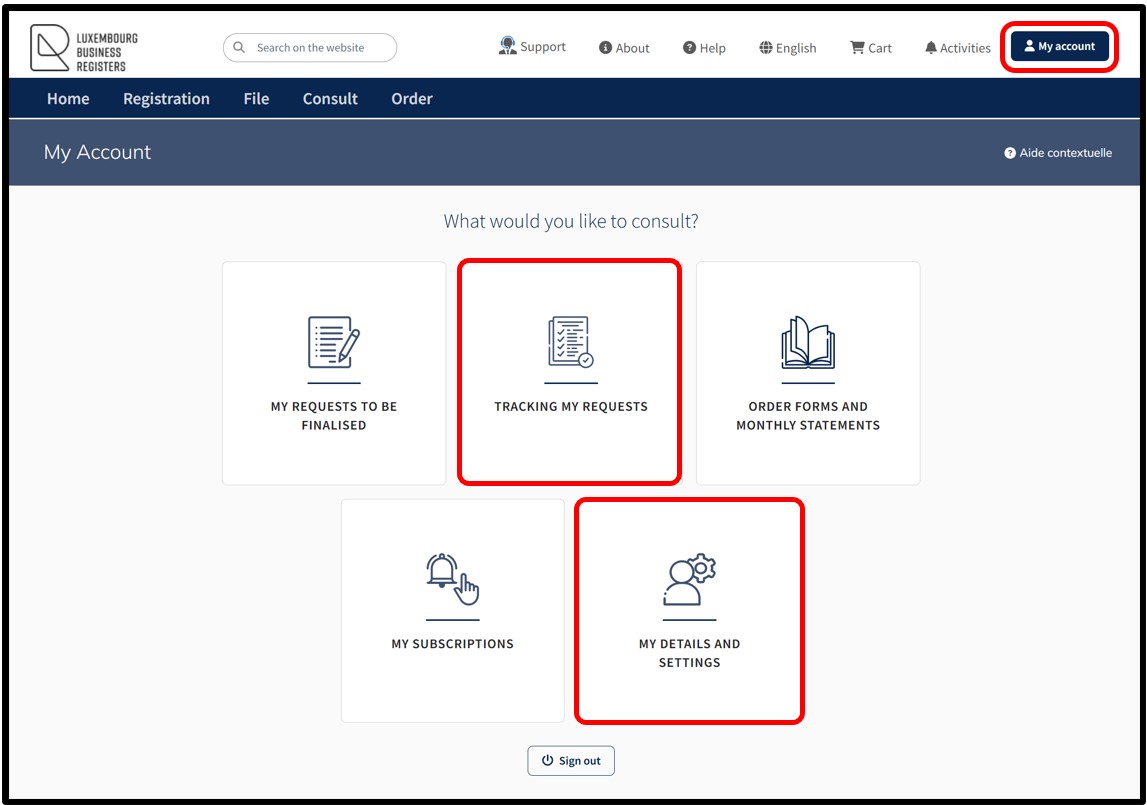
With an Authentication by Certificate, the documents ordered will be made available in the Tracking my requests section in the customer space accessible via the My Account menu, which offers the user the possibility of consulting the list of active orders at any time and having an overview of all the orders placed with the LBR. The My Orders button redirects the user directly to the Tracking My Requests feature accessible within their personalised user account.
Notifications are automatically sent by email to the user:
- To confirm receipt of their order by LBR
- To confirm that their order has been processed by LBR
If the user does not wish to receive these emails, they can disable receipt from the menu My Account and select My details and settings.