Easily order extracts and certificates
This service Order allows the user to order documents relating to the information recorded in the file of a registered entity. The user thus has access to secured services allowing them to order:
- RCS company profile
This company profile consists of a summary, provided by the RCS administrator, of the data that the entity has to communicate to the RCS for registration purposes.
- Certificate of trade name availability
This certificate attests to the availability or non-availability of the requested trade name(s) in relation to the trade names of entities already registered with the RCS.
- Certificates of the non-existence of a court ruling (negative certificate)
This certificate consists of the administrator of the RCS issuing a document attesting that no court ruling has been registered in the RCS for this entity.
- RBE extract (under certain conditions)
This extract consists of the administrator of the RBE issuing a summary of the declaration of the beneficial owners that the entity has to communicate to the RBE for declaration purposes.
- Certificates of the non-existence of beneficial owners (under certain conditions)
This certificate consists of the administrator of the RBE issuing a document attesting that no beneficial owner has been declared with the RBE in respect of this entity.
How to order extracts and certificates?
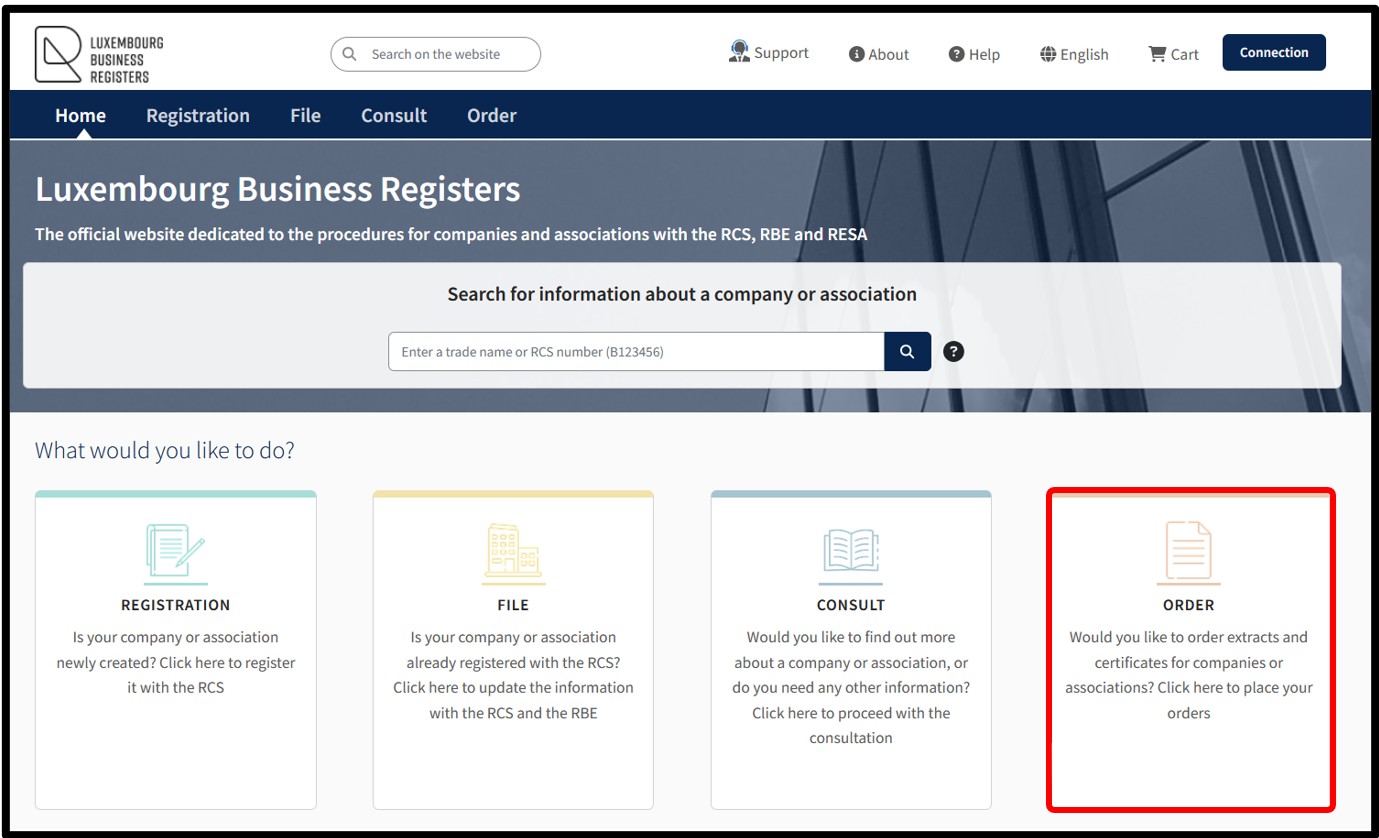
When accessing the LBR home page, the user has to click on the Order tile in order to order documents relating to the information recorded in the file of a registered entity.
The user thus has access to secured services allowing them to order:
- RCS company profile
This company profile consists of a summary, provided by the RCS administrator, of the data that the entity has to communicate to the RCS for registration purposes.
- Certificate of trade name availability
This certificate attests to the availability or non-availability of the requested trade name(s) in relation to the trade names of entities already registered with the RCS.
- Certificates of the non-existence of a court ruling (negative certificate)
This certificate consists of the administrator of the RCS issuing a document attesting that no court ruling has been registered in the RCS for this entity.
- RBE extract (under certain conditions)
This extract consists of the administrator of the RBE issuing a summary of the declaration of the beneficial owners that the entity has to communicate to the RBE for declaration purposes.
- Certificates of the non-existence of beneficial owners (under certain conditions)
This certificate consists of the administrator of the RBE issuing a document attesting that no beneficial owner has been declared with the RBE in respect of this entity.
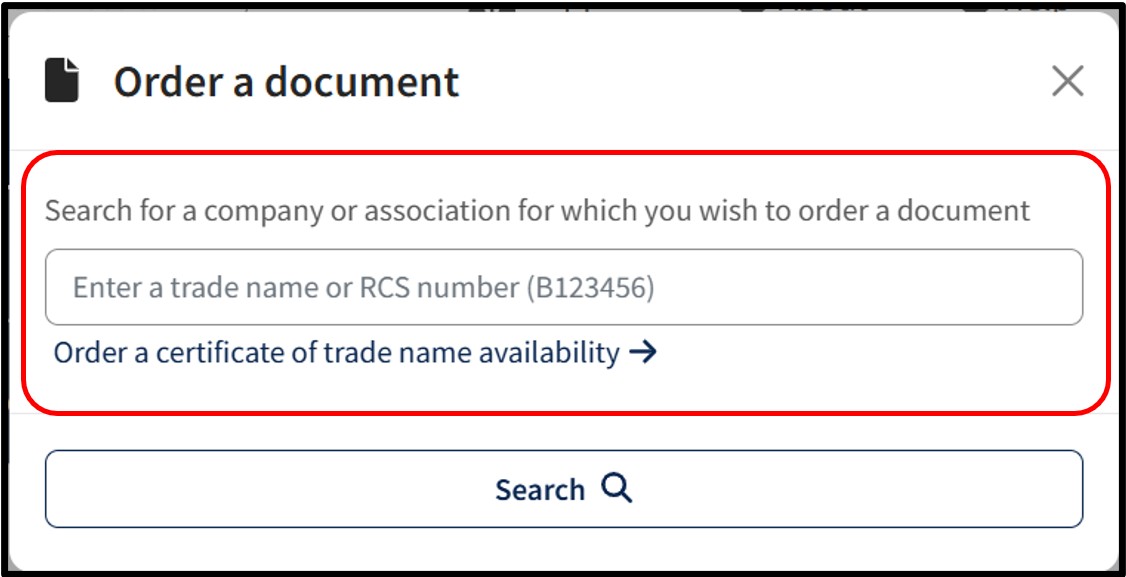
By clicking on the Order tile, the user accesses a pop-up that allows them to use the search functionality and to order a certificate of trade name availability.
Before being able to order documents, the user has to carry out a search in order to identify and select the entity or registered person for whom a document order is to be made, by entering either their RCS number or their trade name as search criteria.
After searching for, identifying and selecting the registered entity or person for which the user wishes to order a document, the user is redirected to the authentication page where they have to indicate their preferred authentication method.
After making their choice, the user is invited to follow the instructions on the page to make their connection to the LBR website. Once the connection has been authorized, the user accesses the page displaying the details of the entity in question.
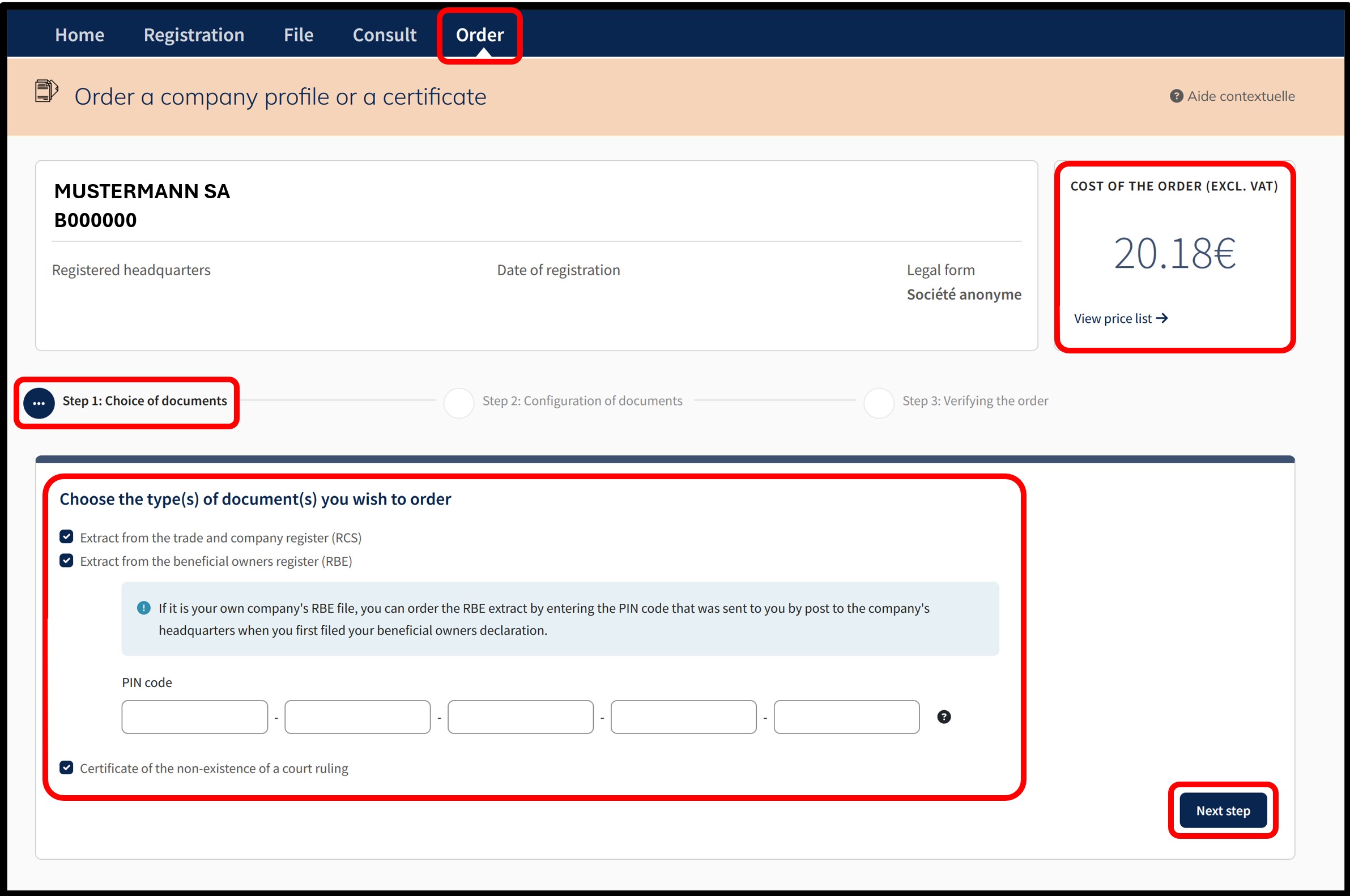
Once the search has been carried out and the entity identified, the user accesses the page displaying the details of the selected entity.
Details of the entity include:
- Name of the registered entity
- RCS registration number
- Address of the registered headquarters
- Date of registration with the RCS
- Legal form
- If applicable, the list of subsidiaries for the entity in question
Step 1: Choice of documents
By selecting this service, the user is taken to the page where they can select the document(s) they wish to order from the list provided:
- Extract from the trade and company register (RCS)
- Extract from the Beneficial Owners Register (RBE) (if applicable)
To request an extract from the RBE, the user must enter the PIN code that was sent to them by post when in order to access their own RBE file (Pdf).
- Certificate of the non-existence of a court ruling (if applicable)
The amount of the order is displayed in the Cost of the order (excl. VAT) field at the top right of the page. The View price list link informs the user of the current prices for the type of service selected.
To order the extract and/or certificate, the user has to indicate their choice by selecting the appropriate checkboxes. Once the selection has been made, the user has to click on the Next step button.
Step 2: Configuration of documents
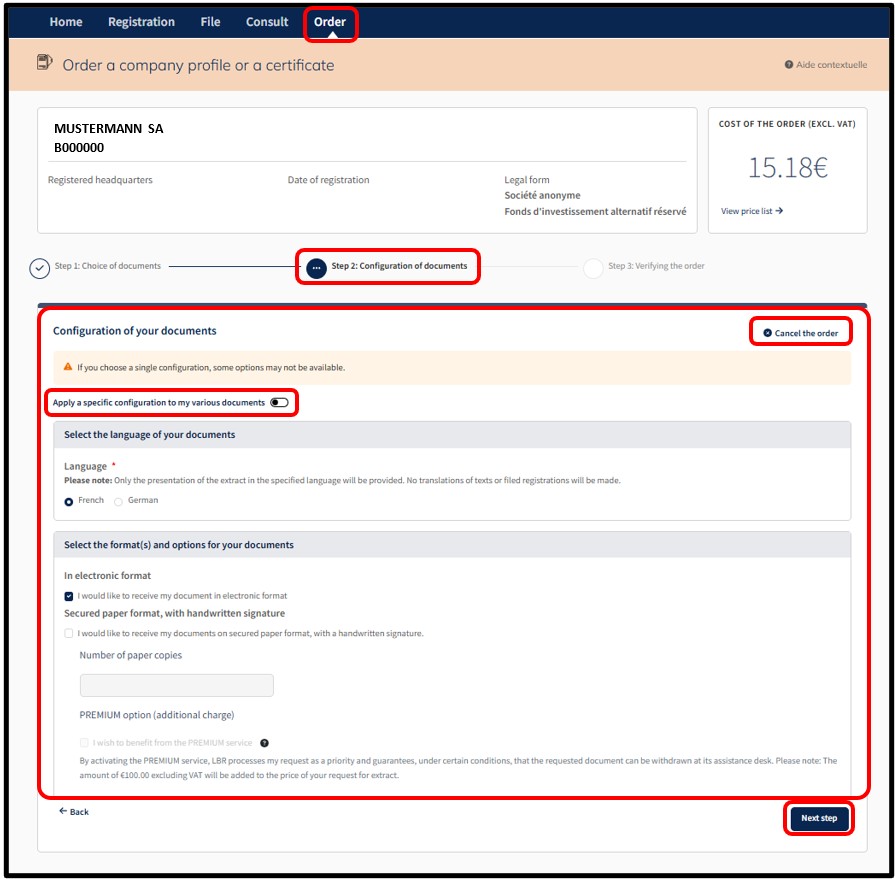
Once the connection to the LBR website has been finalised, the user accesses the page enabling him to configure the extract and/or certificate.
At this stage, the user has to indicate their choices regarding the configuration of the documents. The user can cancel their order by clicking on the option Cancel the order.
The exctract and/or certificate can be issued in electronic format and/or on secure paper.
The user has the following options:
- Select the language of the document
This section allows the user to choose the language of the document by checking one of the available boxes.
- Selection of the format(s) and options of the documents
This section allows the user to choose between the two available document formats by checking the corresponding boxes.- In electronic format means that the document is issued with an automatic qualified electronic signature guaranteeing the authenticity and integrity of the document.
- Secured paper format with handwritten signature means that the document is issued and signed manually, including the surname and first name of the agent who signed it, on behalf of the administrator of the RCS.
- In electronic format means that the document is issued with an automatic qualified electronic signature guaranteeing the authenticity and integrity of the document.
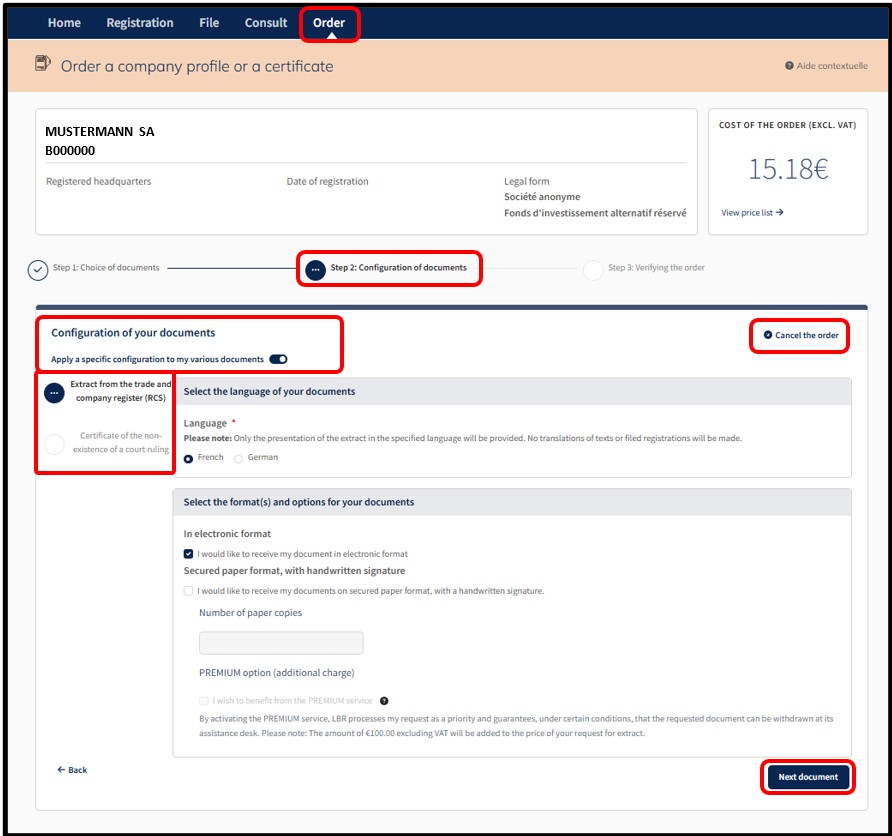
The user is also offered the option Apply a specific configuration to my various documents by clicking on the cursor.
This option allows the user to individually configure each of the documents in their order. By activating this option, the user will view a menu on the right of the page enabling them to configure each of the documents to be ordered in a specific way.
In order to configure each of the documents specifically, the user has to indicate their choices from the options proposed, then click on the Next document button to continue with the specific configuration for each document.
If only the order in electronic format is selected, the user has to confirm their choices by clicking on the Next step button.
If the order on secure paper format is also selected, the user has to confirm their choice by clicking on the Continue button.
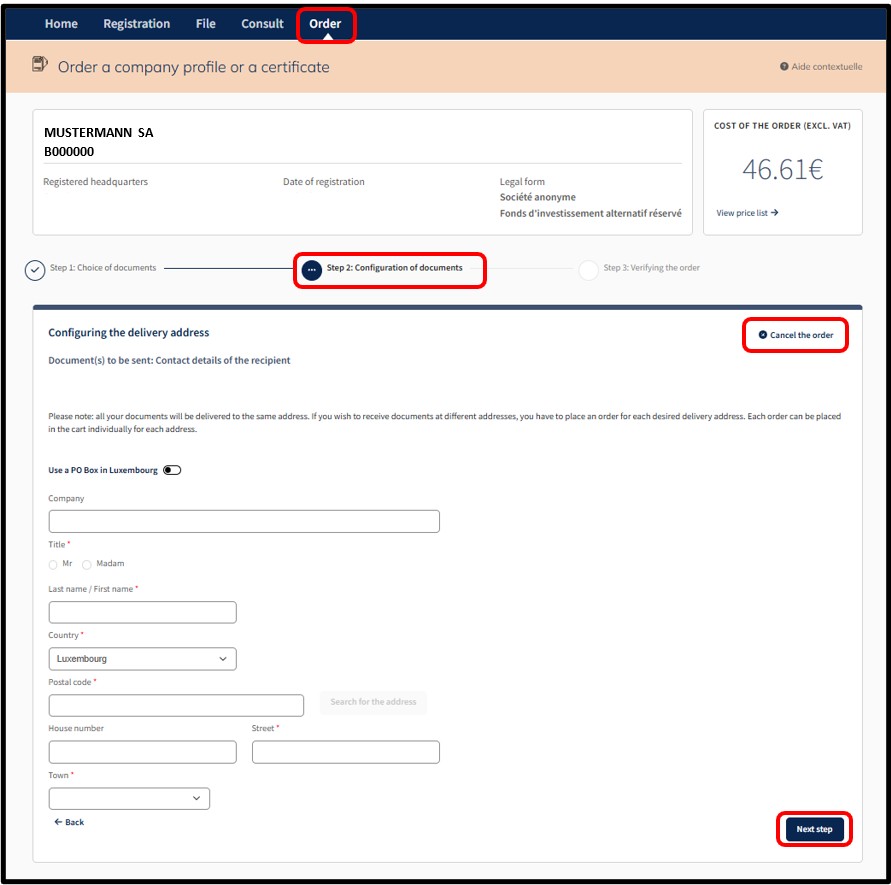
By clicking on the Continue button, the user is redirected to the page where they can enter the delivery information for the postal dispatch of the document on secure paper format. The user can cancel their order by clicking on the option Cancel the order.
Once the required information has been entered, the user is invited to click on the Next step button. On the next page (Step 3: Verifying the order), the user is redirected to the page for the verification of the order.
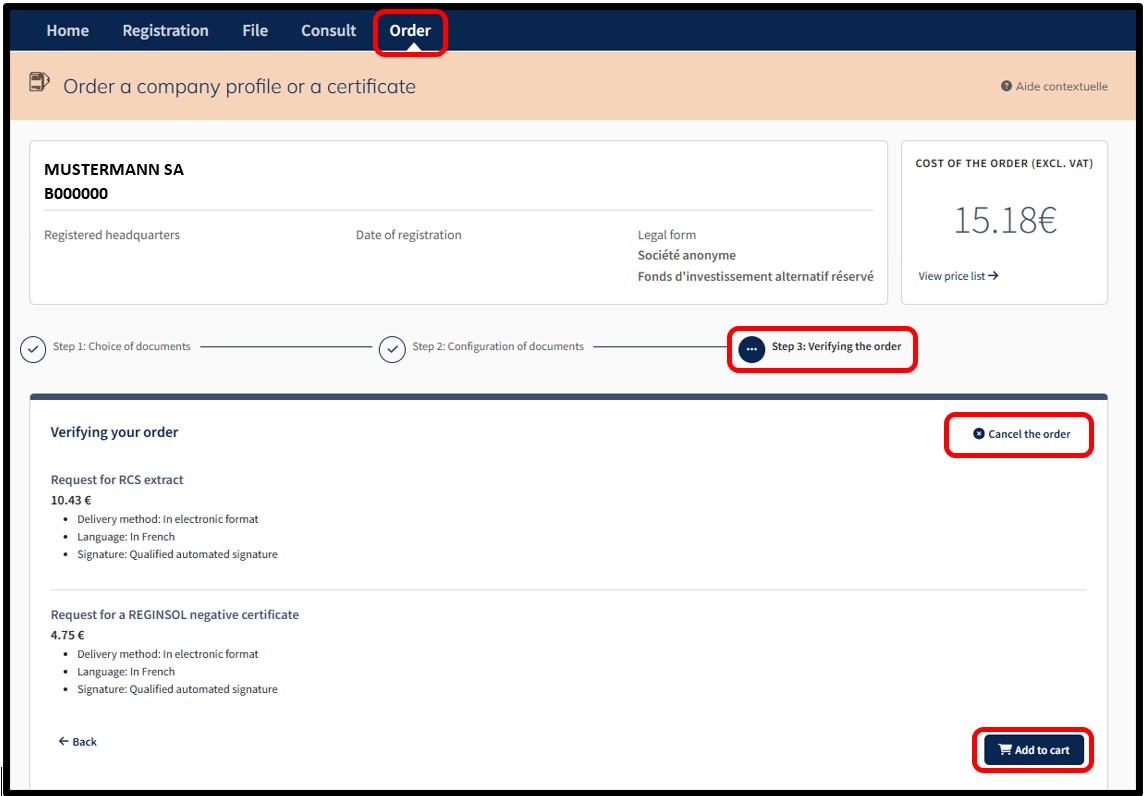
Step 3: Verifying the order
On the next page, the user is redirected to the page for the verification of the order. The user can cancel their order by clicking on the option Cancel the order.
The user finalises their order by clicking on the Add to cart button.
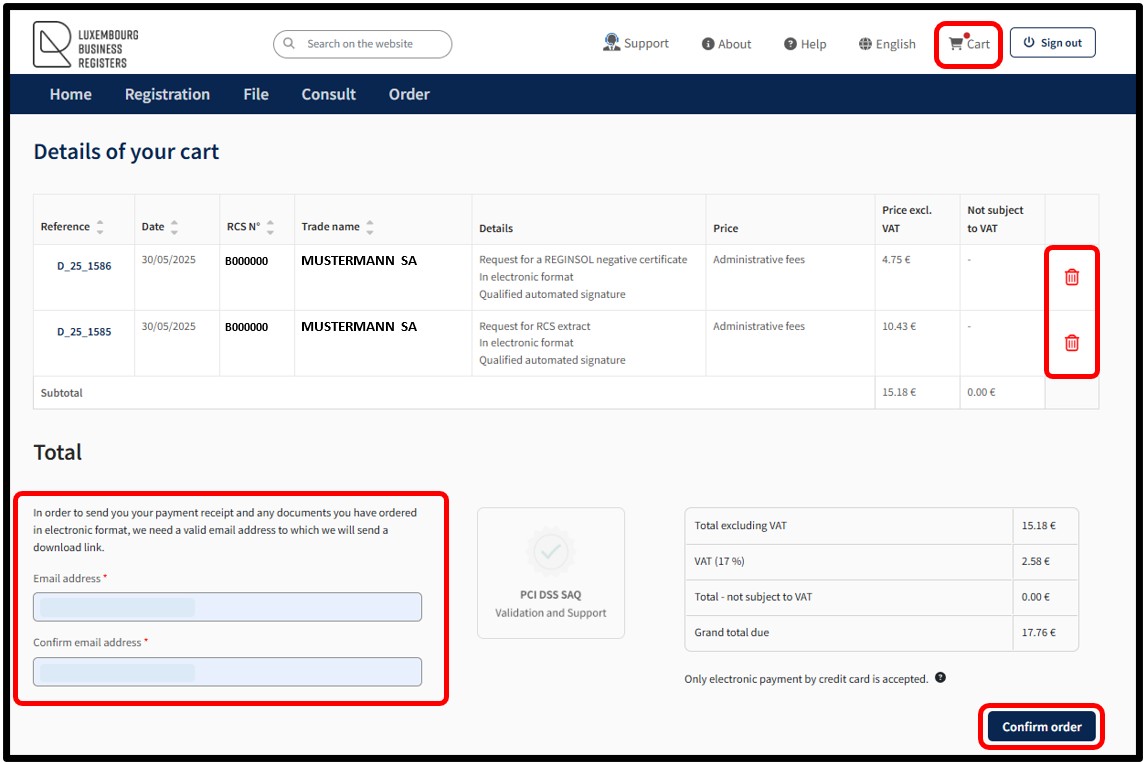
After confirming the order by clicking on the Add to cart button, the user is taken to the Details of their cart, which presents a summary of the order.
The user can delete an order from their cart by clicking on the Trash icon.
In the case of an authentication by anonymous connection, the user must provide a valid email address. A download link will then be submitted to them to enable them to access the payment receipt and the documents ordered in electronic format.
In order to confirm the order, the user has to click on the button Confirm order. By this action, the user indicates their willingness to proceed with the payment of all the requests in the cart. All the requests constitute an order. Payment is made by means of the secured electronic payment platform Saferpay from SIX Card Solutions.
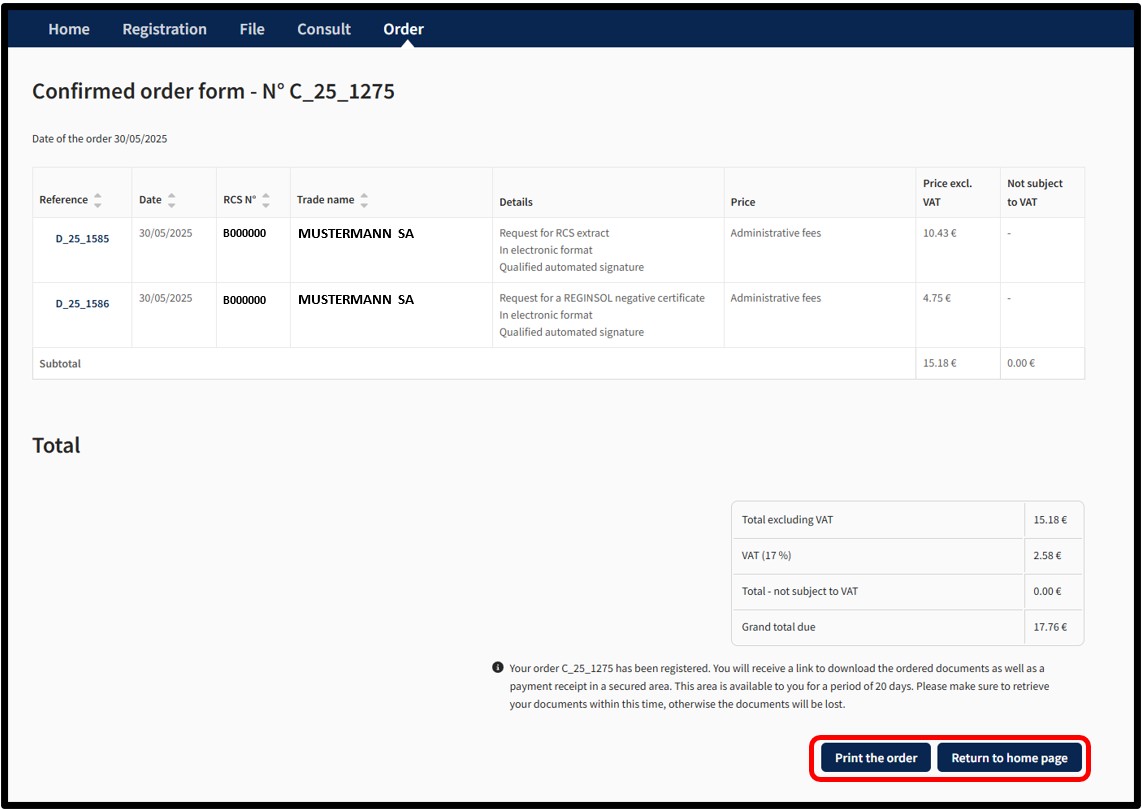
Once the payment process has been finalised and provided that the payment is accepted, the user is then redirected to the Confirmed order form page.
The user can print their confirmed order form in PDF format by clicking on the Print the order button.
In the case of an order for an extrcat and/or certificate in electronic format:
- With an Authentication by Anonymous Connection, the document will be made available in a temporary space, which will be communicated to the user by email to the address that has been listed when the order was placed.
- With Authentication by Certificate, the document will be made available in the Tracking my requests section in the customer space, which can be accessed via the menu My Account.
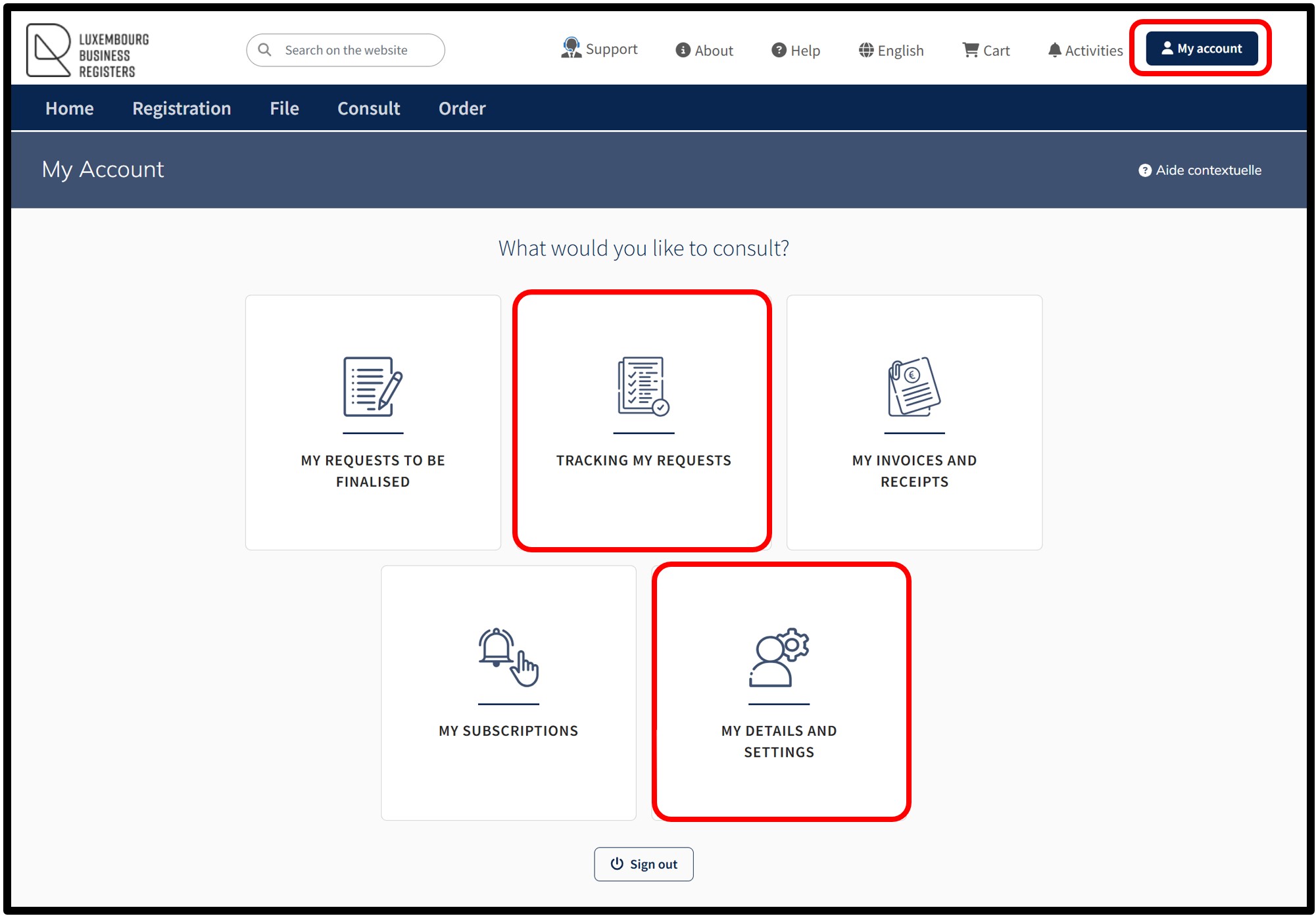
Notifications are automatically sent by email to the user:
- To confirm receipt of their order by LBR.
- To confirm that their order has been processed by LBR.
If the user does not wish to receive these emails, they can disable receipt from the menu My Account and select My details and settings.
Useful documentation
- Rules for choosing the denomination of your entity – Guidelines on corporate names (Pdf - 667 Kb)
The name of an entity must comply with certain rules in order to be accepted. This document outlines, in a few key points, what should be checked before selecting a name.
How to order a certificate of trade name availability?
How to order a certificate of availability?
The user has the option to proceed with the order of a certificate of trade name availability. This service is recommended before proceeding with registration or modification of the trade name of a registered entity and allows the user to ensure that the chosen trade name is available.
This certificate attests to the availability or non-availability of the requested trade name(s) in relation to the trade names of entities already registered with the RCS.
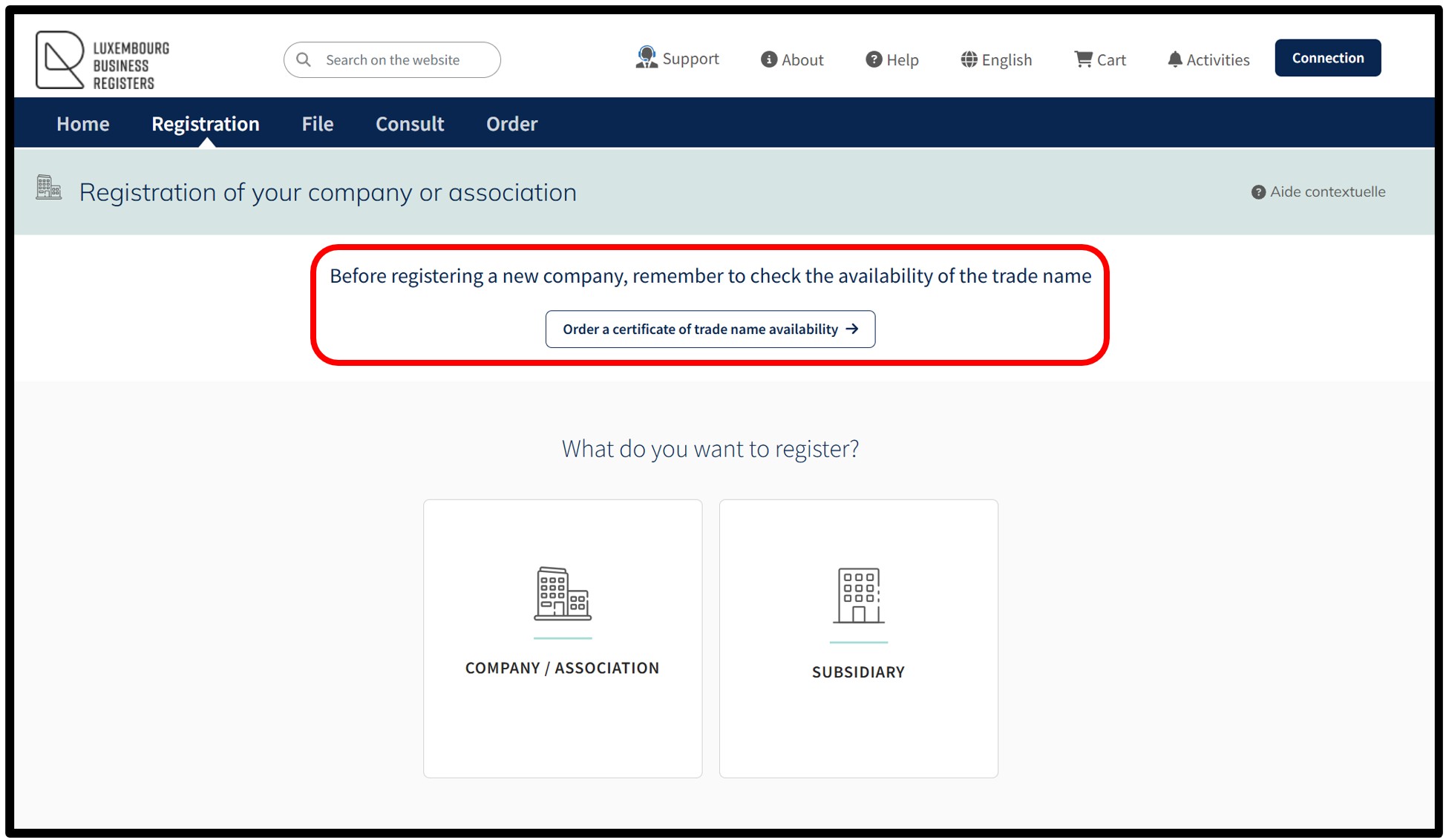
The service relating to the ordering of a certificate of trade name availability can be accessed both by authentication by anonymous connection and by authentication by certificate.
Step 1: Enter the trade name
By selecting this service, the user is taken to the page where they can enter the exact trade name(s) for which they wish to check availability with the RCS.
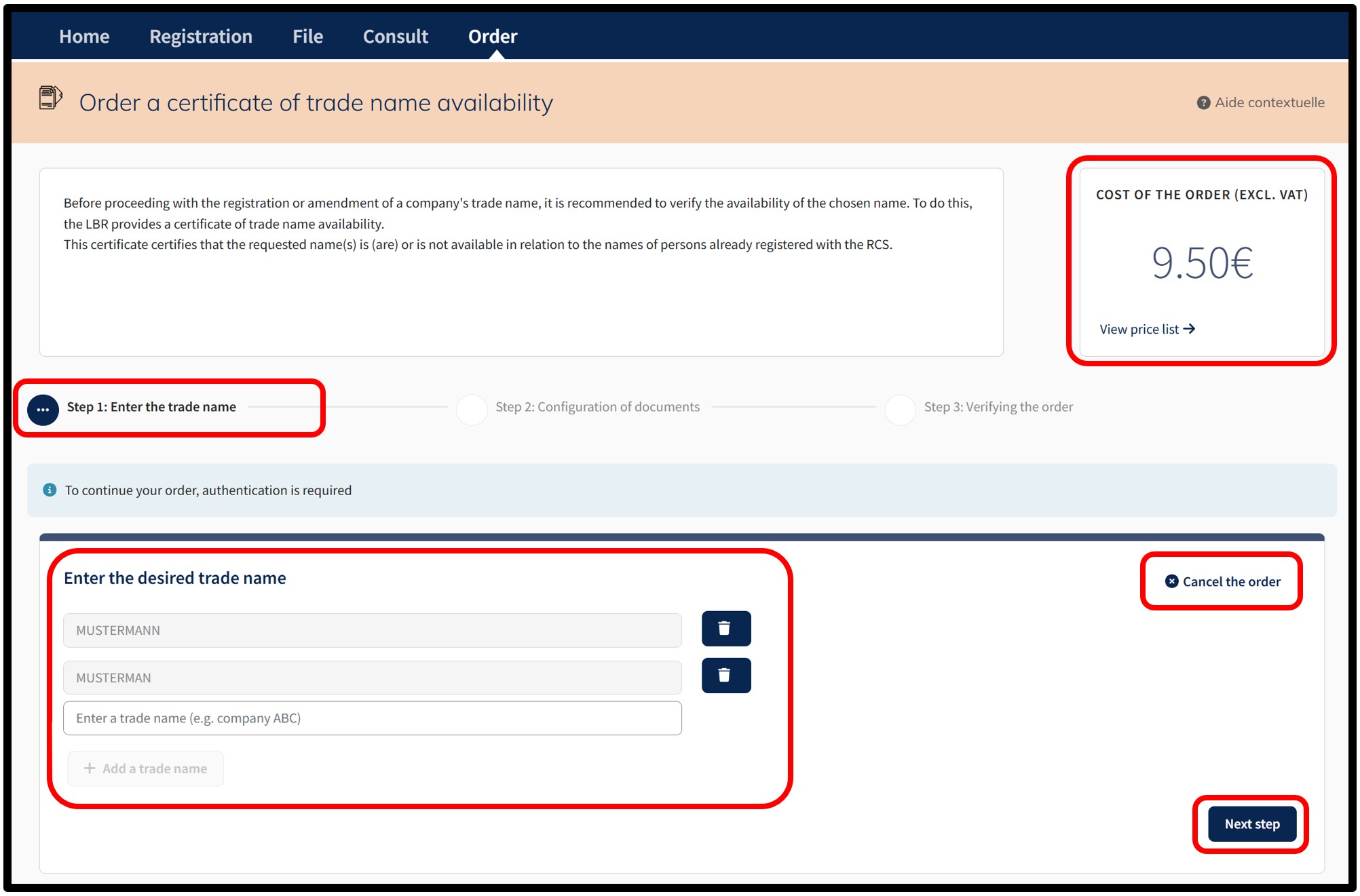
Within the field Enter the desired trade name, the user has to enter the trade name to be verified. The user can check the availability of one or more trade names by clicking on the button Add a trade name. To delete an added trade name, the user simply has to click on the Trash button.
Depending on the trade name(s) entered by the user, the amount of the order is displayed in the Cost of the order (excl. VAT) field at the top right of the page. The View price list link informs the user of the current prices for the type of service selected. The user can cancel their order by clicking on the option Cancel the order.
After entering the information requested, the user has to click on the Next step button. On the next page, the user is redirected to the authentication screen where they are asked to select the desired authentication method.
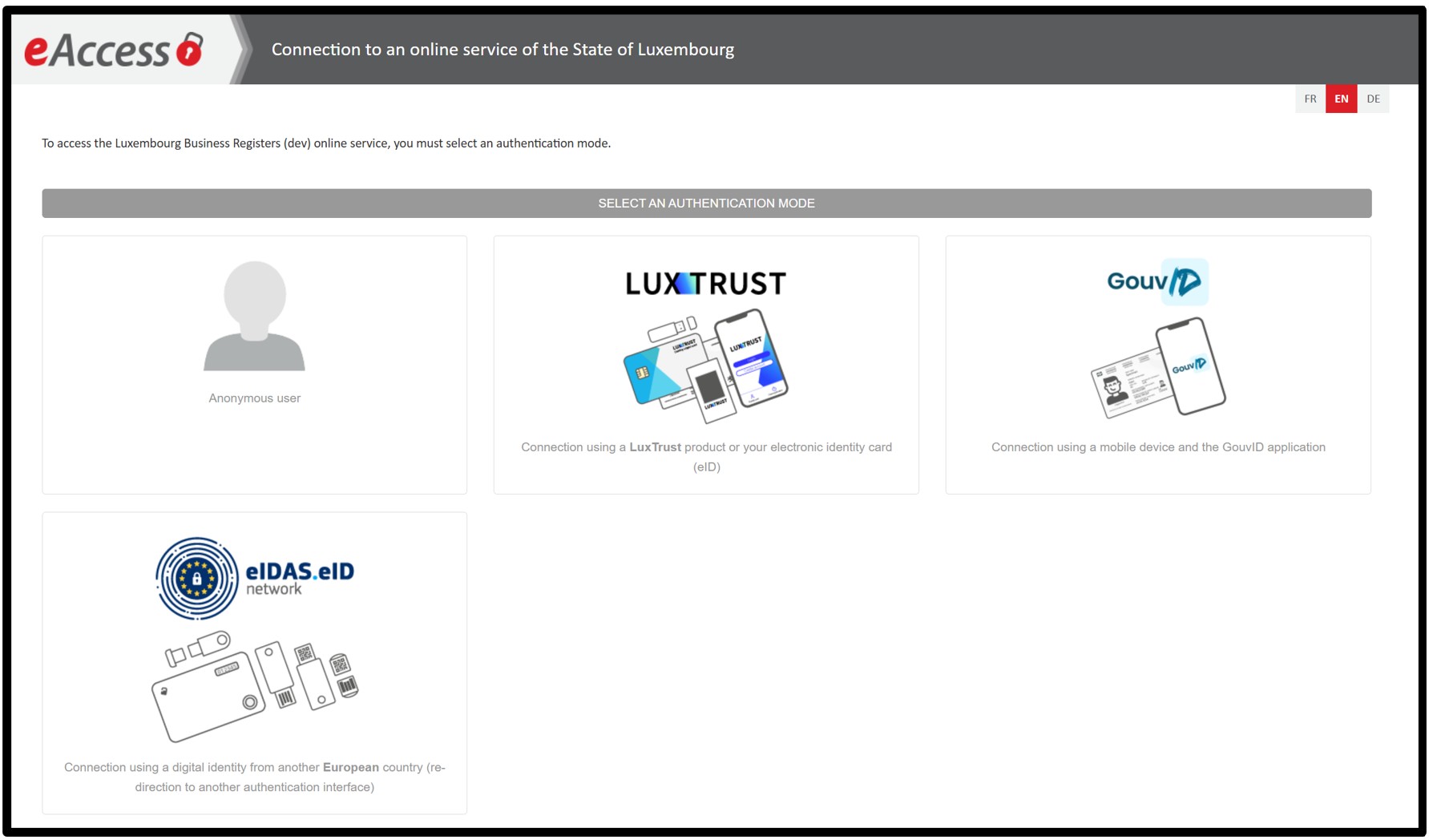
To order a certificate of trade name availability, an authentication by anonymous connection is sufficient.
4 authentication methods are proposed:
- Authentication by anonymous connection
- Authentication by LuxTrust certificate
- Authentication via the GouvID application
- Authentication by eIDAS electronic certificate
Once the user has made their choice, they are invited to follow the instructions on the page to log on to the LBR website.
Step 2: Configuration of documents
Once the connection to the LBR website has been finalised, the user accesses the page enabling him to configure the certificate of trade name availability.
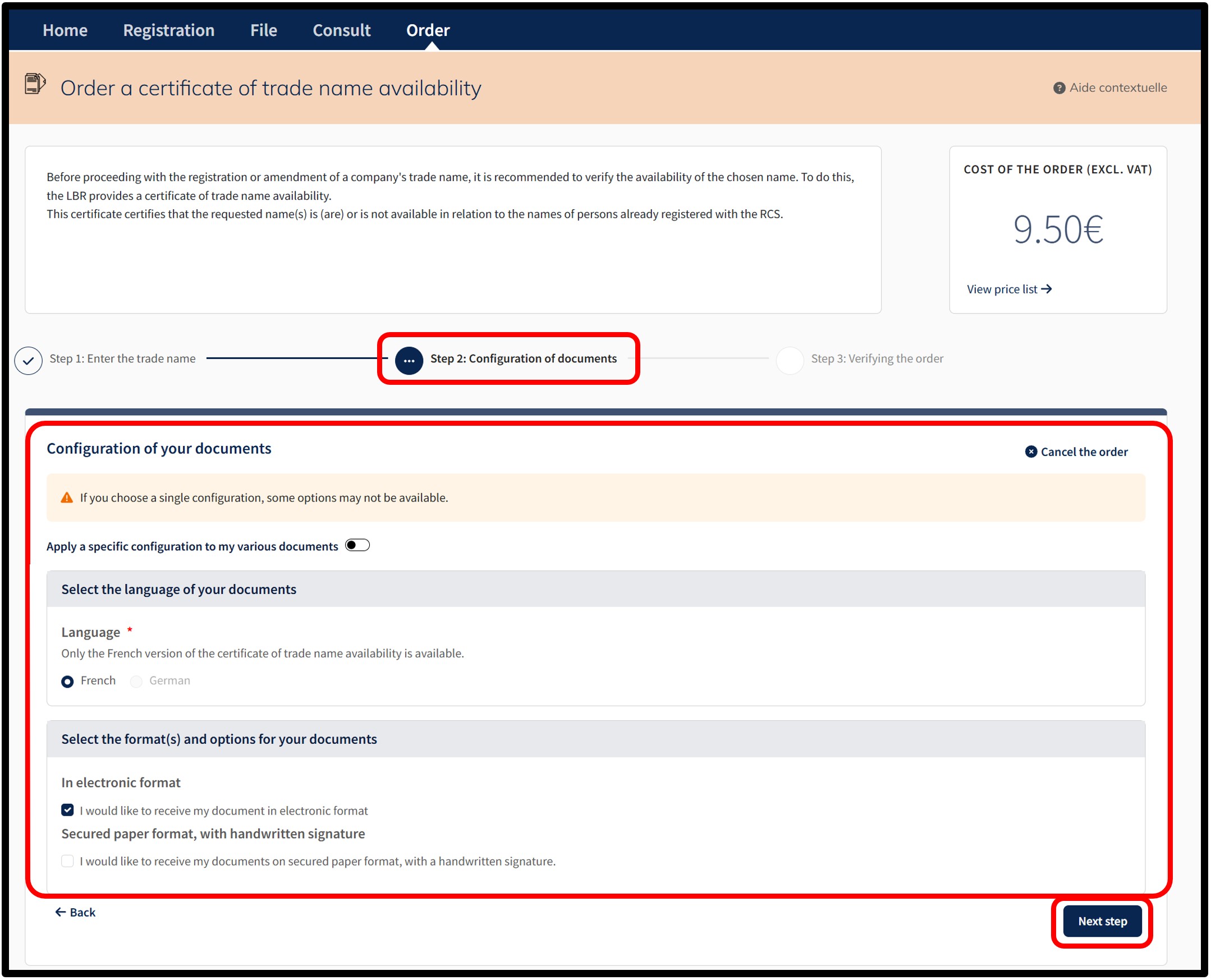
At this stage, the user has to indicate their choices regarding the configuration of the certificate. The user can cancel their order by clicking on the option Cancel the order.
The certificate of trade name availability can be issued in electronic format and/or on secure paper.
The user has the following options:
- Select the language of the document
This section allows the user to choose the language of the certificate by checking one of the available boxes.
The French box is selected by default because currently only the French version of the document can be issued by the RCS.
- Selection of the format(s) and options of the documents
This section allows the user to choose between the two available document formats by checking the corresponding boxes.- In electronic format means that the certificate of availability is issued with an automatic qualified electronic signature, guaranteeing the authenticity and integrity of the certificate.
- Secured paper format with handwritten signature means that the certificate of availability is issued and signed manually, including the surname and first name of the agent who signed it, on behalf of the administrator of the RCS.
- In electronic format means that the certificate of availability is issued with an automatic qualified electronic signature, guaranteeing the authenticity and integrity of the certificate.
If only the order in electronic format is selected, the user has to confirm their choice by clicking on the Next step button.
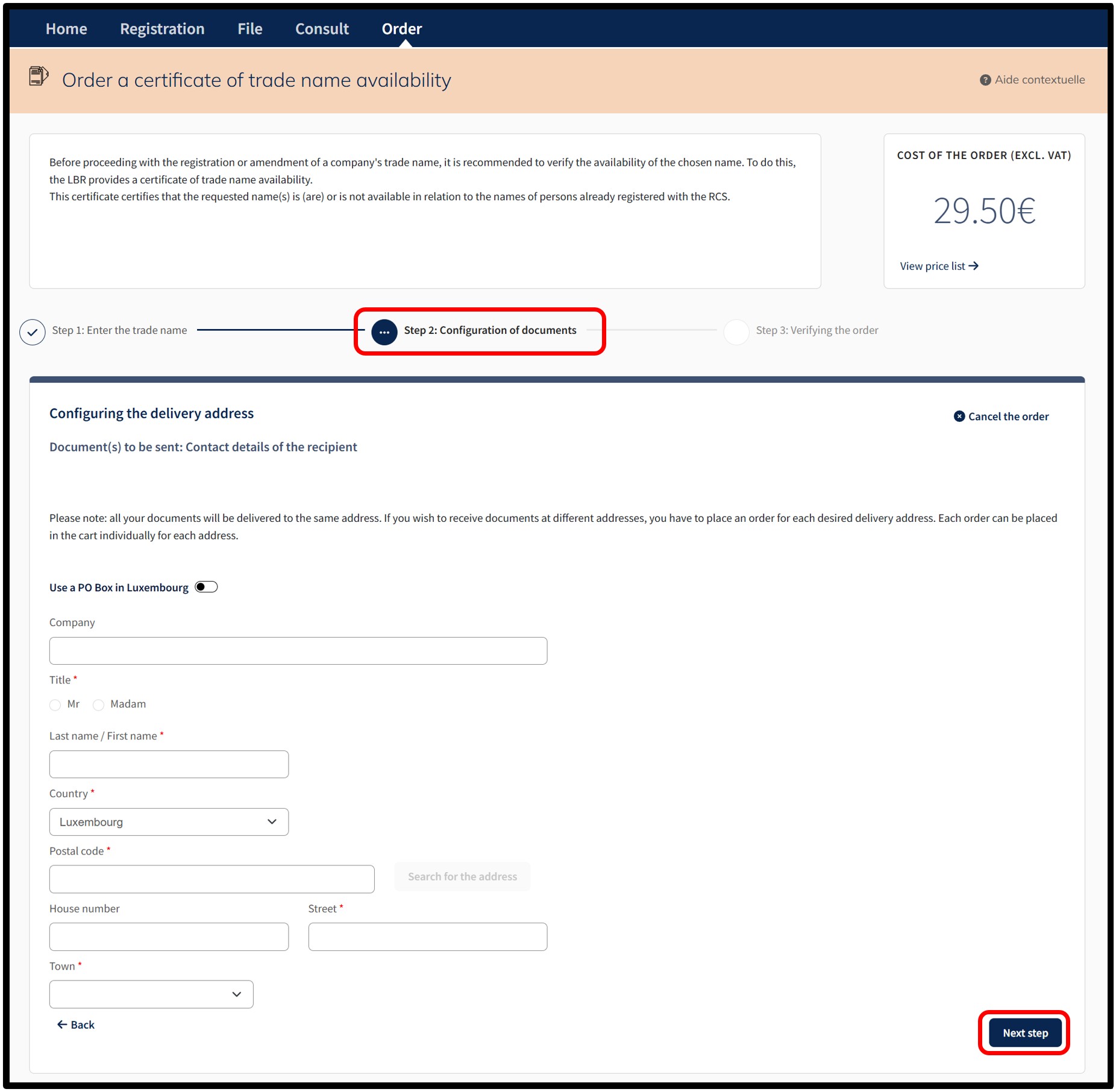
If the order on secure paper format is also selected, the user has to confirm their choice by clicking on the Continue button. By clicking on the Continue button, the user is redirected to the page where they can enter the delivery information for the postal dispatch of the certificate of availability on secure paper format. The user can cancel their order by clicking on the option Cancel the order.
Once the required information has been entered, the user is invited to click on the Next step button. On the next page (Step 3: Verifying the order), the user is redirected to the page for the verification of the order.
Step 3: Verifying the order
On the next page, the user is redirected to the page for the verification of the order. The user can cancel their order by clicking on the option Cancel the order.
The user finalises their order by clicking on the Add to cart button.
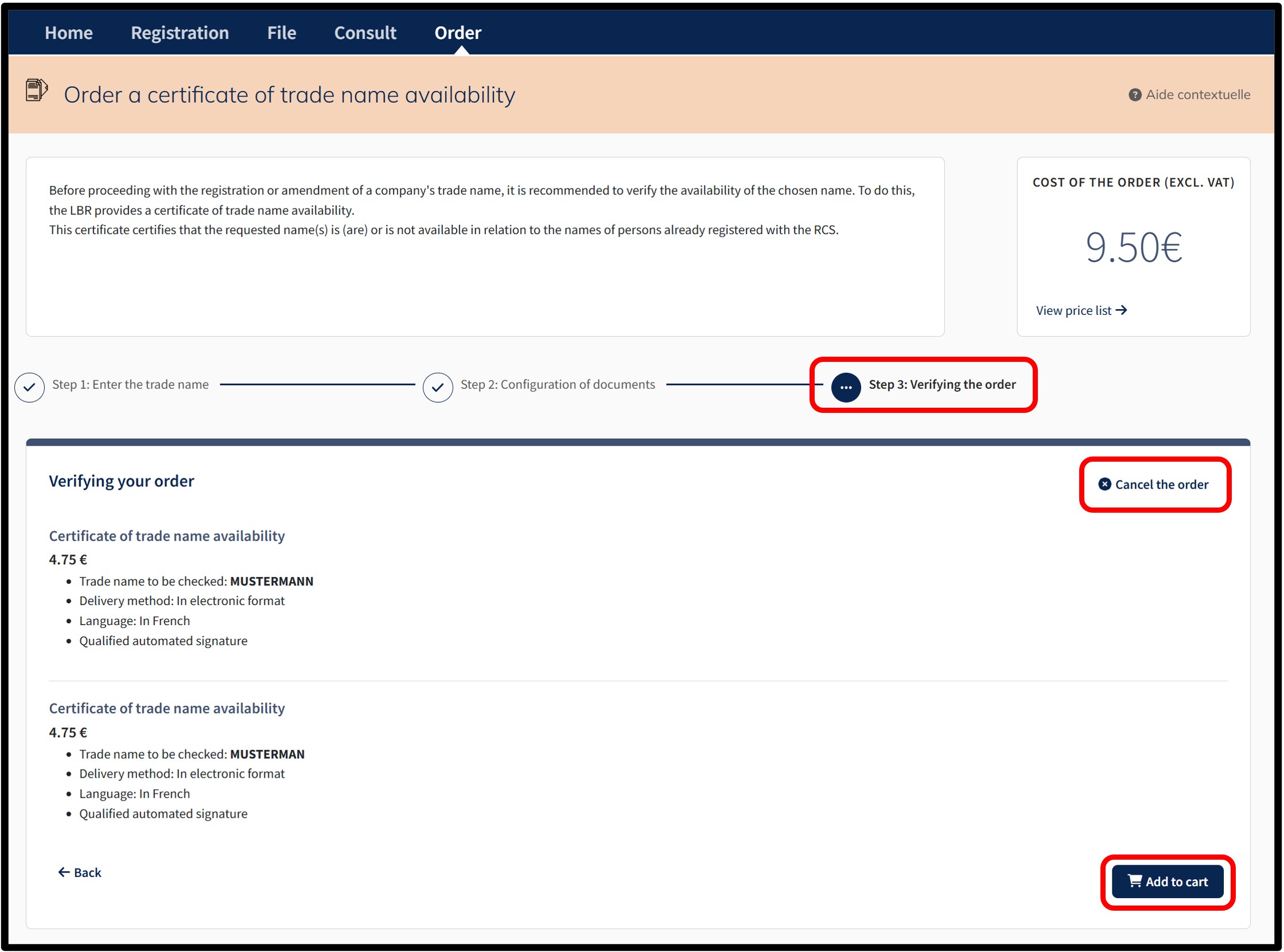
After confirming the order by clicking on the Add to cart button, the user is taken to the Details of their cart, which presents a summary of the order.
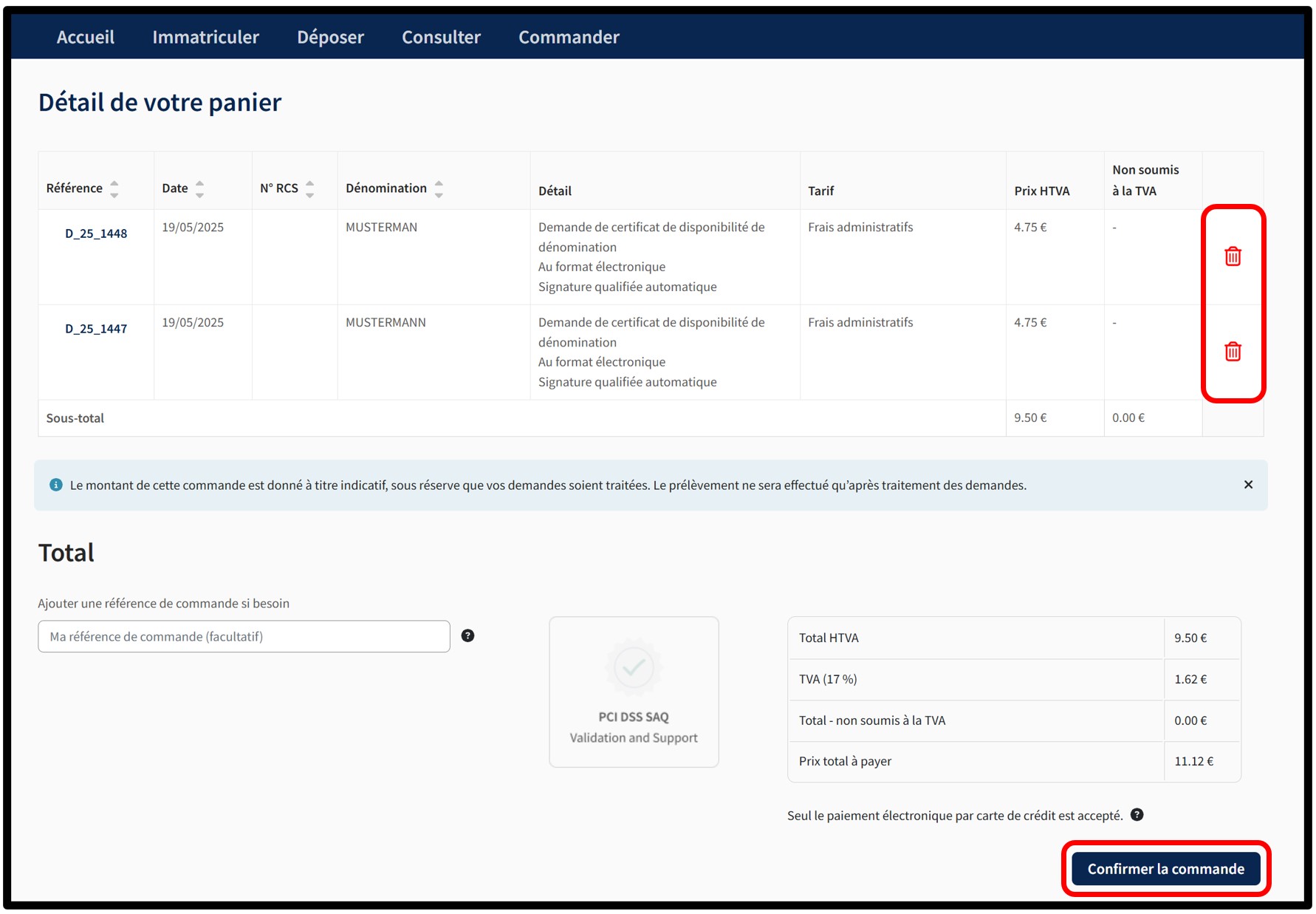
The user can delete an order from their cart by clicking on the Trash icon.
In order to confirm the order, the user has to click on the button Confirm order. By this action, the user indicates their willingness to proceed with the payment of all the requests in the cart. All the requests constitute an order. Payment is made by means of the secured electronic payment platform Saferpay from SIX Card Solutions.
After clicking on the Confirm order button, the user is redirected to the next screen Option to save a credit card, offering the possibility of saving a credit card for future payments. The user has to choose whether or not they wish to register their payment method.
Please note: The functionality of recording credit card data mandatorily requires an authentication by certificate of the user. An authentication by anonymous connection does not allow the use of this functionality.
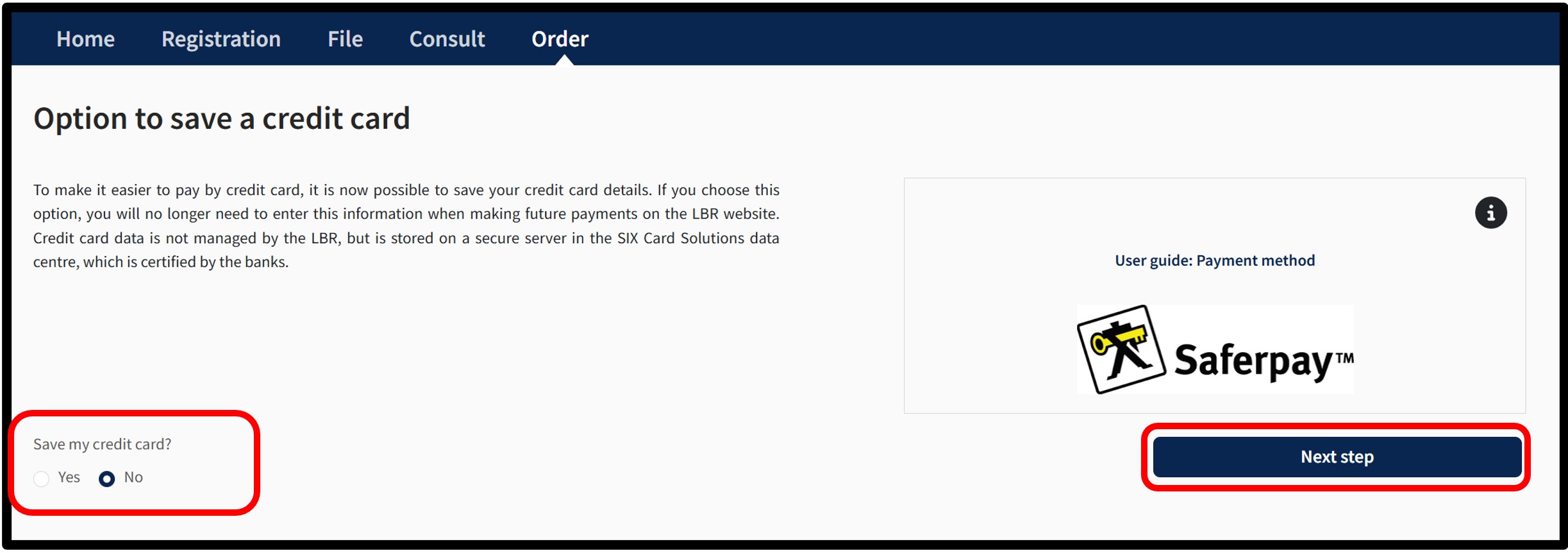
To do this, the user has to indicate their choice by checking either:
- The Yes box indicating their wish to register their payment method.
- The No box indicating their wish not to register their payment method.
To confirm their choice, the user is invited to click on the button Next step. After clicking Next step, an information pop-up about the payment process will appear on the page.
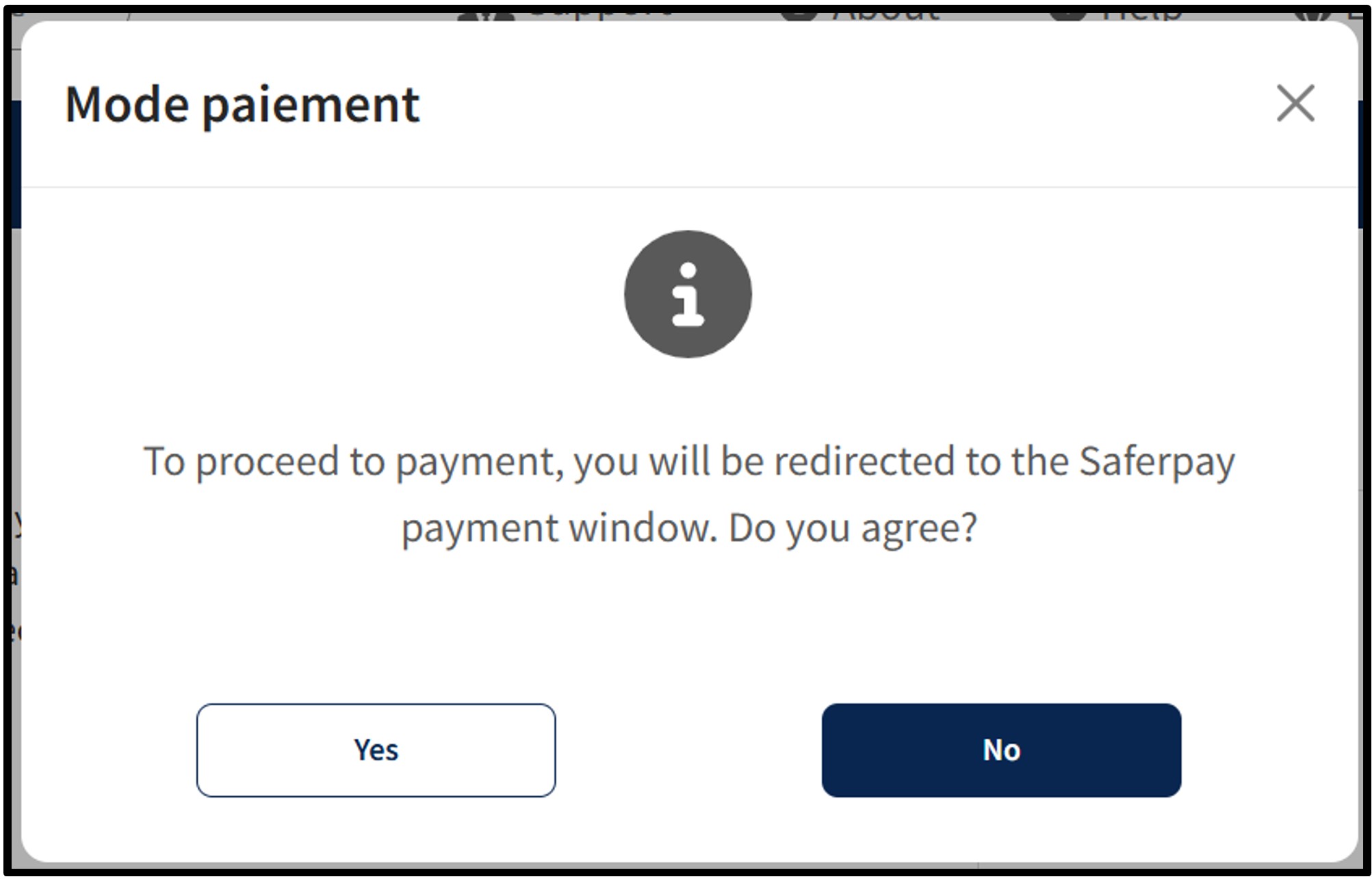
To continue the payment procedure, click on the button Yes. The user is redirected to the secured payment platform Saferpay. The user simply has to follow the instructions on the page to finalise the payment process. To cancel the payment procedure, click on the No button.
Once the payment process has been finalised and provided that the payment is accepted, the user is then redirected to the Confirmed order form page.
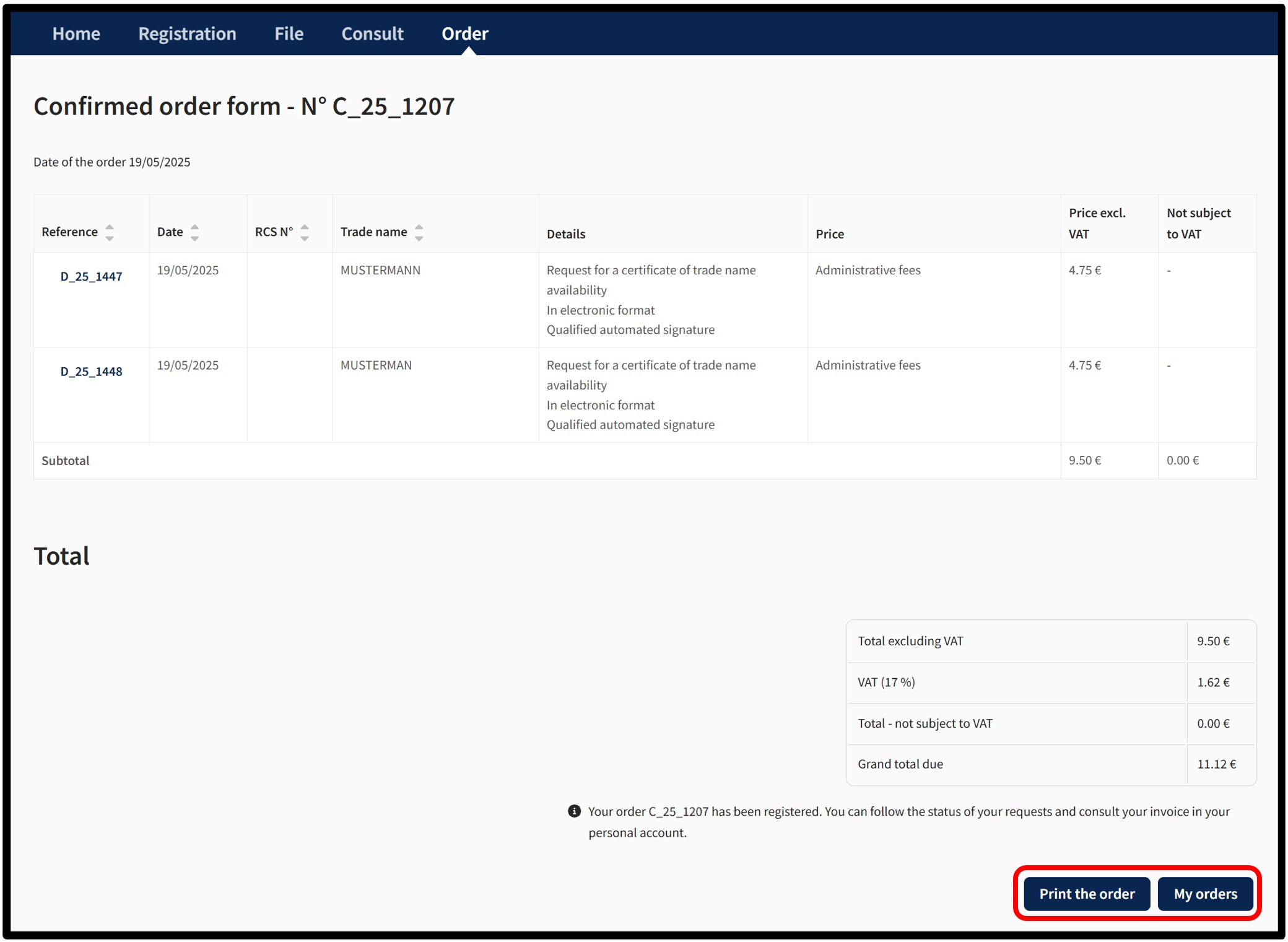
The user can print their confirmed order form in PDF format by clicking on the Print the order button.
In the case of an order for a certificate of availability in electronic format:
- With an Authentication by Anonymous Connection, the certificate of availability will be made available in a temporary space, which will be communicated to the user by email to the address that has been listed when the order was placed.
- With Authentication by Certificate, the certificate of availability will be made available in the Tracking my requests section in the customer space, which can be accessed via the menu My Account.
Notifications are automatically sent by email to the user:
- To confirm receipt of their order by LBR.
- To confirm that their order has been processed by LBR.
If the user does not wish to receive these emails, they can disable receipt from the menu My Account and select My details and settings.
Other practical information
Advice
Search by RCS number: how does it work?
The most effective way to search for / identify a person or registered entity is to search using their RCS number. To search by RCS number, the user has to know the exact RCS number and then validate the search by clicking on the Search button. The user is then automatically redirected to the page displaying the details of the entity in question.
Search by trade name: how does it work?
The search by trade name is based on the following information concerning the head office:
- Current trade name and any translations or abbreviations (or surname and first name for a trader).
- Current commercial names and any abbreviations.
- Historical trade name and any translations or abbreviations.
- Historical commercial names and any abbreviations.
The user confirms the search criteria by clicking on the Search button.
Search by trade name: possible results
If a single result corresponds to the search criteria, the user is automatically redirected to the page displaying the details of the entity in question.
If several results correspond to the search criteria, the user has to select the entity for which they wish to carry out an administrative procedure by clicking on its RCS number. Once the selection has been made, the user is redirected to a page displaying the details of the entity in question.
If the entity searched for does not appear in the list, the user has to refine his search criteria.
If no results are found, an error message is displayed, inviting the user to modify their search criteria and to restart their search.