How do I register my new subsidiary?
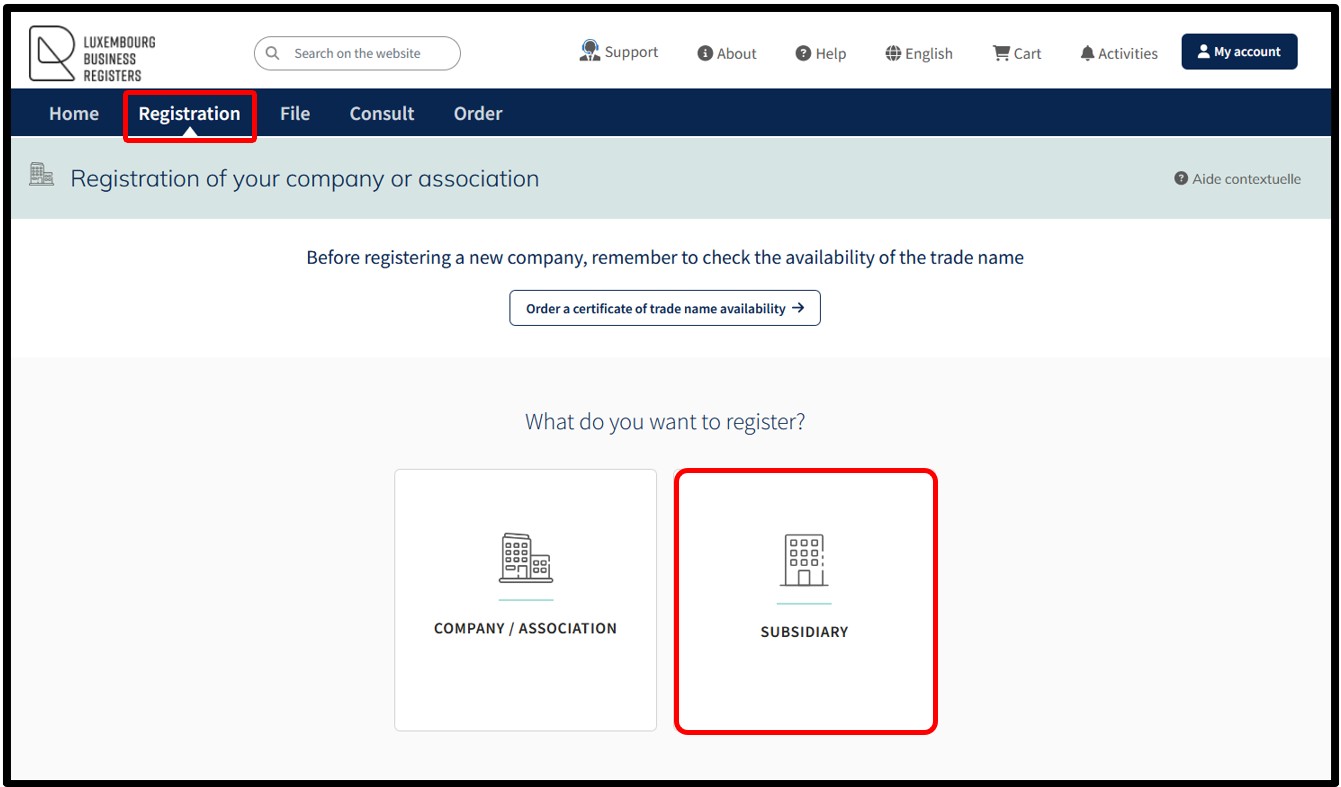
To create a request for registration of a new subsidiary with the RCS, the user is invited to click on the Subsidiary tile.
In order to proceed with a registration, it is mandatory for the user to authenticate themselves on the LBR website either by means of a product issued by LuxTrust, by using the GouvID application or by means of an eIDAS electronic certificate, offering at least a substantial level of security.
For further information, please consult our general help on the authentication by certificate process - how to connect?
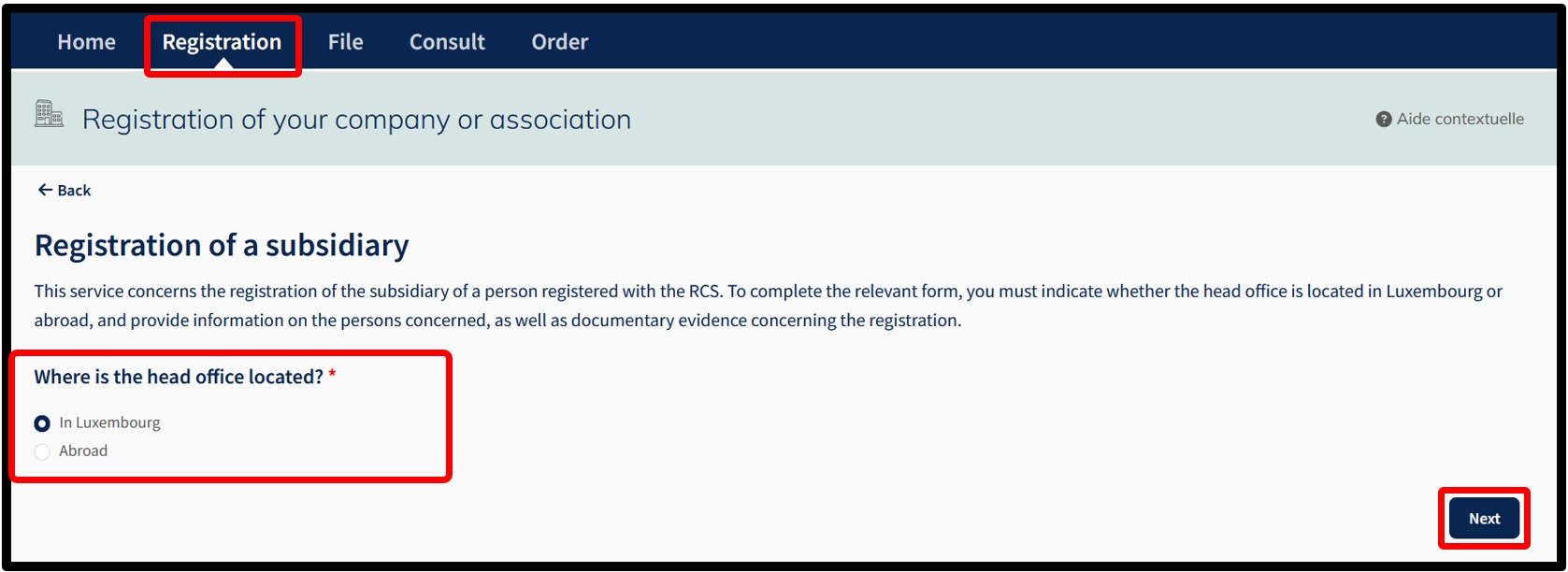
After clicking on the Subsidiary tile, the user is redirected to the following page.
On this page, the user has to indicate:
- Whether the head office is located in Luxembourg.
- Whether the head office is located abroad.
The user has to select one of the two proposed options and then click on the Next button.
Registration of a subsidiary whose head office is located in Luxembourg
This procedure concerns the registration of a subsidiary of a Luxembourg entity registered with the RCS.
Steps in the procedure
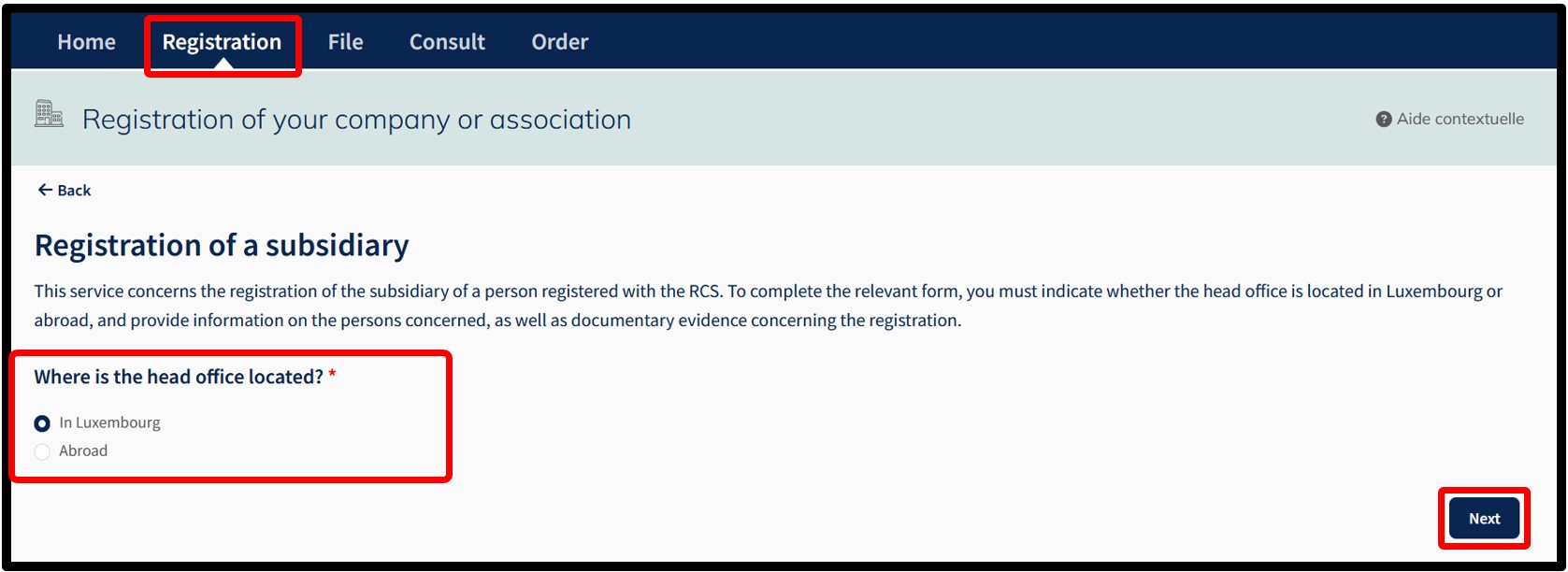
If the head office is located in Luxembourg, the user has to select:
- In Luxembourg
- Then click on the Next button
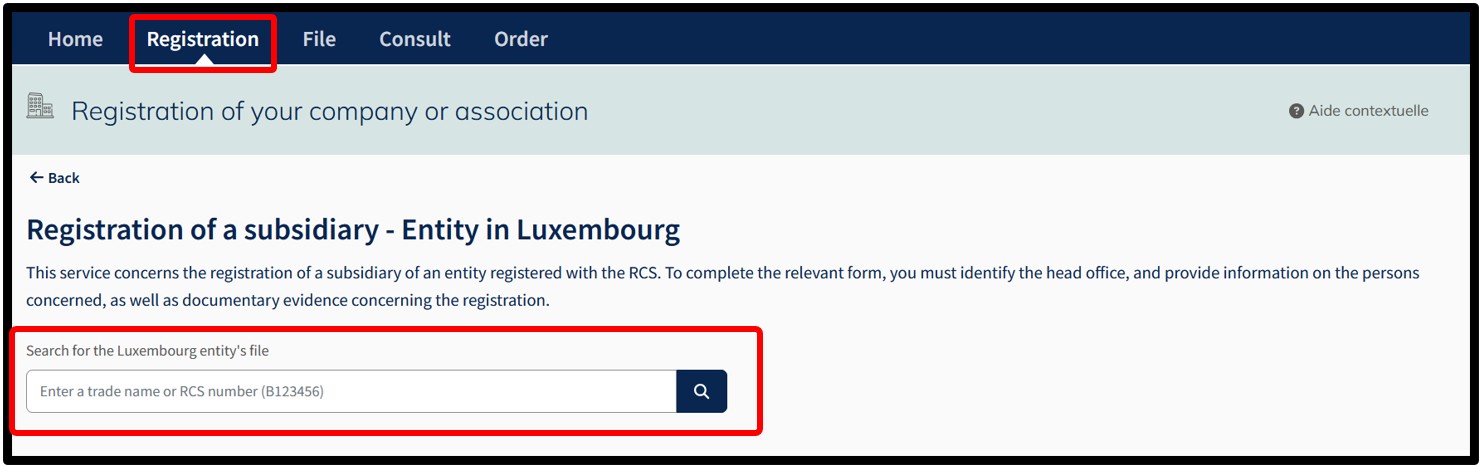
After clicking on Next and before starting the registration of the subsidiary, the user is asked to search for and then identify the entity or person registered for which a subsidiary must be registered with the RCS. To do this, the user must search for the head office registered with the RCS, entering either its RCS number or its trade name as the search criteria.
Once the search has been carried out and in order to complete the data to be entered, the user must select the head office for which a subsidiary is to be registered. Once the head office has been selected, the user confirms their choice by clicking on the Next button.
Once the head office has been identified, the user is first redirected to the authentication page where they are asked to select their preferred authentication method. After making their choice, the user is asked to follow the instructions on the screen to connect to the LBR website.
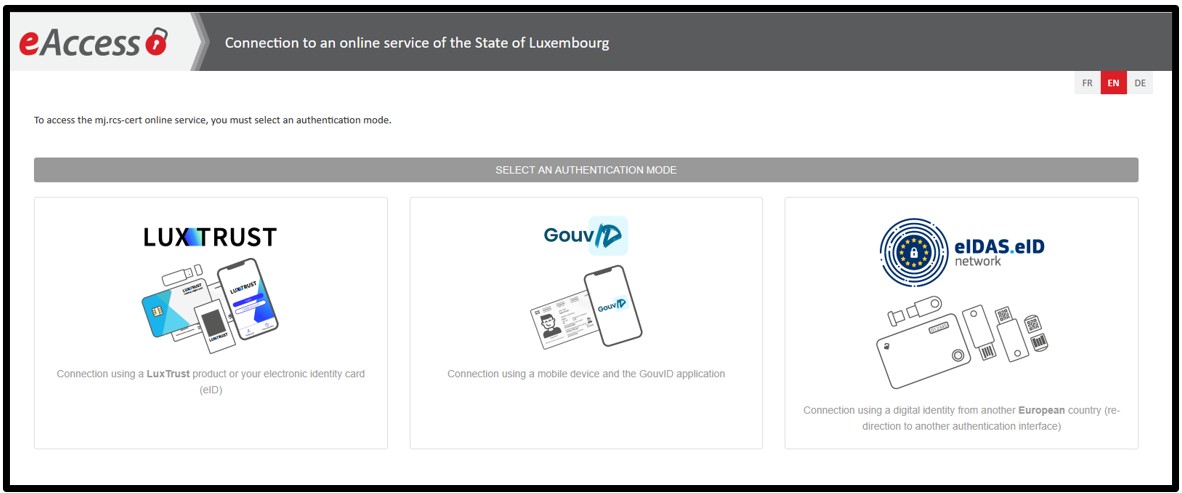
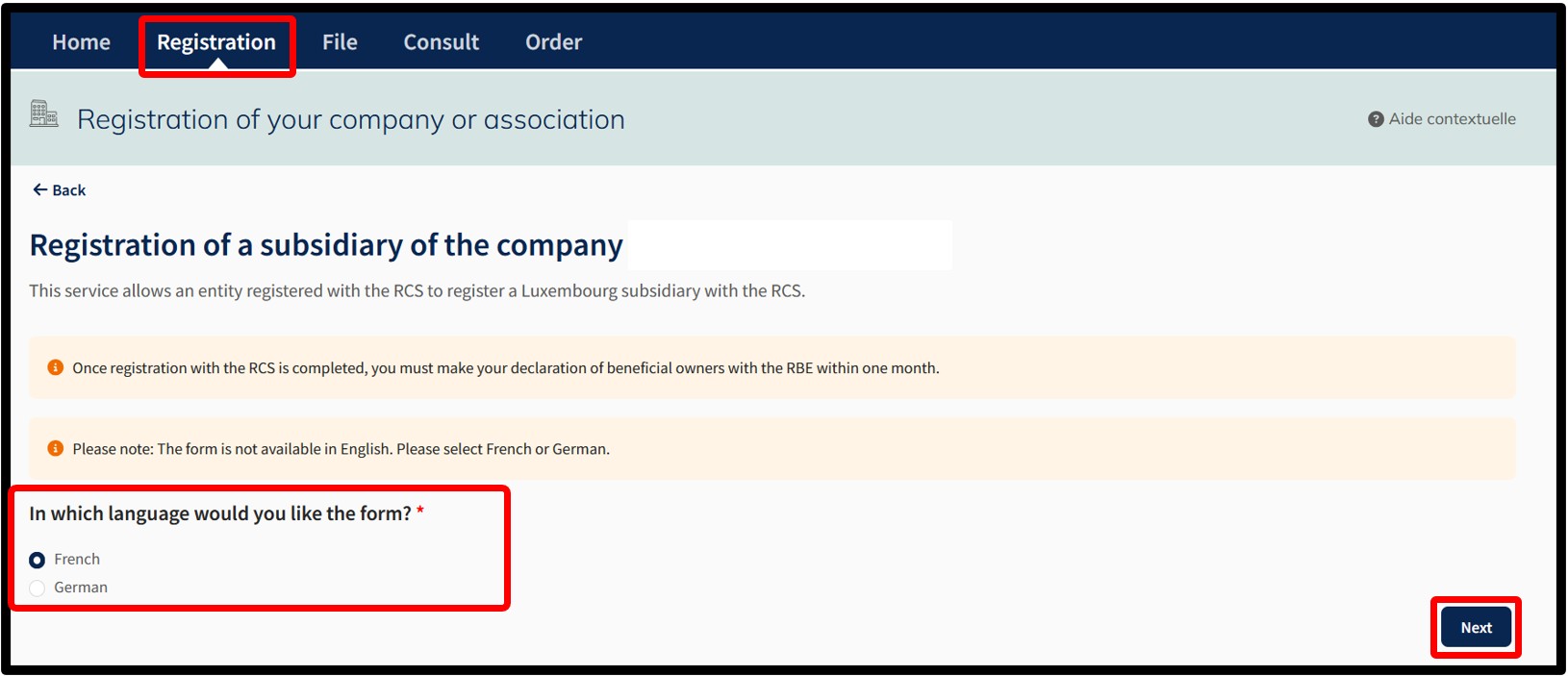
Following authentication, the user moves on to the next page where they have to choose the language of the data entry form relating to the registration request.
Important: Make sure you have the information required to proceed with the registration and the necessary documentary evidence.
After indicating their choice, the user confirms the creation of their subsidiary registration request by clicking on the Next button. The user is then redirected to the data entry form for the registration filing of the subsidiary corresponding to the selected head office..
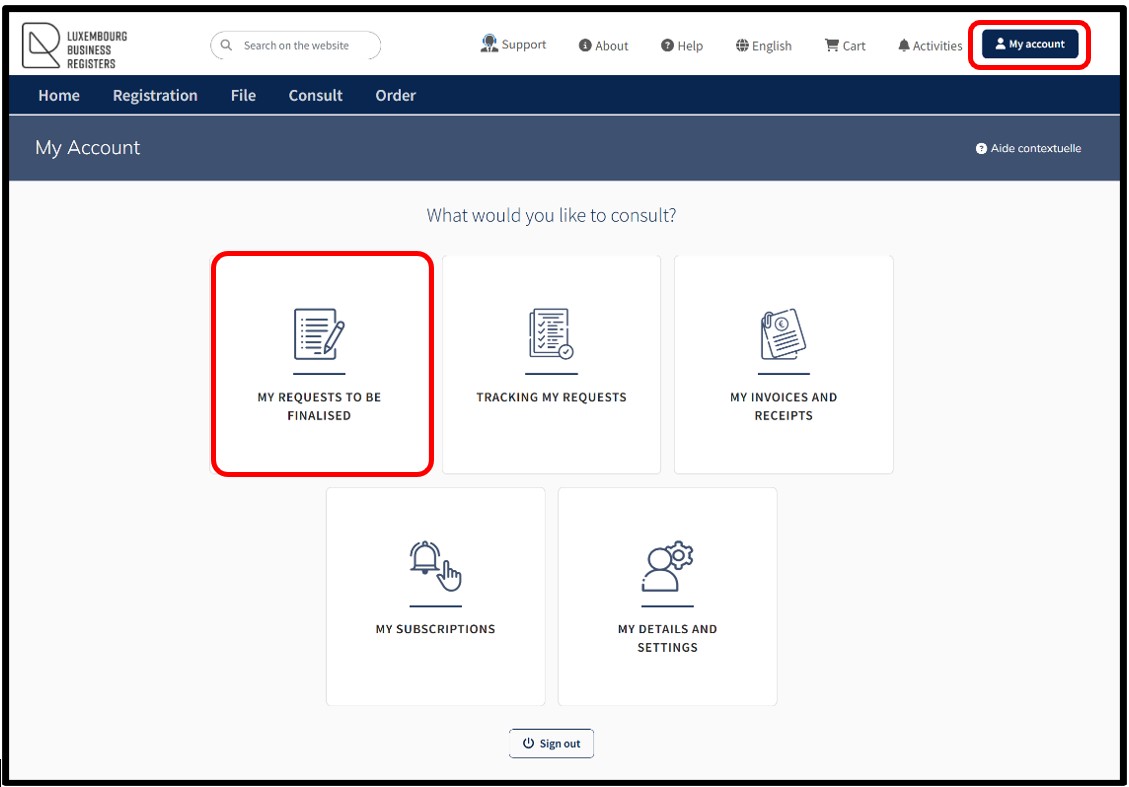
The user can also access their registration request in the My requests to be finalised section available in their customer space accessible via the My Account menu. The user can thus consult or complete their registration request in process. Please note: The functionality My Account is only available through an authentication by certificate of the user.
Registration of a subsidiary whose head office is located abroad
This procedure concerns the registration of a subsidiary of a foreign entity. If the head office is located abroad, the user must indicate whether another subsidiary already exists in Luxembourg by checking one of the following boxes:
Yes, another subsidiary exists
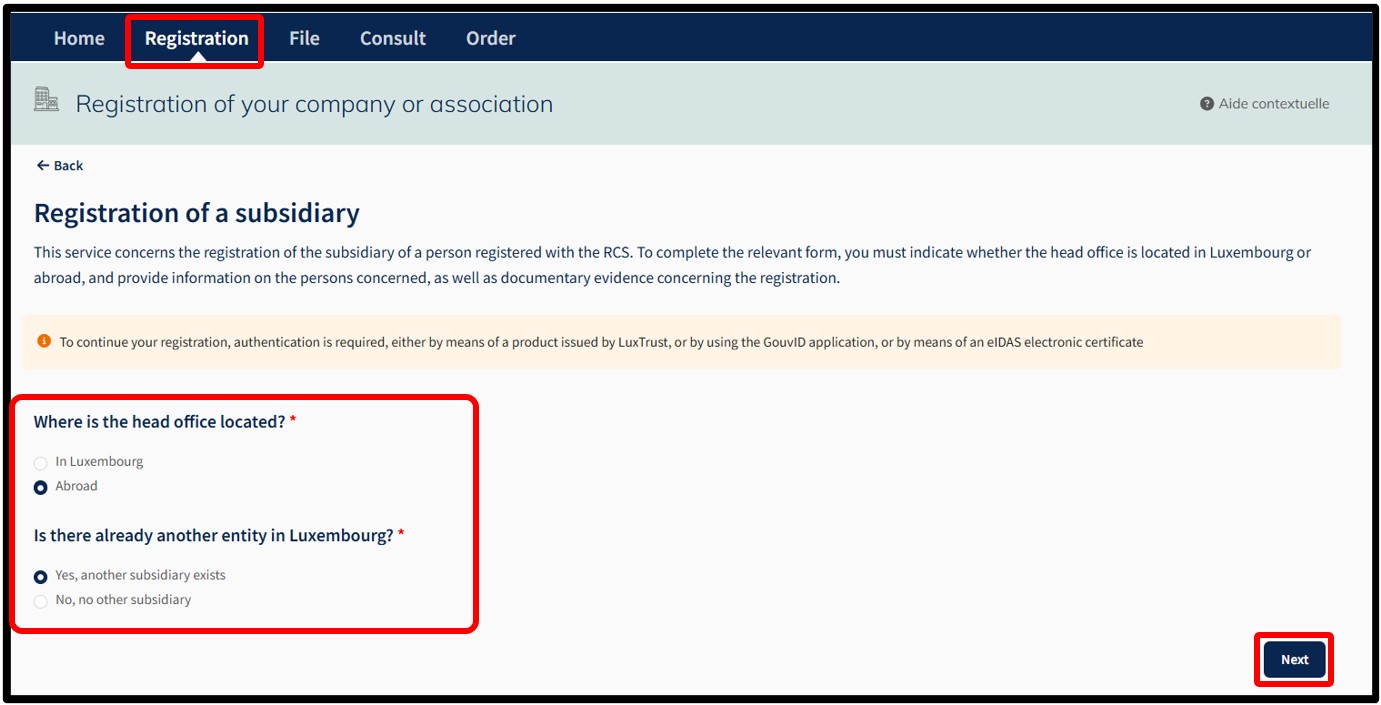
If the head office is located abroad, the user has to select:
- Aboroad
- Check the box Yes, indicating that another subsidiary exists
- Then click on the Next button
After clicking on Next and before starting the registration of the subsidiary, the user is asked to search for and then identify the entity under foreign law for which an additional subsidiary must be registered with the RCS. To do this, the user must search for the head office under foreign law registered with the RCS, entering either its RCS number or its trade name as the search criteria.
Once the search has been carried out and in order to complete the data to be entered, the user has to select the entity under foreign law for which an additional subsidiary has to be registered. Once the entity under foreign law has been selected, the user confirms their choice by clicking on the Next button.
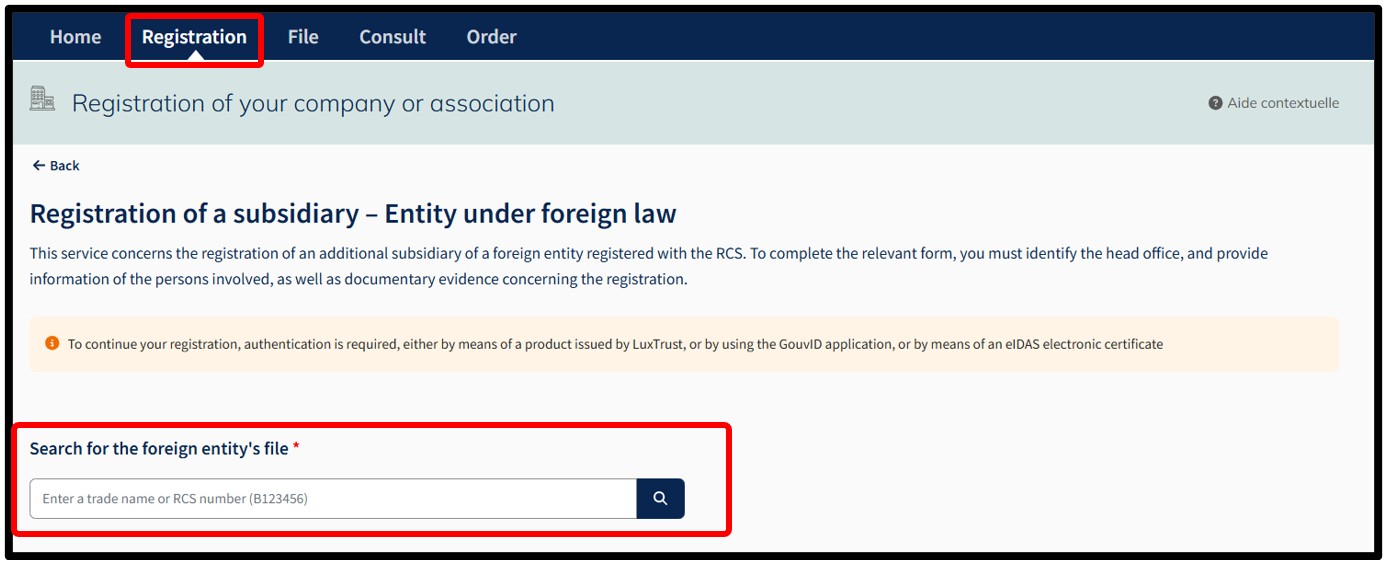
Once the entity under foreign law has been identified, the user is first redirected to the authentication page where they are asked to select their preferred authentication method. After making their choice, the user is asked to follow the instructions on the screen to connect to the LBR website.
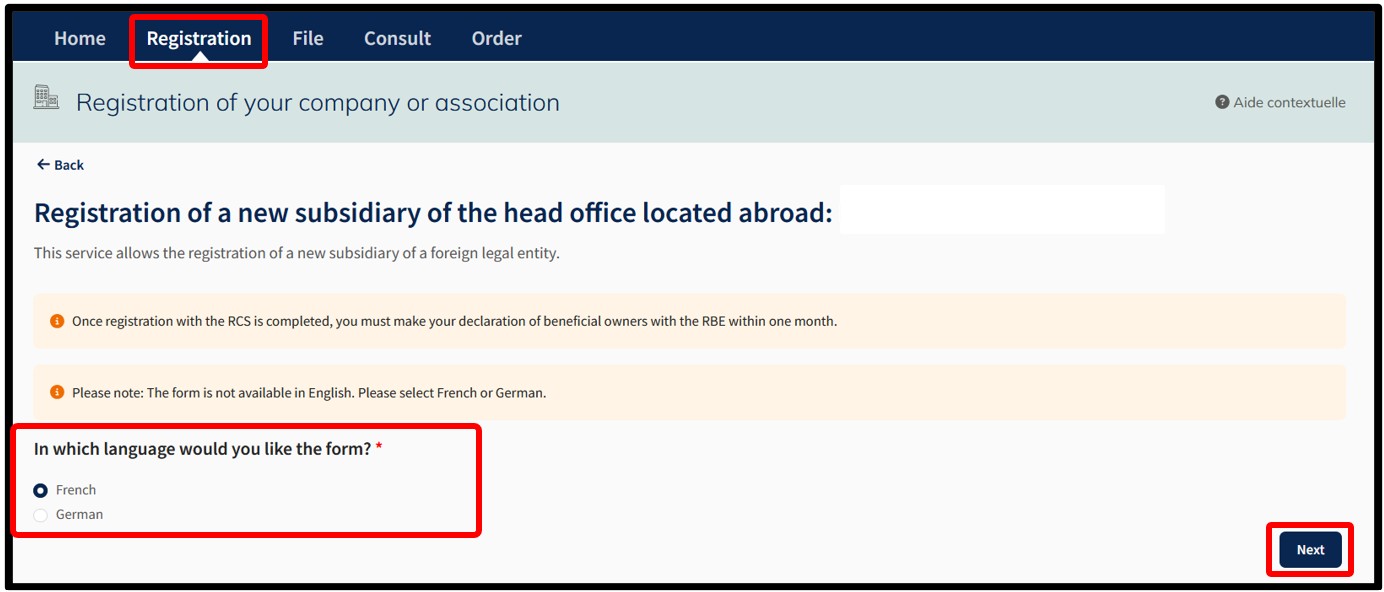
Following authentication, the user moves on to the next page where they have to choose the language of the data entry form relating to the registration request.
Important: Make sure you have the information required to proceed with the registration and the necessary documentary evidence.
After indicating their choice, the user confirms the creation of their subsidiary registration request by clicking on the Next button. The user is then redirected to the data entry form for the registration filing of the subsidiary corresponding to the selected entity under foreign law.
The user can also access their registration request in the My requests to be finalised section available in their customer space accessible via the My Account menu. The user can thus consult or complete their registration request in process. Please note: The functionality My Account is only available through an authentication by certificate of the user.
No, no other subsidiary
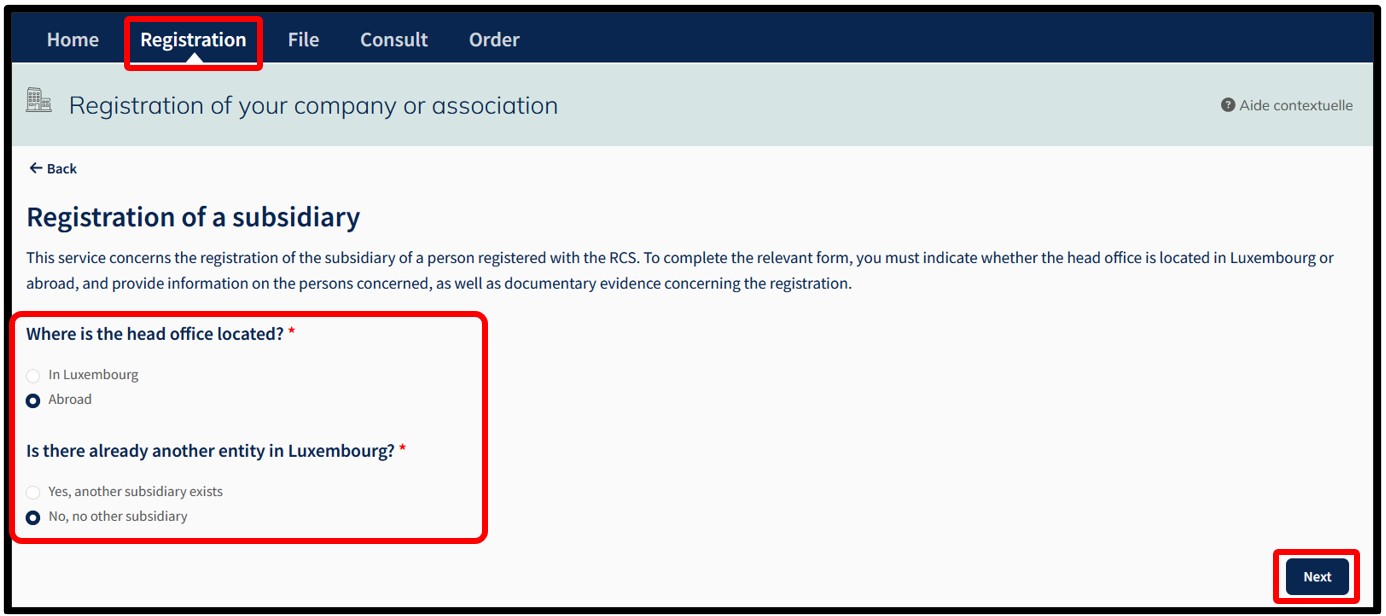
If the head office is located abroad, the user has to select:
- Aboroad
- Check the box No, indicating that no other subsidiary exists
- Then click on the Next button
After clicking Next and before starting the registration of the subsidiary, the user is redirected to the page where they have to indicate the type of subsidiary they wish to register with the RCS.
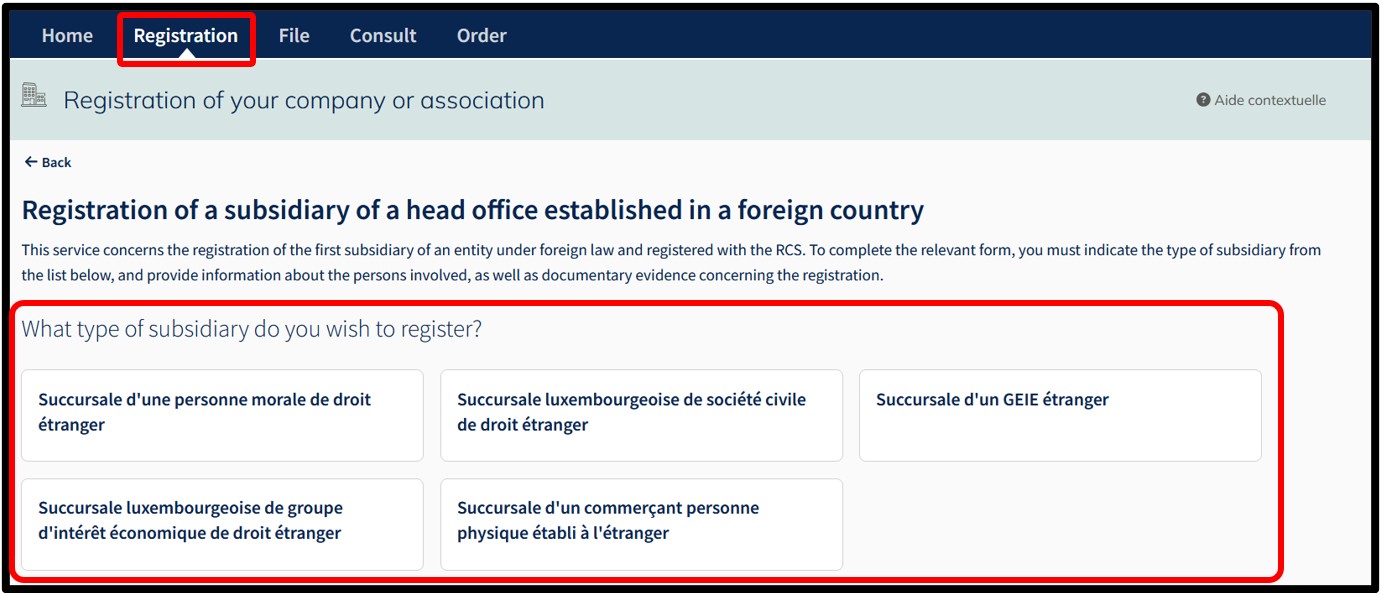
After selecting the desired type of subsidiary, the user is first redirected to the authentication page where they are asked to select the desired authentication method. After making their choice, the user is asked to follow the instructions on the screen to proceed with their connection to the LBR website.
Following authentication, the user moves on to the next page where they have to choose the language of the data entry form relating to the registration request.
Important: Make sure you have the information required to proceed with the registration and the necessary documentary evidence.
After indicating their choice, the user confirms the creation of their subsidiary registration request by clicking on the Next button. The user is then redirected to the data entry form for the registration filing of the subsidiary corresponding to the selected entity under foreign law.
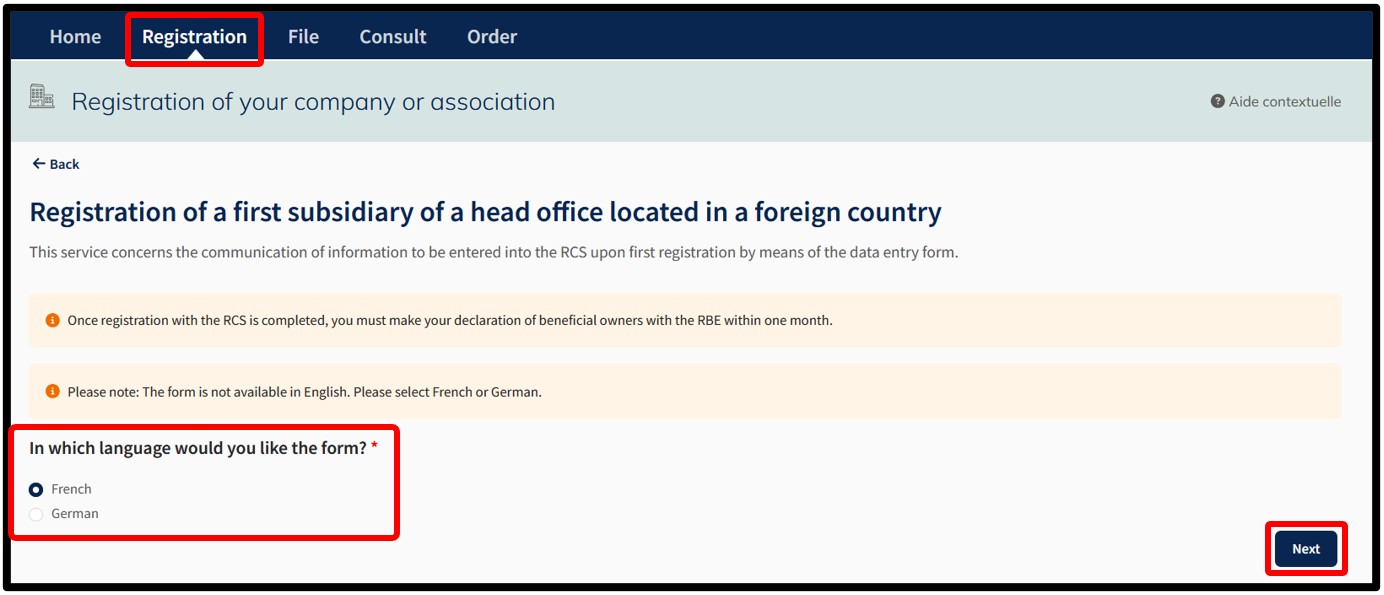
The user can also access their registration request in the My requests to be finalised section available in their customer space accessible via the My Account menu. The user can thus consult or complete their registration request in process. Please note: The functionality My Account is only available through an authentication by certificate of the user.
Advice
Search by RCS number: how does it work?
The most effective way to search for / identify a person or registered entity is to search using their RCS number. To search by RCS number, the user has to know the exact RCS number and then validate the search by clicking on the Search button. The user is then automatically redirected to the page where they can continue the procedure.
Search by trade name: how does it work?
The search by trade name is based on the following information concerning the head office:
- Current trade name and any translations or abbreviations (or surname and first name for a trader).
- Current commercial names and any abbreviations.
- Historical trade name and any translations or abbreviations.
- Historical commercial names and any abbreviations.
The user confirms the search criteria by clicking on the Search button.
Search by trade name: possible results
- If a single result corresponds to the search criteria, the user is automatically redirected to the page where they can continue the procedure.
- If several results correspond to the search criteria, the user has to select the entity for which they wish to carry out an administrative procedure by clicking on its RCS number. Once the selection has been made, the user is redirected to a page where they can continue the procedure.
- If the entity searched for does not appear in the list, the user has to refine his search criteria.
- If no results are found, an error message is displayed, inviting the user to modify their search criteria and to restart their search.