RESA - Consultation: Things to know
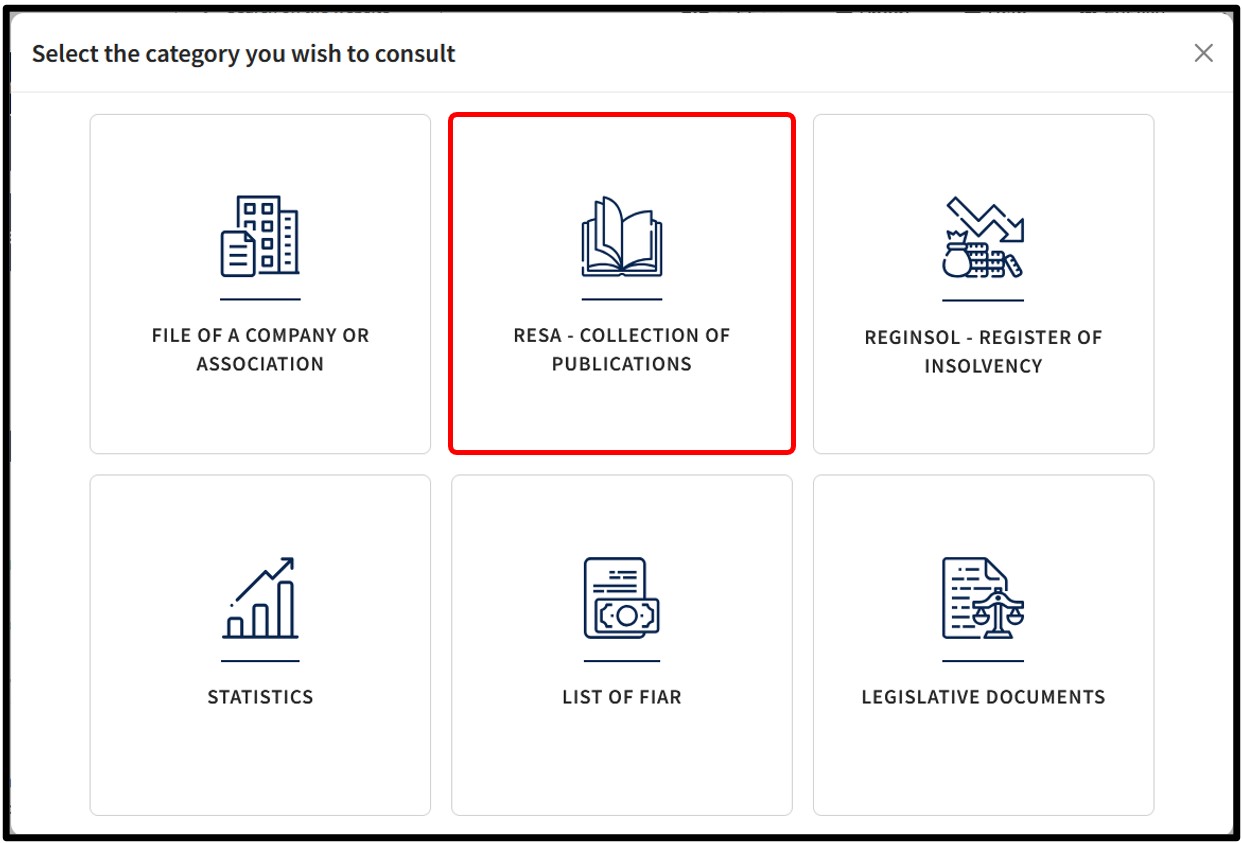
In the pop-up window displaying the consultation categories, the user is invited to click on the tile RESA - Collection of publications in order to access the consultation of all official legal publications, to which companies and associations are legally subject.
These publications are issued in the form of a journal published daily on the RESA - Recueil électronique des sociétés et associations.
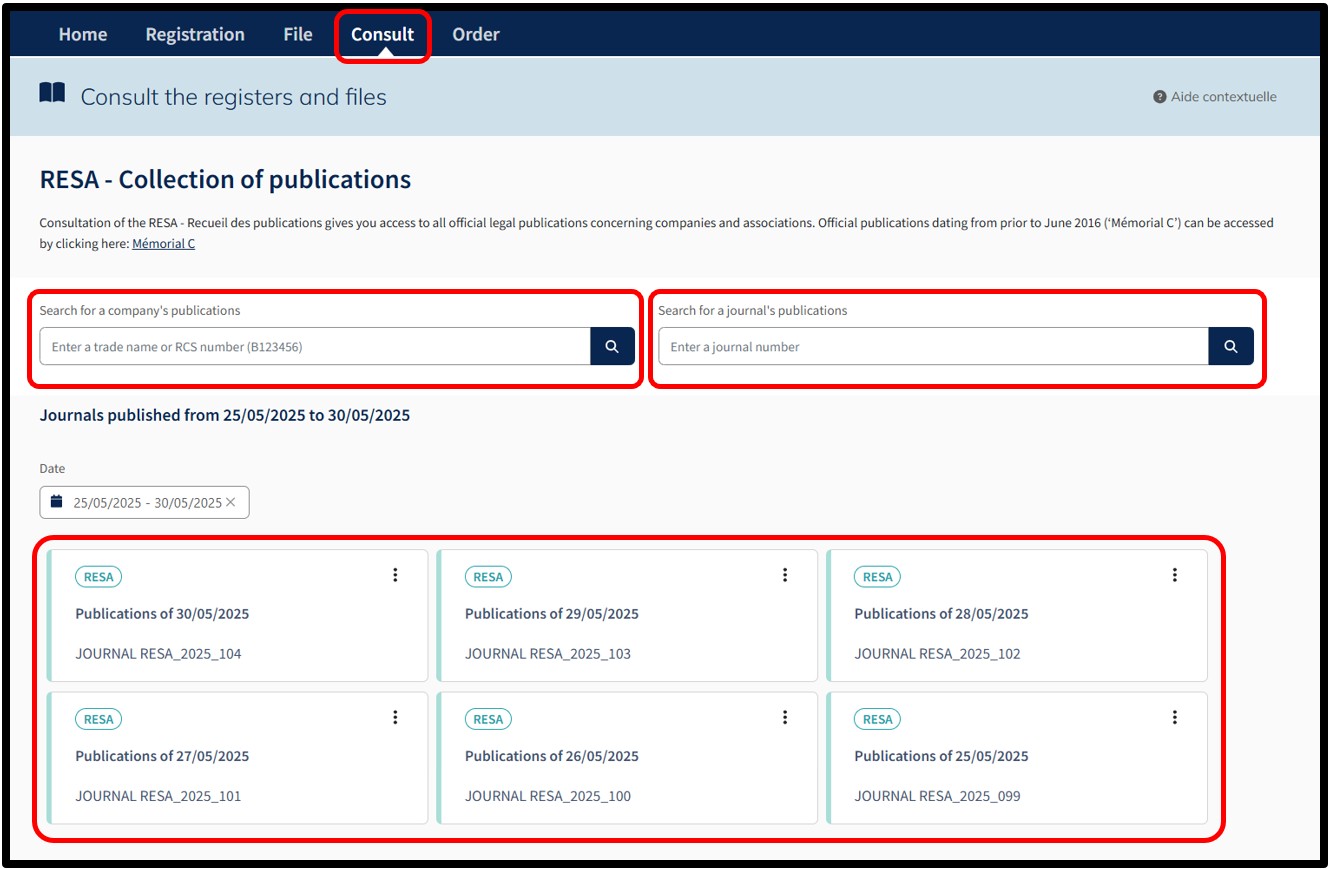
By selecting to consult the RESA, the user accesses the page allowing consultation of the list of RESA Journals containing the most recent publications.
This page also has two search functionalities relating to the publications:
- A search functionality allowing the user to search for a company's publications either by its trade name or its RCS number.
- A search functionality allowing the user to search for the publications of a journal by indicating a journal number.
The user also has the option of consulting the publications listed in the Mémorial C, for official publications prior to June 2016, by clicking on the link dedicated to Mémorial C.
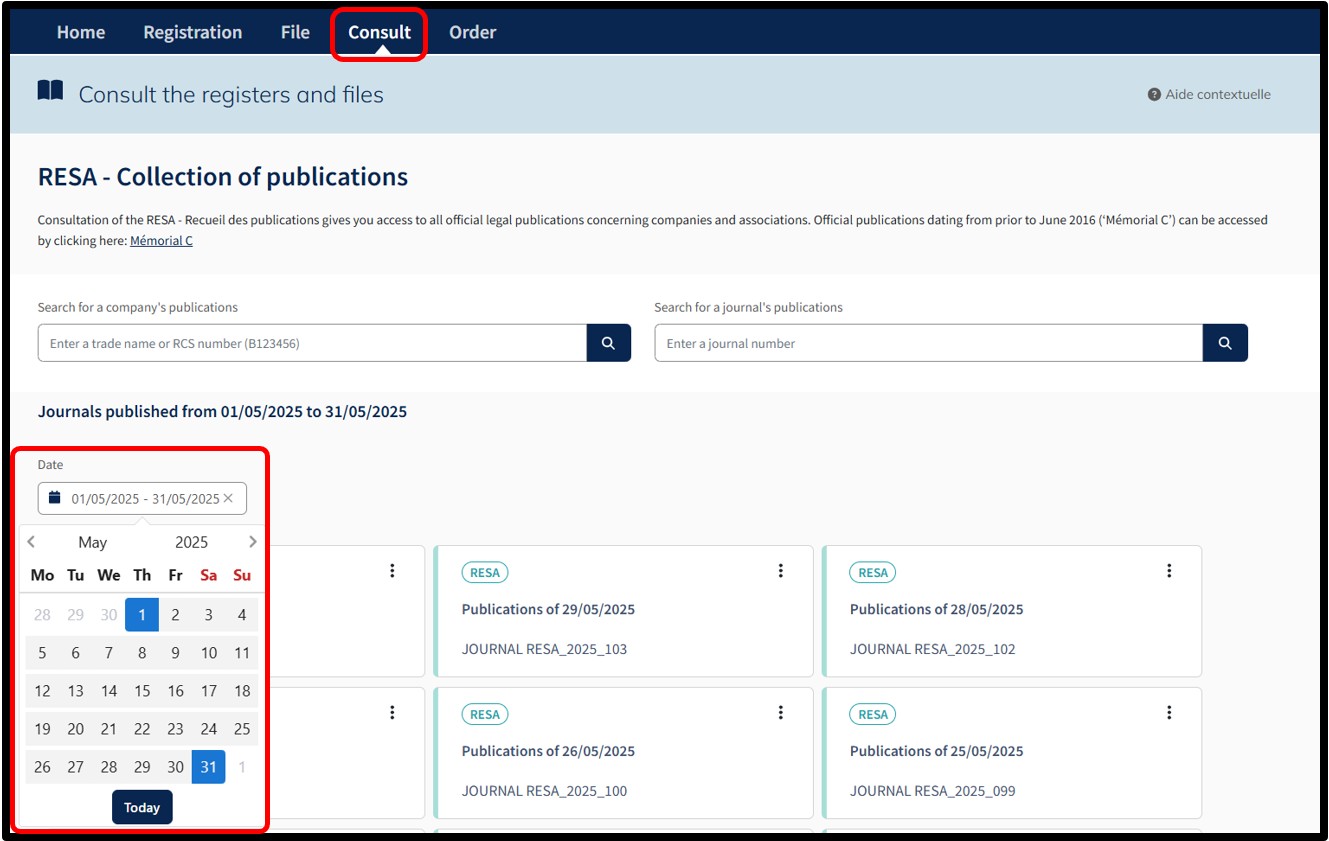
On the RESA - Collection of publications, the user accesses the page enabling the consultation of the list of RESA Journals containing the most recent publications.
The user can define the coverage period for the list of publications in the RESA.
To do this, the user can enter a specific date or period in the dedicated Date field to display the publications in the RESA corresponding to the period entered.
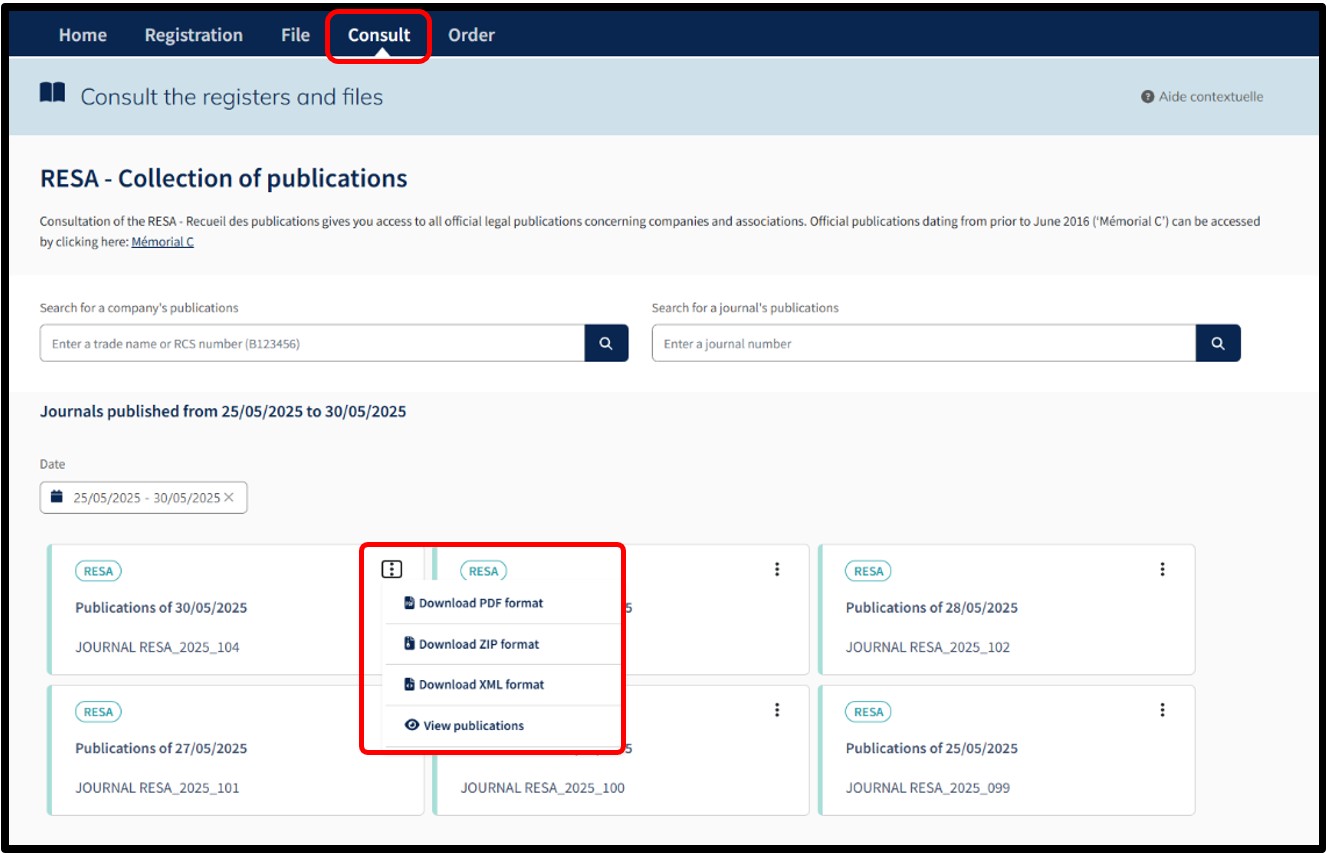
Within the list of RESA Journals available for consultation, the user can access the consultation options for a given publication by clicking on the icon with the 3 small dots.
The user is then offered the following consultation options:
- Download the journal in PDF format
- Download the journal in ZIP format
- Download the journal in XML format
- View the publications of the RESA journal
Depending on their needs, the user can either download the journal in one of the available formats.
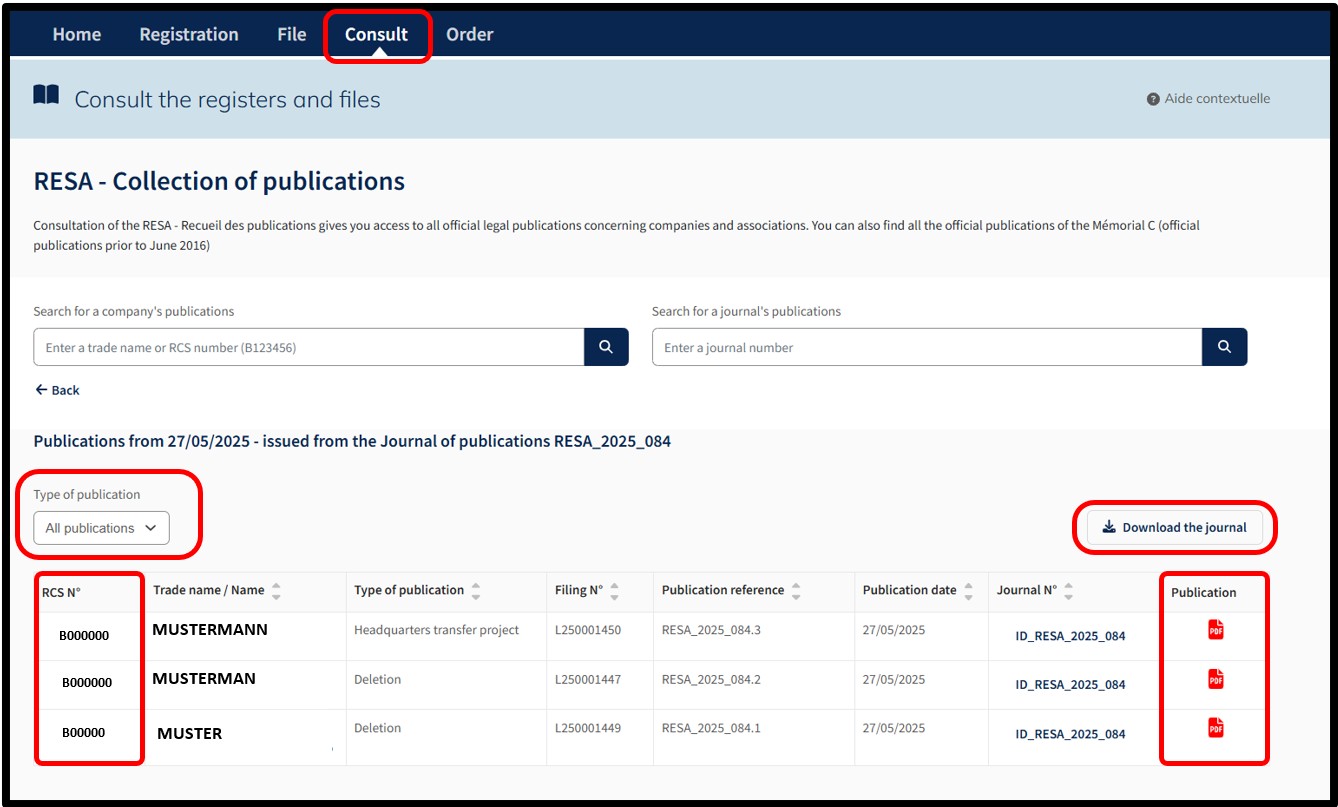
By selecting the consultation option View publications, the user accesses the list of publications published in the RESA - Journal of Publications for the selected date.
Within this list, the user has the option to:
1. Filter the type of publication.
2. Consult the file of an entity by clicking on its RCS number.
3. Download the publication (in full or in extract) for a specific entity in PDF format by clicking on the PDF icon. For publications by mention, no download is offered.
4. Download the RESA - Journal of Publications to the RESA for the selected date.
Advice
Search by RCS number: how does it work?
The most effective way to search for / identify a person or registered entity is to search using their RCS number.
To search by RCS number, the user has to know the exact RCS number and then validate the search by clicking on the Search button.
The user is then automatically redirected to the page displaying the RESA publications relating to the selected entity.
Search by trade name: how does it work?
The search by trade name is based on the following information concerning the head office:
- Current trade name and any translations or abbreviations (or surname and first name for a trader).
- Current commercial names and any abbreviations.
- Historical trade name and any translations or abbreviations.
- Historical commercial names and any abbreviations.
The user confirms the search criteria by clicking on the Search button.
Search by trade name: possible results
If a single result corresponds to the search criteria, the user is then automatically redirected to the page displaying the RESA publications relating to the selected entity.
If several results correspond to the search criteria, the user has to select the entity for which they wish to proceed with the consultation and confirm their choice by clicking on the Next button.
After selecting the entity for which a consultation is requested, the user is redirected to the page displaying the RESA publications relating to the selected entity.
If the entity searched for does not appear in the list, the user has to refine his search criteria.
If no results are found, an error message is displayed, inviting the user to modify their search criteria and to restart their search.