How to prepare your documents in PDF/A format?
Documents to be submitted: Things to know (PDF/A format required)
Documents intended for publication in the RESA
Documents intended for publication in the RESA must be submitted in PDF/A Text format. This is the only format accepted for documents intended for publication.
These documents must also meet the following requirements:
- Be submitted in A4 portrait format.
- Include a white horizontal area of at least 35 millimetres at the top of the first page to allow LBR to affix a virtual label representing the electronic filing receipt.
- Be saved in PDF/A-1a or PDF/A-1b format: when saving the file, select the PDF/A-1a or PDF/A-1b option provided by your software (Word, LibreOffice, Adobe, etc.).
- Not contain images, including the association's logo.
- Not to be scanned document.
- Not contain a handwritten signature.
- Be written in standard office fonts only: Arial, Calibri, New Courier, Times New Roman, Helvetica, Source Sans Pro. In order to guarantee the acceptance of predefined bullet points, and only for this purpose, Wingdings and Symbol fonts are also accepted.
- Be written in black text on a white background.
Important: Also ensure that the header, footer and page numbering of your document use only the standard office fonts listed above.
Documents not intended for publication in the RESA
Documents intended for processing purposes have to be submitted in PDF/A format and meet the following requirements:
- Be submitted in A4 portrait format.
- Include a white horizontal area of at least 35 millimetres at the top of the first page to allow LBR to affix a virtual label representing the electronic filing receipt.
- Be saved in PDF/A-1a or PDF/A-1b format: when saving the file, select the PDF/A-1a or PDF/A-1b option provided by your software (Word, LibreOffice, Adobe, etc.).
How to convert your documents to PDF/A format
There are several solutions for converting office files to PDF/A format.
Here are the three methods that are officially supported by the RCS administrator:
- Create a document using Microsoft Office (2010 and later versions) and use the functionality Save as.
- Create a document using OpenOffice or LibreOffice and use the functionality Export to PDF.
- Creation of a document using the functionality to Print to the Adobe PDF printer installed by default when the Adobe Acrobat Professional tool is installed.
Preparing your documents with Microsoft Office
Main steps:
1. The user has to open their document in Microsoft Word.
2. To convert their Word file to PDF/A format, the user has to follow these steps:
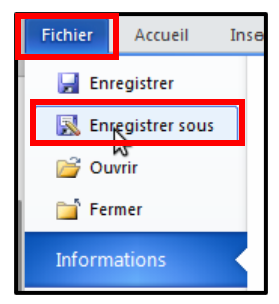
A. Click on File (Fichier), then on Save as (Enregistrer sous).
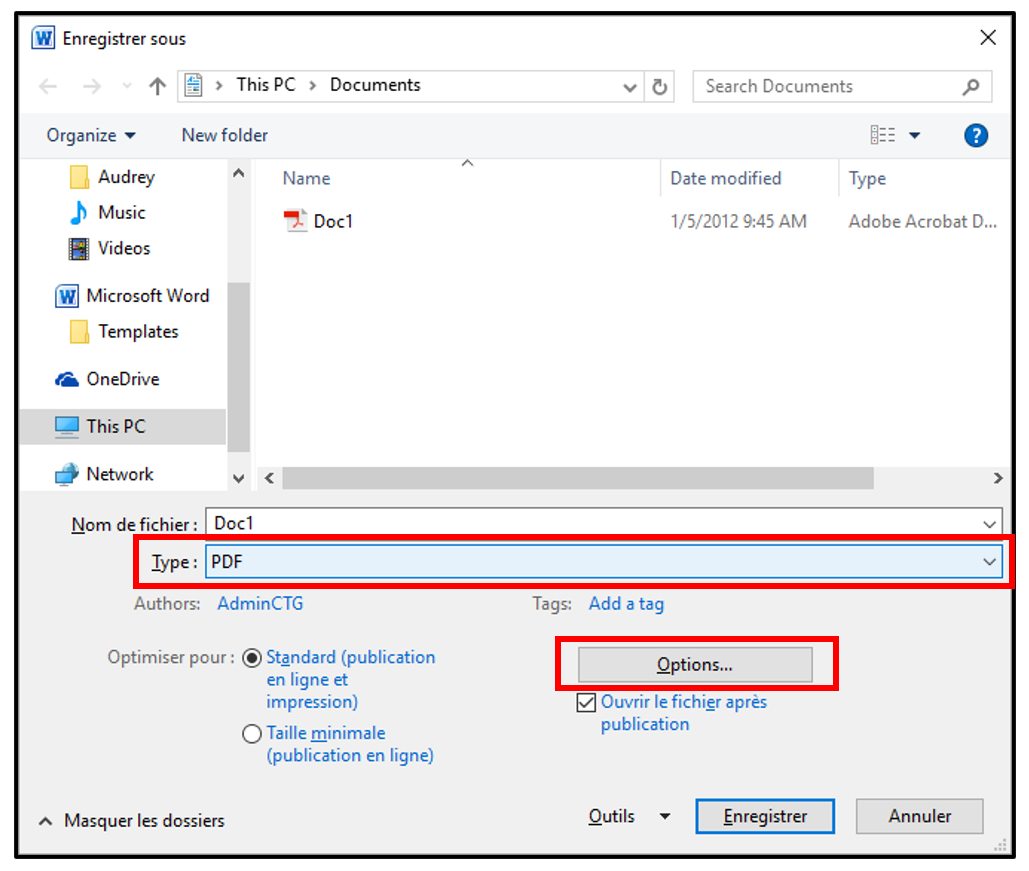
B. Under the option Type, select the format entitled PDF (*.pdf). Then click on the Options button.
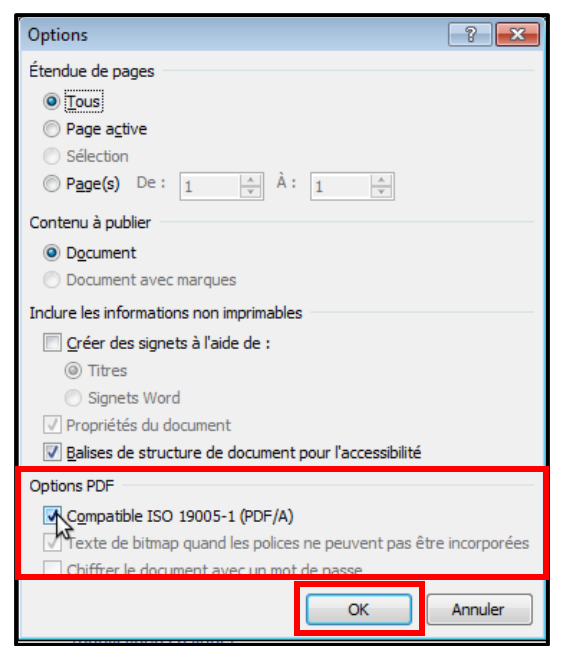
C. In the pop-up that appears on the page, the user has to check the box ISO 19005-1 (PDF/A) compatible. Then click on the OK button. This option should remain checked for future PDF backups.
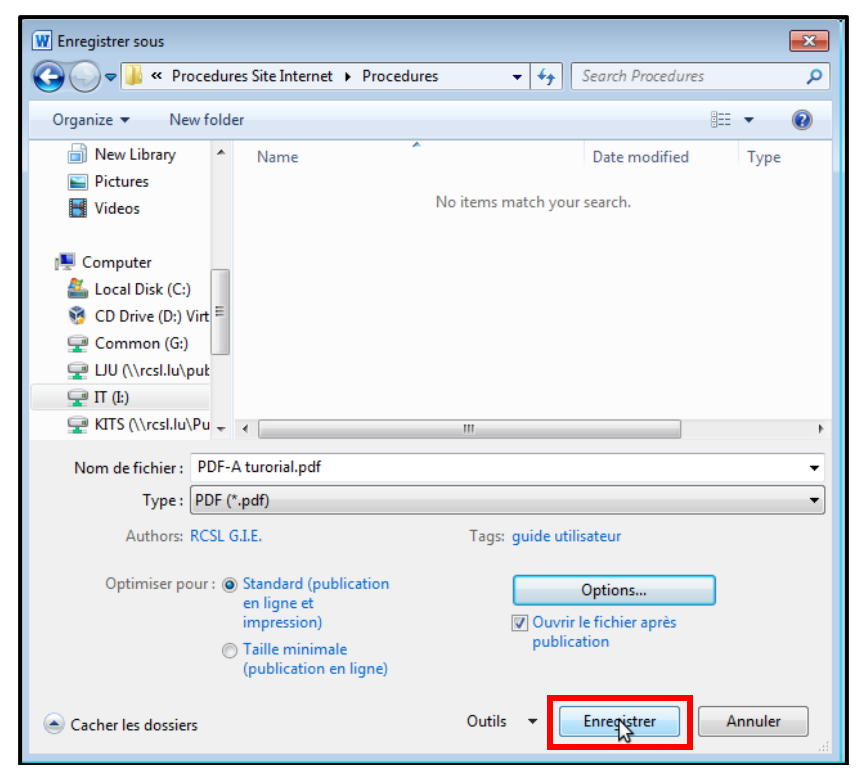
D. To finalise the conversion to PDF/A format, please click on the Save (Enregistrer) button.
Once these steps have been completed, the user will have a PDF/A version of their Word document that can be submitted to the RCS administrator.
Preparing your documents with OpenOffice / LibreOffice
These programmes are complete office automation solutions with a functionality equivalent to Microsoft Office. They are Open Source programmes, built on the same basis and available free of charge on the websites of the respective projects:
- LibreOffice : https://libreoffice.org/
- OpenOffice : https://www.openoffice.org/
Main steps:
1. The user has to open their document in OpenOffice / LibreOffice.
2. To convert their document file to PDF/A format, the user has to follow these steps:
A. Click on File, then on Export as PDF.
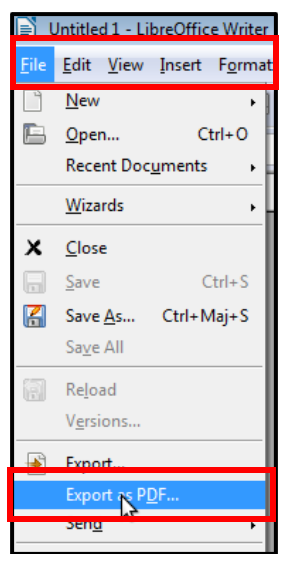
B. In the pop-up window that appears on the page, the user has to check the box labelled Archive PDF/A-1a (ISO 19005-1). Then click on the Export button. This option should remain checked for future PDF backups.
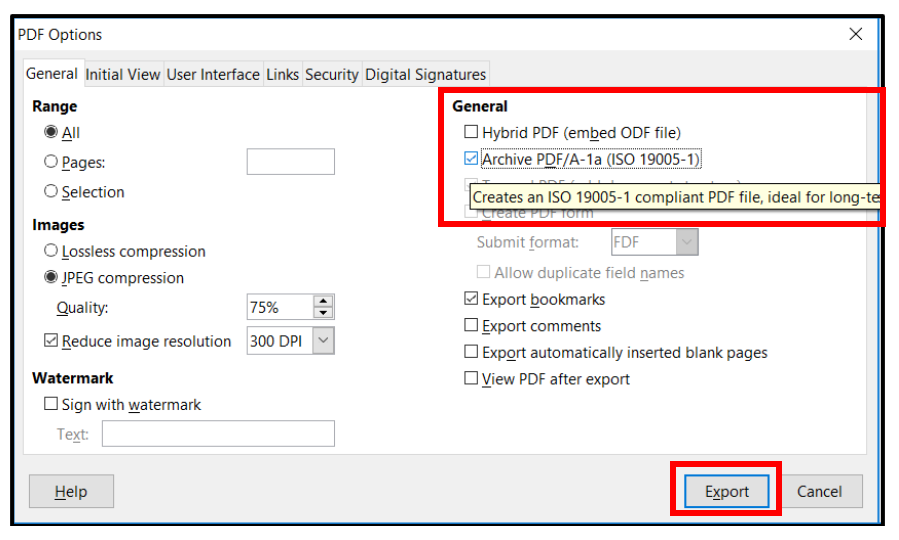
Once these steps have been completed, the user will have a PDF/A version of their document that can be submitted to the RCS administrator.
Preparing your documents with Adobe PDF
There are several methods for converting a file to PDF/A format using Adobe Acrobat. The different methods are described in the Adobe Acrobat help section.
The simplest method for creating a PDF file that complies with the PDF/A standard from an existing file is as follows:
Main steps:
1. The user must open their document in their word processing software.
2. To convert their document to PDF/A format, the user must follow these steps:
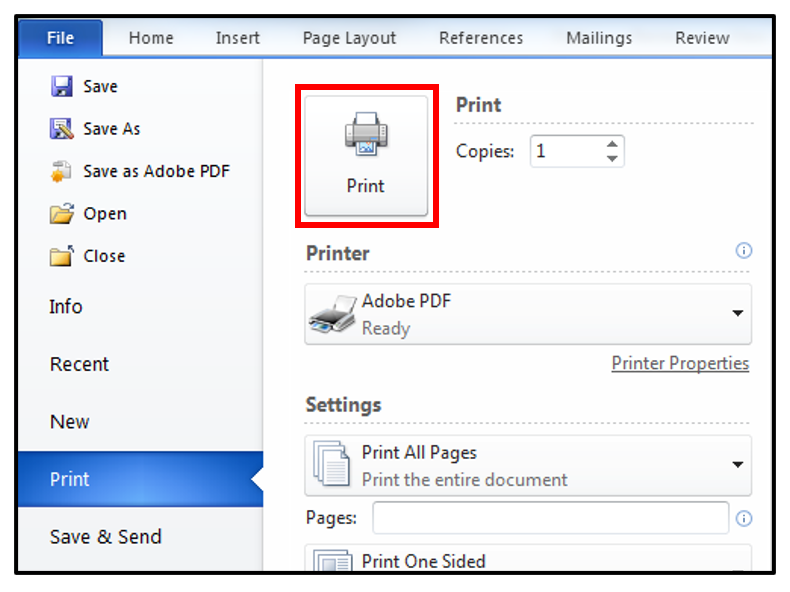
A. Click on File, then on Print. Select the Adobe PDF printer, which is automatically created when you install Adobe Acrobat Professional. Then click on Printer Properties.
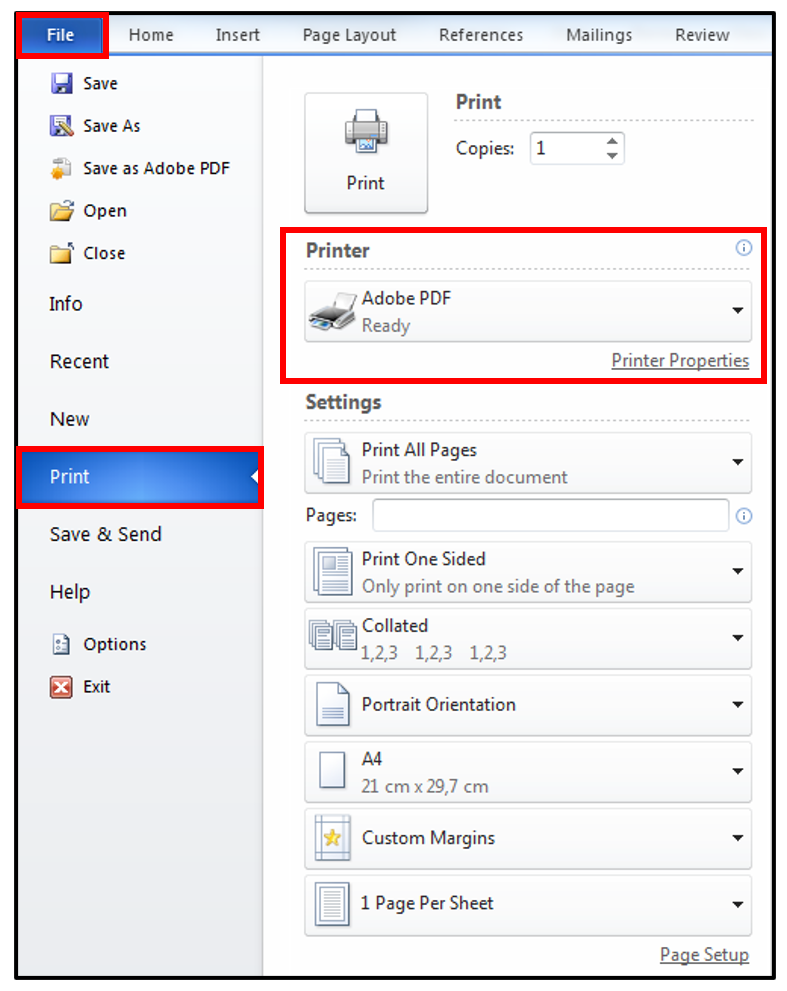
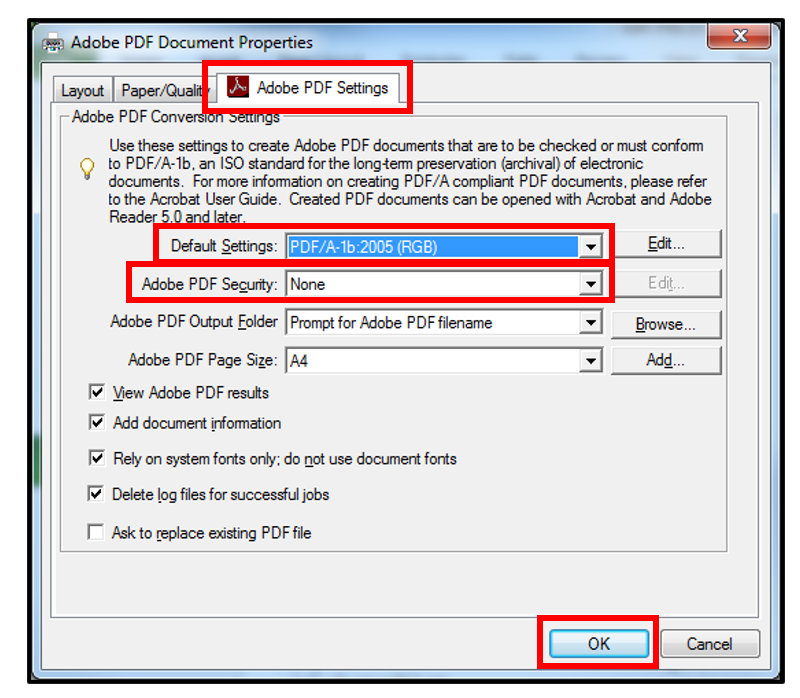
B. Within the pop-up that appears on the screen, the user must
Select the Adobe PDF Settings tab.
In the Default Setting field, select the PDF/A-1b option.
In the Adobe PDF Security field, make sure to select the None option.
Then click on the OK button to close the pop-up.
C. Back on the print page, click on the Print button to finalise the conversion to PDF/A format.
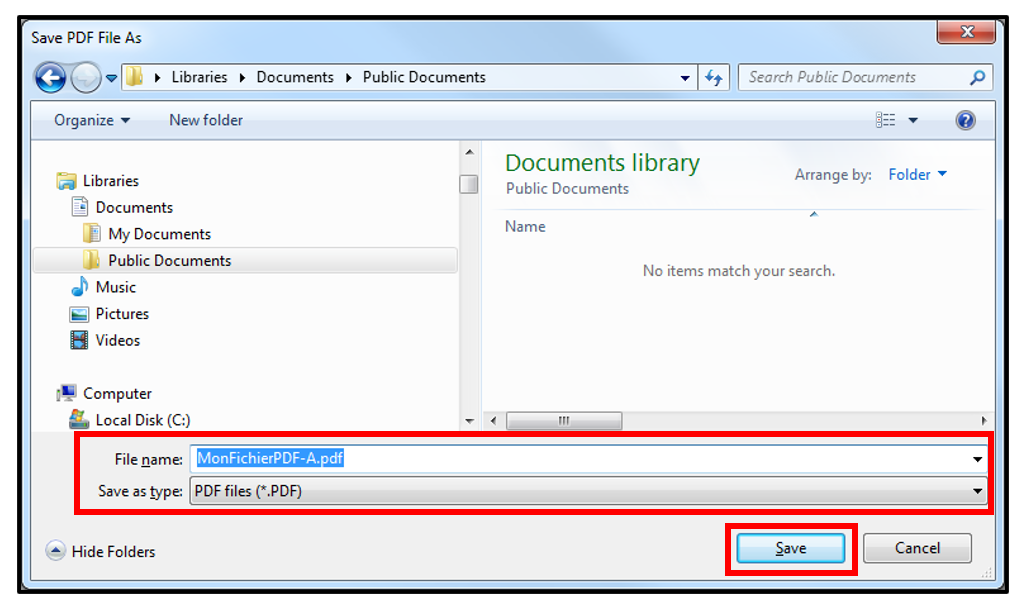
D. When you click on the Print button, a new window opens asking the user to specify the location and name of the file to be saved. Then click on the Save button.
The document conversion starts, Adobe Acrobat Professional is initiated automatically and displays the newly created PDF file. Once these steps have been completed, the user will have a PDF/A version of their document that can be submitted to the RCS administrator.
Verifying PDF/A-1b compatibility
The user can verify the compatibility of a PDF file with the PDF/A-1b standard, provided that they have Adobe Acrobat Professional.
- Open the PDF document to be verified with Adobe Acrobat Professional.
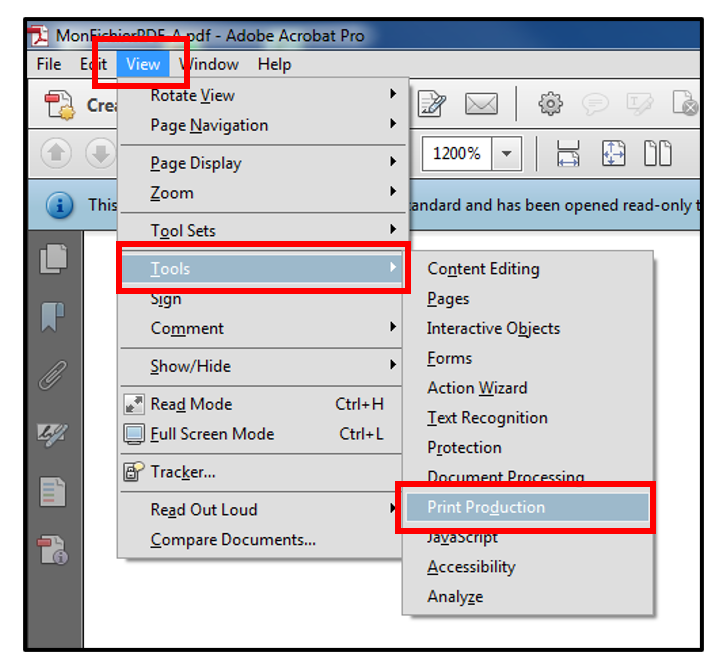
- Select View from the main menu.
- Then click on Tools and select the Print Production sub-menu.
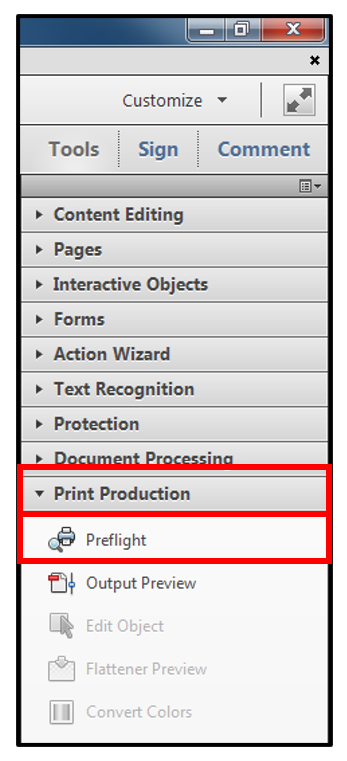
In the Print Production sub-menu that appears on the right of the page, users should click on the Prefight option.
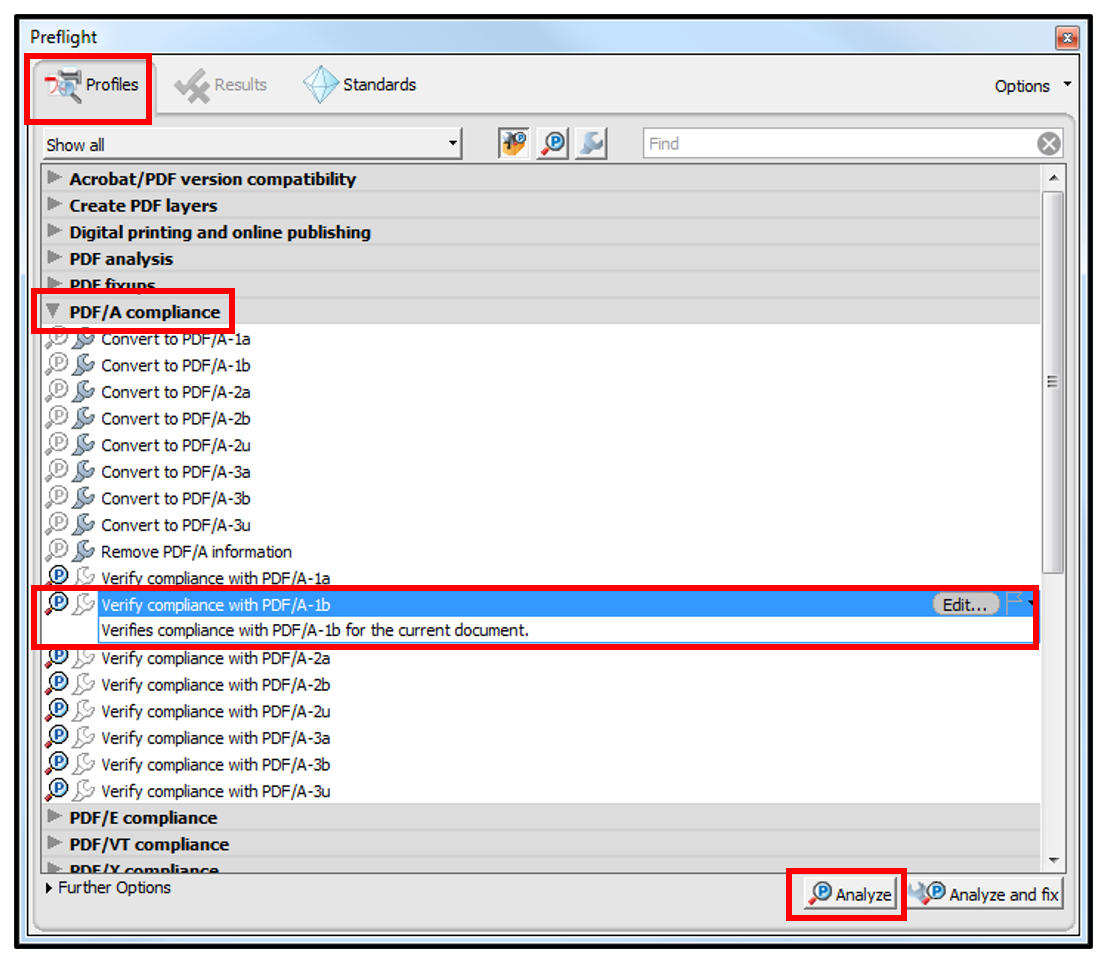
After selecting the Preflight option, a pop-up will appear on the page. In the Profiles tab, select the PDF/A Compliance accordion menu and select the Verify compliance with PDF/A-1b option. Once this option has been selected, users must click on the Analyze button.
If the document is PDF/A-1b compatible, the Results tab displays a green check mark.
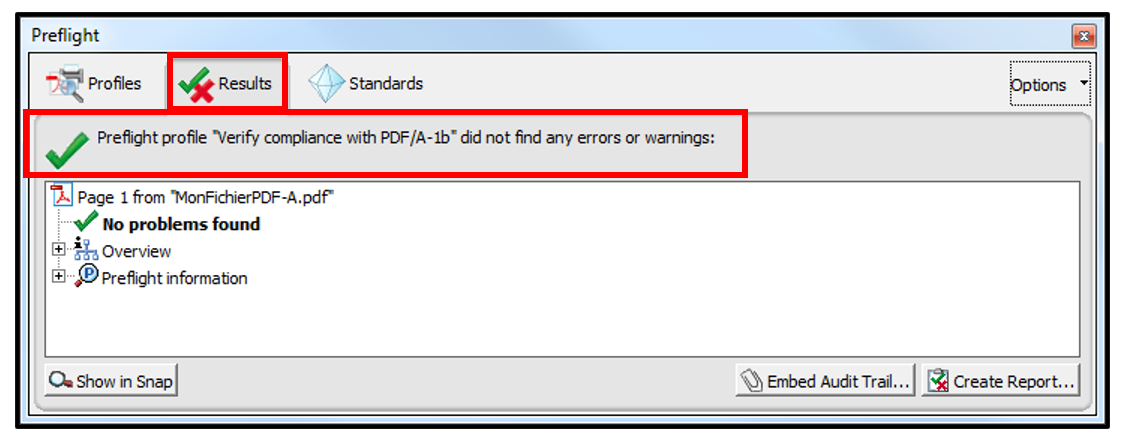
If the document is not compatible with the PDF/A-1b standard, a red cross will appear in the Results tab. The document therefore has to be created using one of the methods described in this help section.
Documents to be submitted: Things to know (PDF/A format required)
Terminology
- PDF format
Portable Document Format: File format created by Adobe for viewing and printing a file on any platform.
- PDF/A format
Standardised format according to the PDF/A-1 specification published by ISO to guarantee the long-term archiving of electronic documents. It is therefore a restricted version of the PDF format.
The restrictions include:
- No dynamic objects such as audiograms or videograms.
- Prohibition on launching script code or executable files.
- Inclusion of all fonts and their use without legal or display constraints.
- The colour palette used must be specified independently.
- Prohibition on encryption and security.
- Use of standard metadata is mandatory.
General rules
The requirements differ slightly depending on whether or not the document is intended for official publication.
1. Documents not intended for publication
Documents that are not intended for publication have to be submitted to the RCS administrator in PDF/A format. These documents also have to:
- Be submitted in A4 format.
- Have a white horizontal area of at least 35 millimetres at the top of the first page to allow LBR to affix a virtual label representing the electronic filing receipt.
- Be saved in PDF/A-1a or PDF/A-1b format: when saving the file, select the PDF/A-1a or PDF/A-1b option provided by your software (Word, LibreOffice, Adobe, etc.).
2. Documents intended for publication in the RESA
Documents intended for publication in the RESA must have to be submitted to the RCS administrator in PDF/A Text format. This is the only format accepted by the RCS administrator's platform for documents intended for publication. These documents also have to:
- Be submitted in A4 format.
- Have a white horizontal area of at least 35 millimetres at the top of the first page to allow LBR to affix a virtual label representing the electronic filing receipt.
- Be saved in PDF/A-1a or PDF/A-1b format: when saving the file, select the PDF/A-1a or PDF/A-1b option provided by your software (Word, LibreOffice, Adobe, etc.).
- Not contain images.
- Not have been digitised.
- Be written in fonts commonly used in office automation: Arial, Calibri, New Courier, Times New Roman, Helvetica, Source Sans Pro. In order to guarantee the acceptance of predefined bullet points, and only for this purpose, Wingdings and Symbol fonts are also accepted.
- Be written in black font on a white background.