List of filings
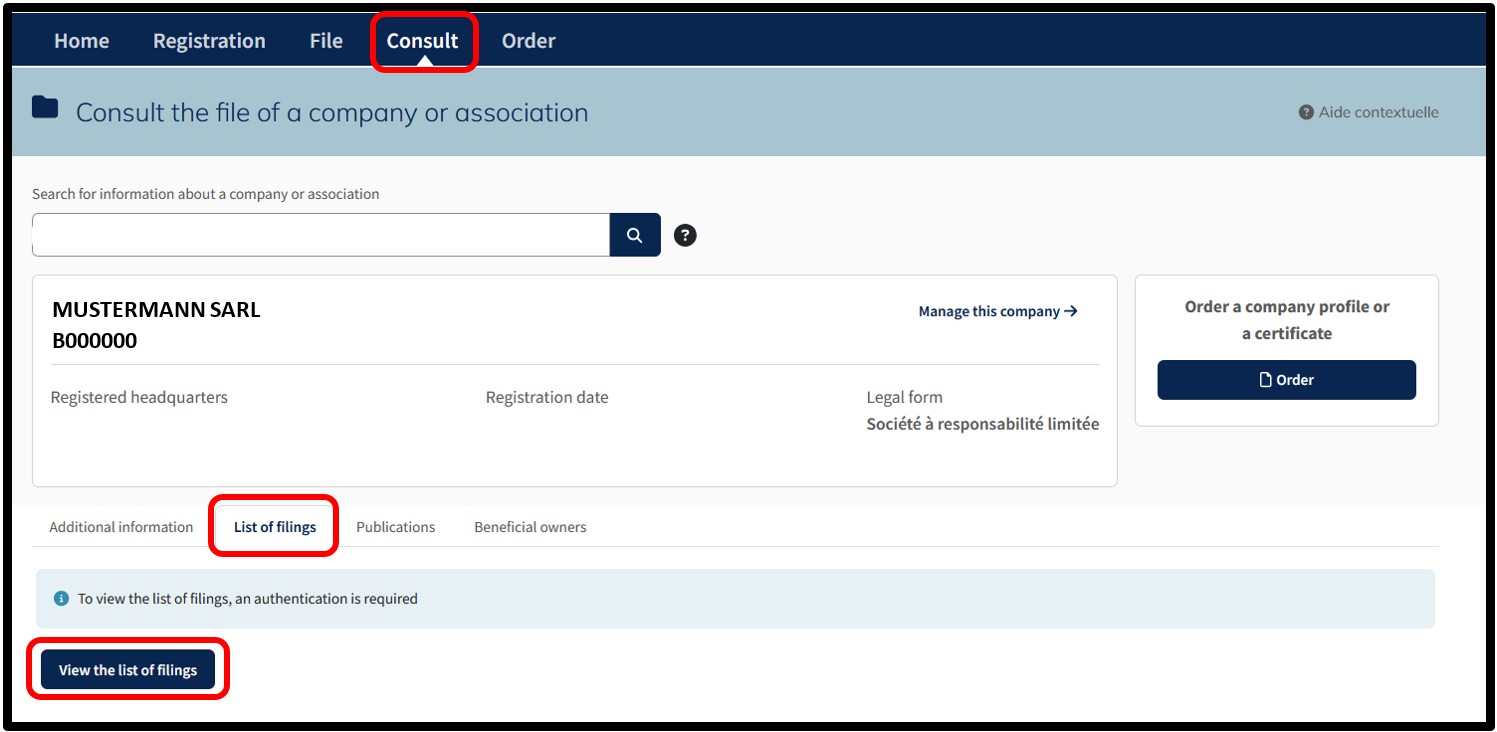
The user can use this tab to consult the history of documents filed with the RCS for the entity concerned by the consultation.
To access the List of filings, authentication by anonymous connection or by certificate is mandatory.
By clicking on the button View the list of filings, the user is redirected to the authentication page where they have to indicate their preferred method of authentication.
After making their choice, the user is asked to follow the instructions on the page to connect to the LBR website.
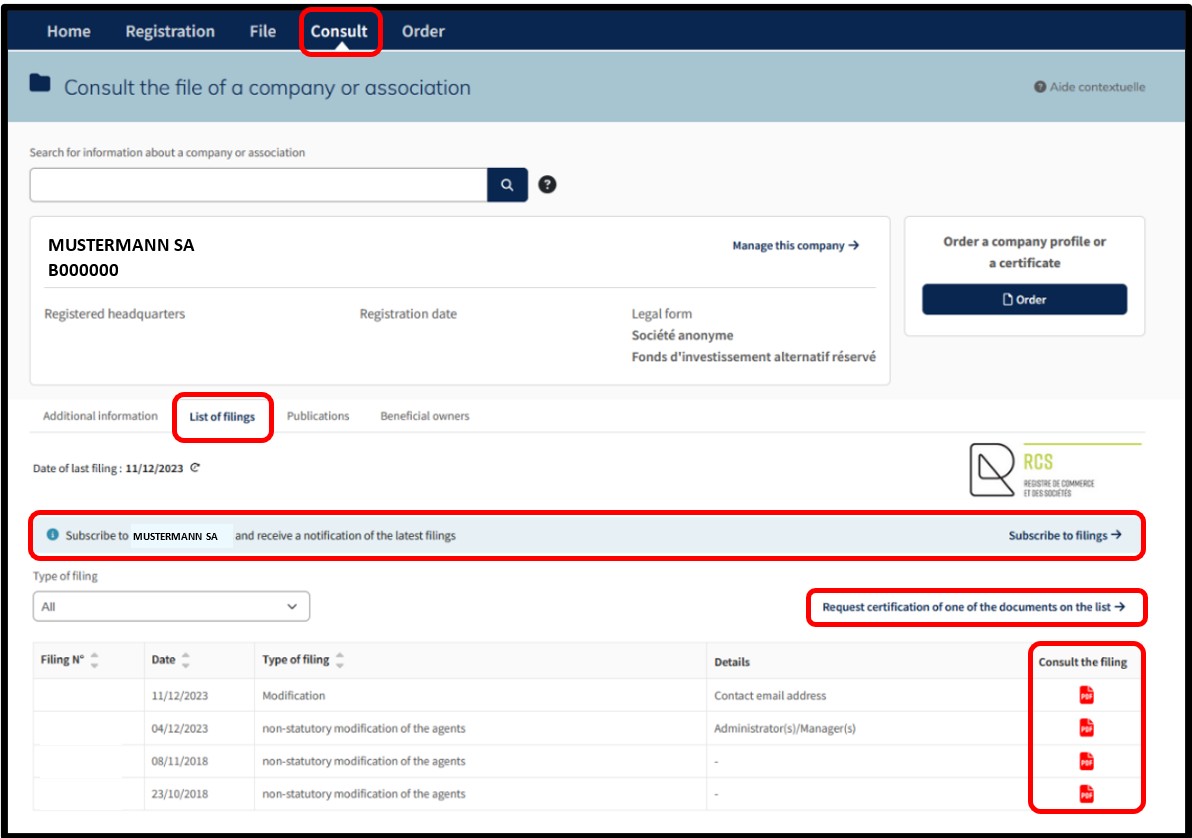
Once the connexion has been made, the user can access the details of the List of filings.
Within this list, the user has the option to:
1. Filter by type of filing
2. Consult the information relating to filings, in particular:
- Filing number
- Date of filing
- Type of filing
- Details
3. Download the filing request as filed with the RCS, in PDF format, according to the type of filing, by clicking on the PDF icon.
On this page, the user also has the option of accessing the following services:
- Subscribe to filings for the selected entity
- Request certified conformance of a filing
Available services
Subscription to filings
The service Subscribe to filings allows the user to order an annual subscription to filings for the selected entity. This service enables the user to be informed of new filings made with the RCS for the registered entity.
The user receives a notification by email each time a new filing is made to the RCS in the file of the selected entity, thus ensuring up-to-date tracking without research effort.
The service Subscribe to filings is a secured service available under certain conditions:
- Only available with an authentication by certificate
- Each file of an entity registered with the RCS, for which the user wishes to benefit from this service, has to have an individual subscription, valid for 12 months and renewable on expiry
- This service is subject to a subscription fee
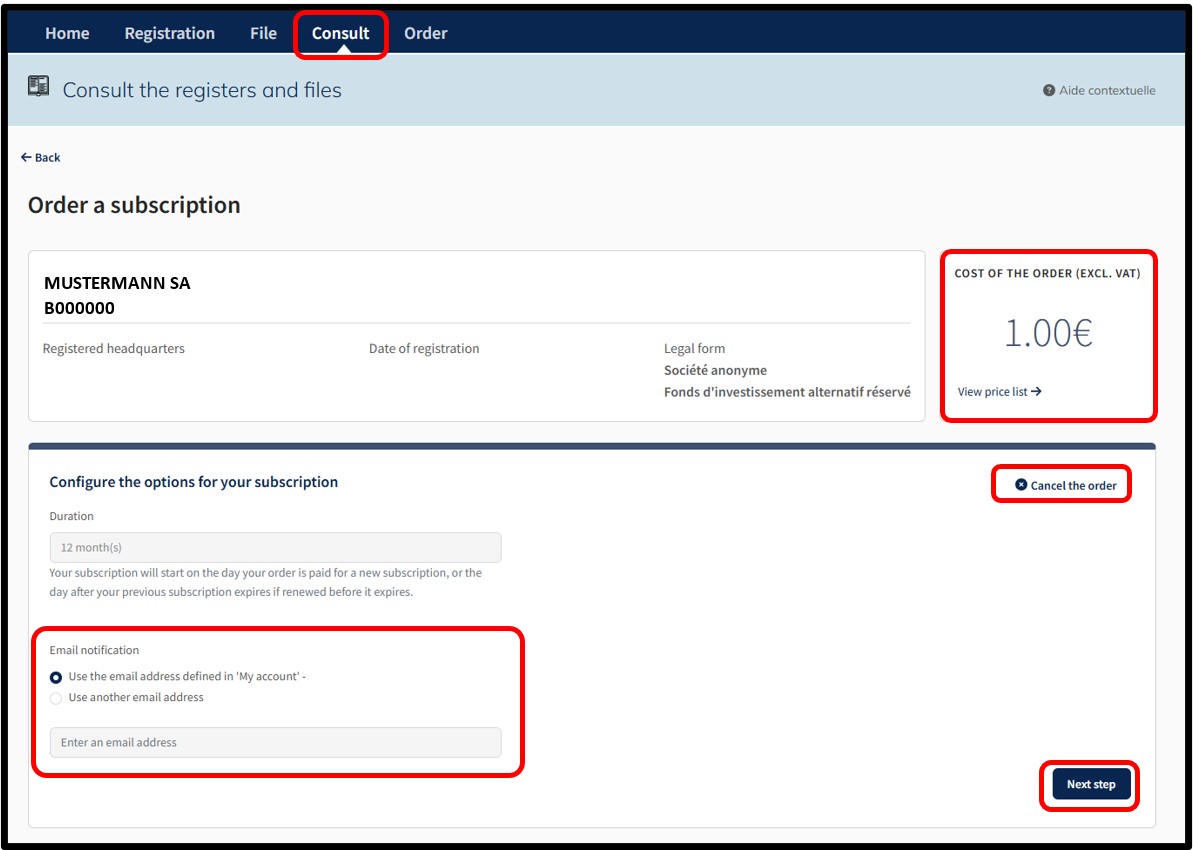
By selecting this service, the user accesses the page allowing them to order an annual subscription for filings for the selected entity. The user can cancel their order by clicking on the Cancel the order option.
The amount of the order is displayed in the Cost of the order (excl. VAT) field at the top right of the page. The View price list link informs the user of the current prices for the type of service selected.
To order the annual subscription of filings, the user has to confirm the notification email address. By default, the notification email corresponds to the one entered when creating the user account. However, the user has the option of indicating another notification email address by selecting the option Use another email address and indicating a new email in the field provided for this purpose.
Once the information has been confirmed, the user has to click on the button Next step. On the next page, the user is redirected to the page for the verification of the order. The user finalises their order by clicking on the Add to cart button.
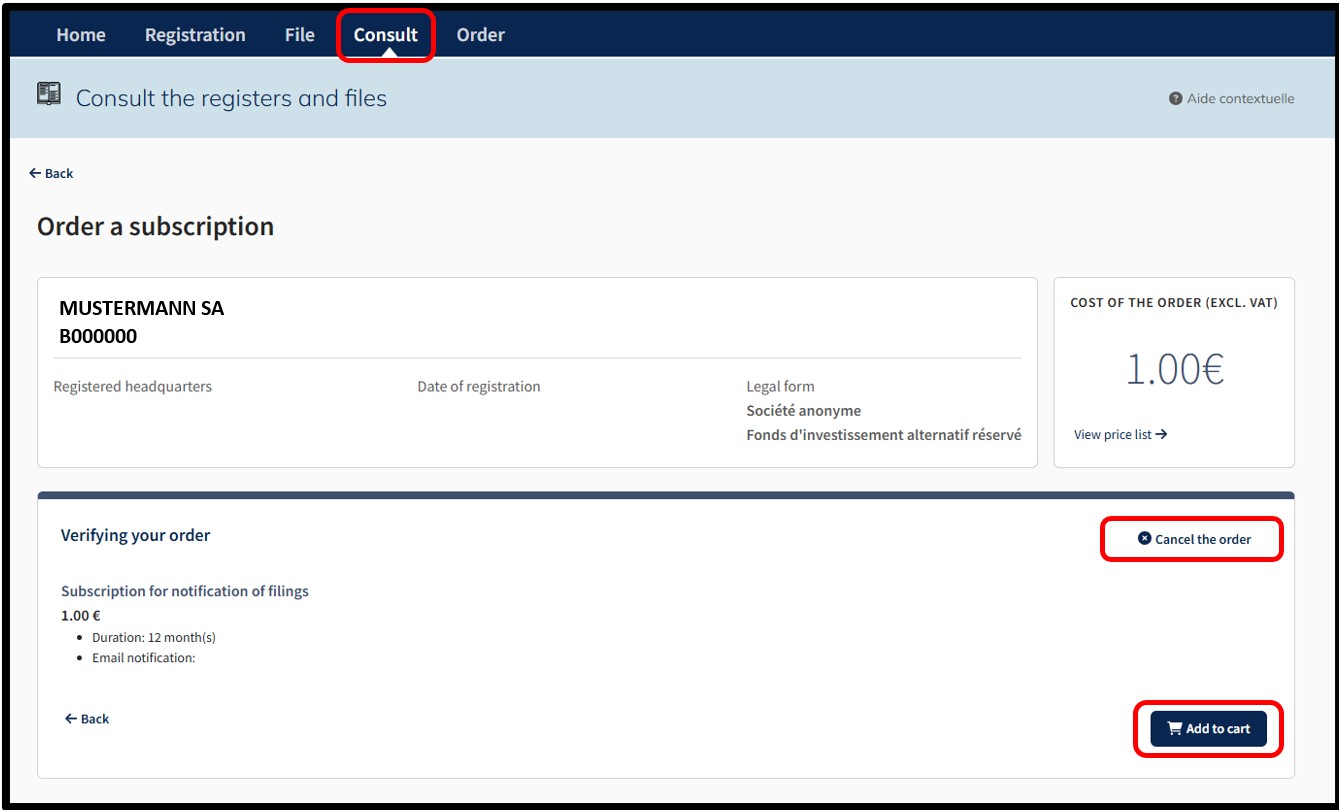
After confirming their order by clicking on the Add to cart button, the user accesses the Details of their cart, which presents a summary of their order.
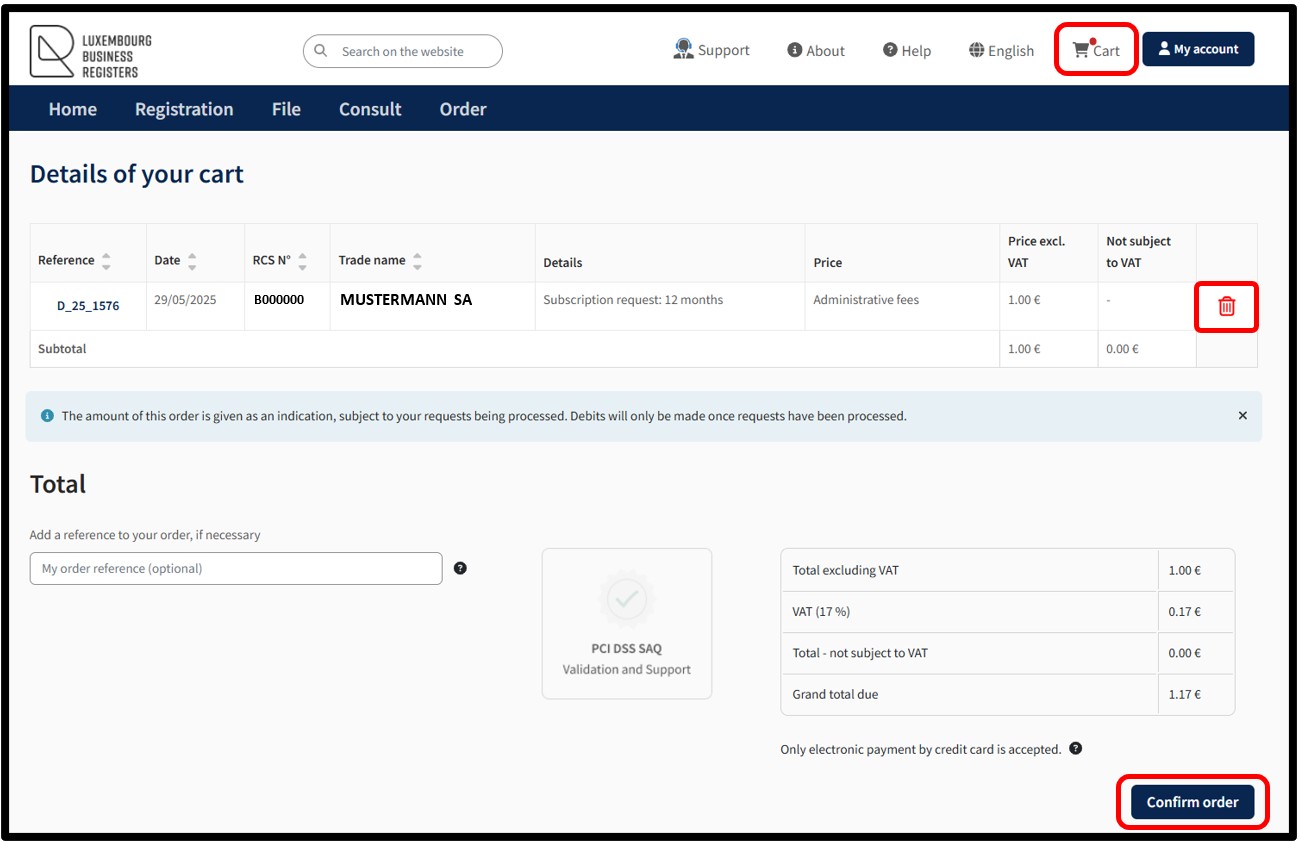
The user can delete an order from their cart by clicking on the Trash icon.
In order to confirm the order, the user has to click on the button Confirm order. By this action, the user indicates their willingness to proceed with the payment of all the requests in the cart. All the requests constitute an order. Payment is made by means of the secured electronic payment platform Saferpay from SIX Card Solutions.
After clicking on the Confirm order button, the user is redirected to the next screen Option to save a credit card, offering the possibility of saving a credit card for future payments. The user has to choose whether or not they wish to register their payment method.
Please note: The functionality of recording credit card data mandatorily requires an authentication by certificate of the user. An authentication by anonymous connection does not allow the use of this functionality.
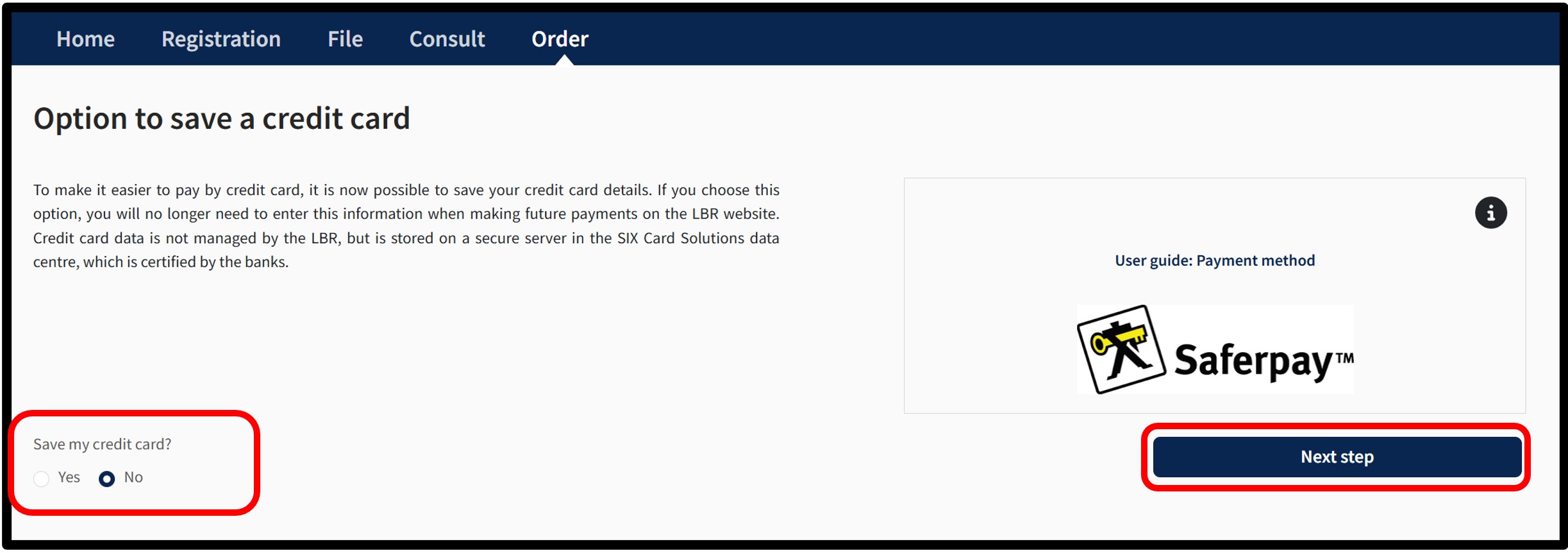
To do this, the user has to indicate their choice by checking either:
- The Yes box indicating their wish to register their payment method.
- The No box indicating their wish not to register their payment method.
To confirm their choice, the user is invited to click on the button Next step. After clicking Next step, an information pop-up about the payment process will appear on the page.
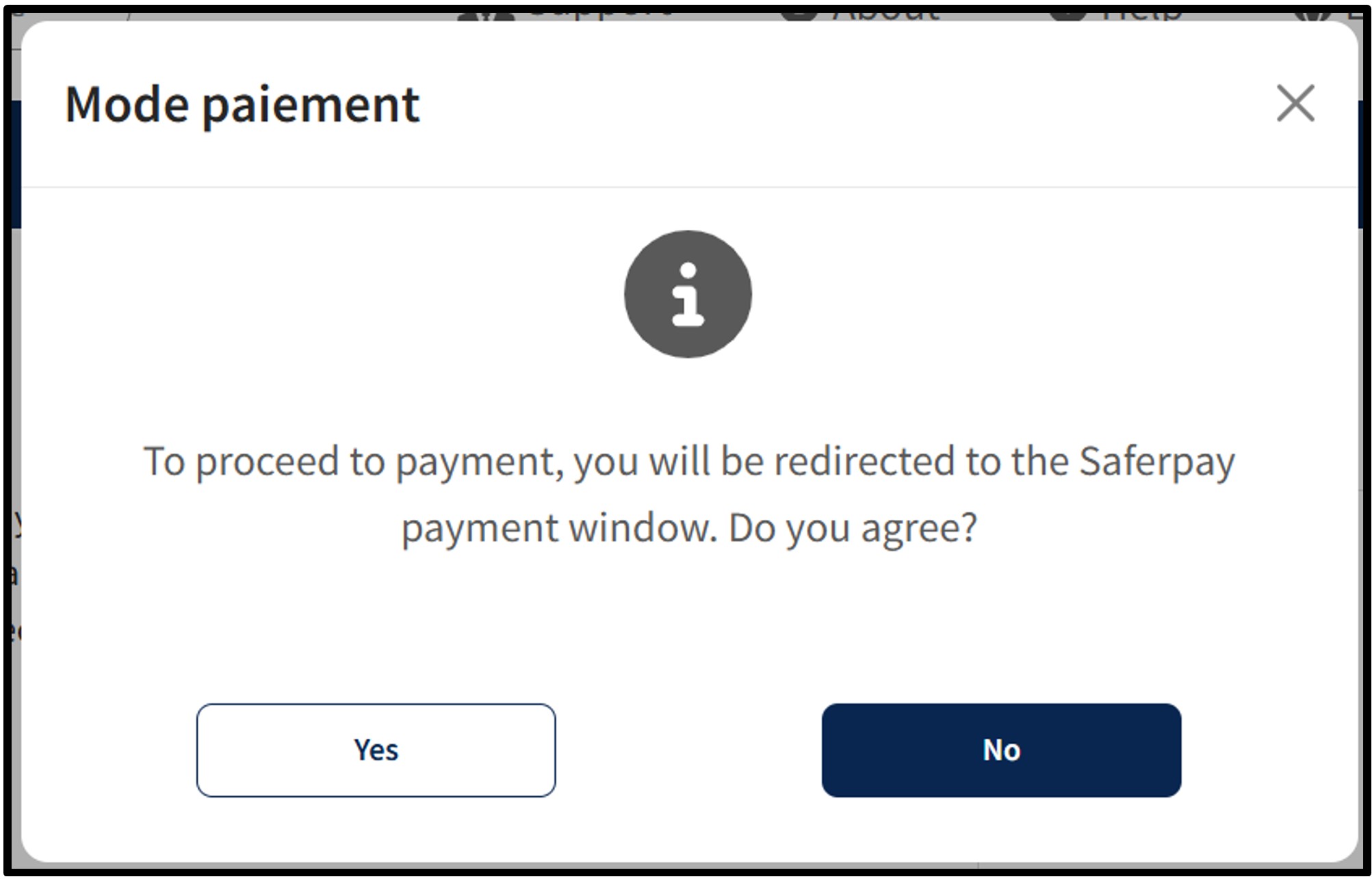
To continue the payment procedure, click on the button Yes. The user is redirected to the secured payment platform Saferpay. The user simply has to follow the instructions on the page to finalise the payment process. To cancel the payment procedure, click on the No button.
Once the payment process has been finalised and provided that the payment is accepted, the user is then redirected to the Confirmed order form page.
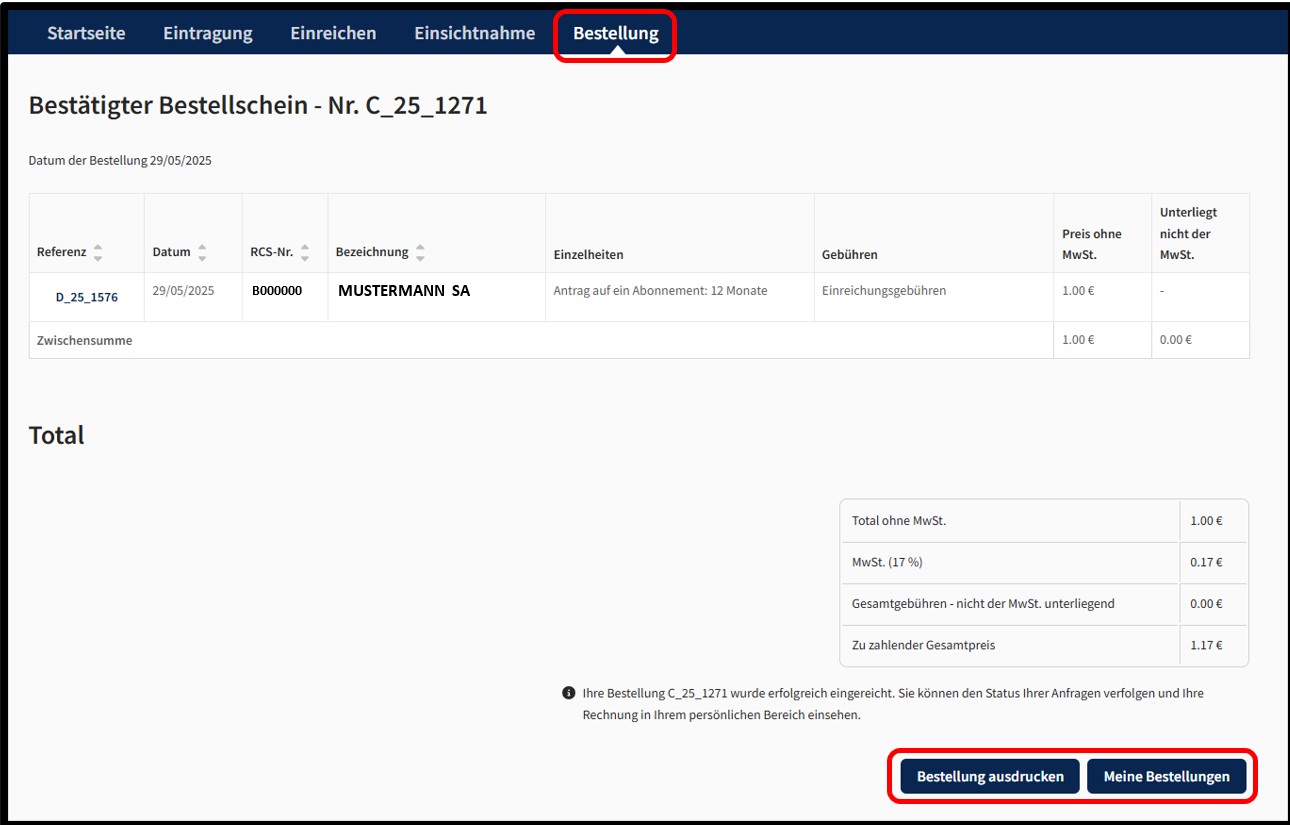
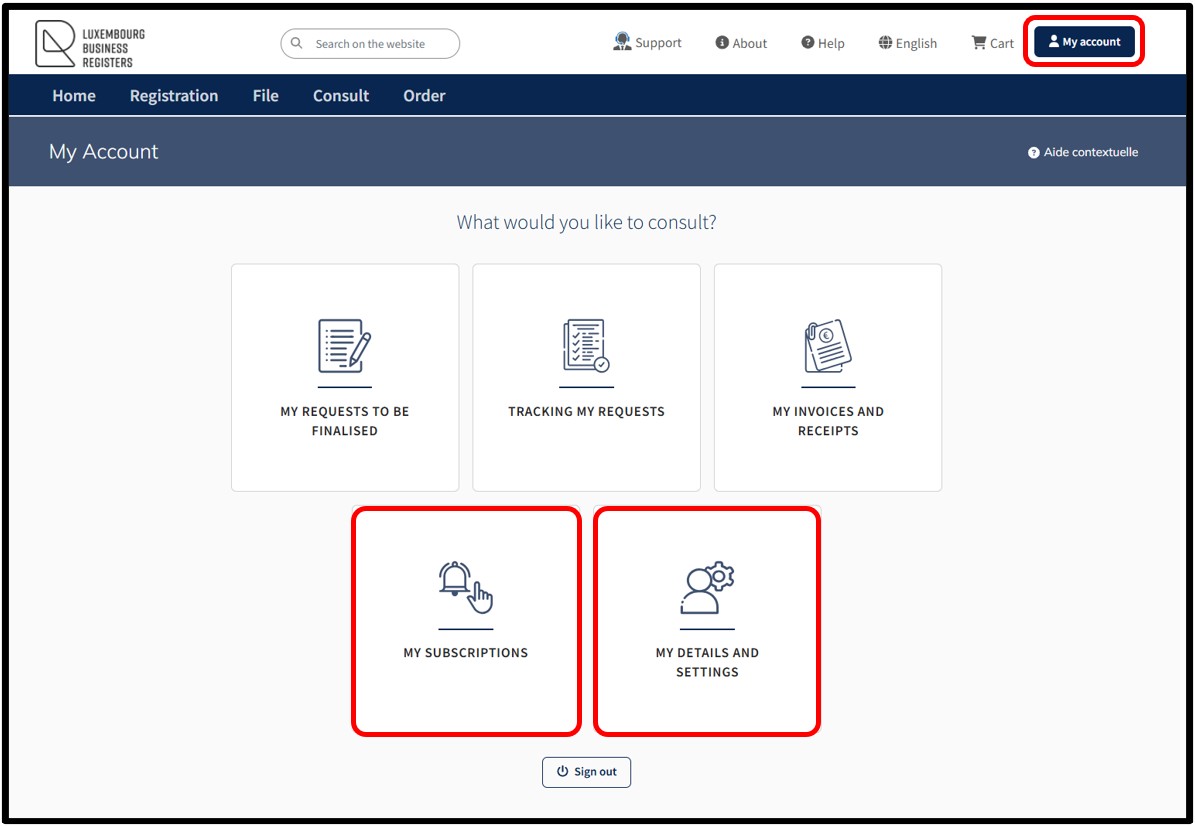
The user can print their Confirmed order form in PDF format by clicking on the Print the order button. The user will find their subscriptions for filings in the My subscriptions section of their customer space, which can be accessed via the My Account menu.
Certificate of conformity
The service Request certification of one of the documents on the list consists of the official attestation by the RCS administrator that the filing selected by the user is a faithful and accurate reproduction of the original, ensuring its legal validity. This secured service, accessible both through authentication by anonymous connection and through authentication by certificate, allows the user to order certified conformance of a filing with the RCS.
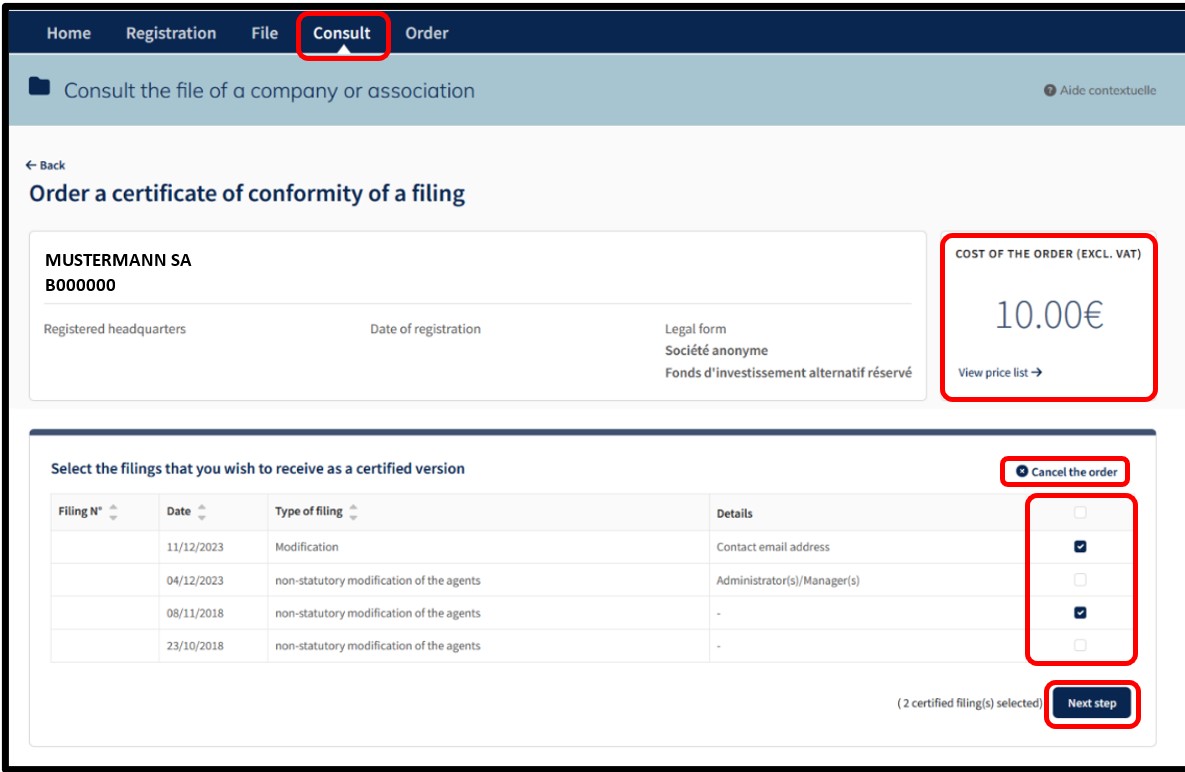
By selecting this service, the user accesses the page allowing them to select the RCS filing(s) for which they wish to order a certified version. The user can cancel their order by clicking on the Cancel the order option.
The amount of the order is displayed in the Cost of the order (excl. VAT) field at the top right of the page. The View price list link informs the user of the current prices for the type of service selected.
To order the certified versions, the user has to indicate their choice by checking the boxes. Once the selection has been made, the user has to click on the Next step button. On the next page, the user is redirected to the page for the verification of the order, which summarises the list of certified filings selected by the user. The user finalises their order by clicking on the Add to cart button.
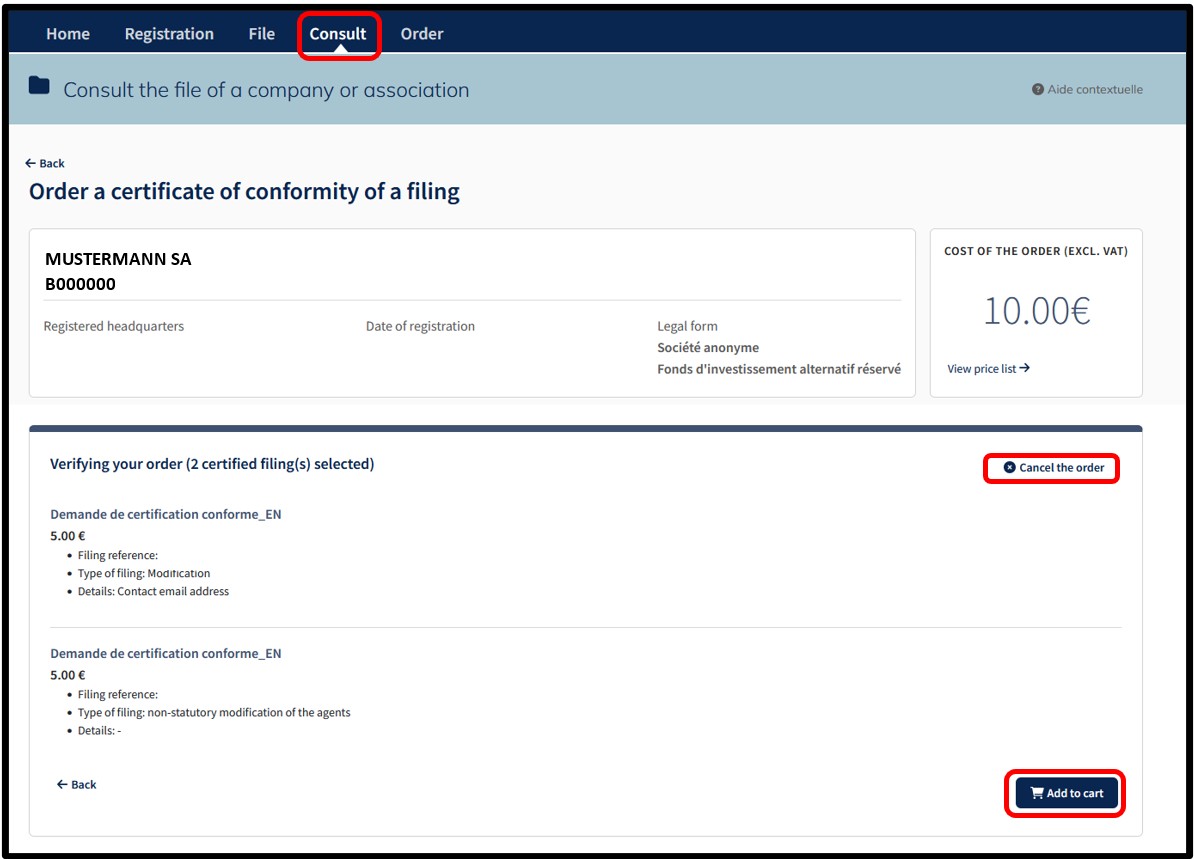
After confirming their order by clicking on the Add to cart button, the user accesses the Details of their cart, which presents a summary of their order.
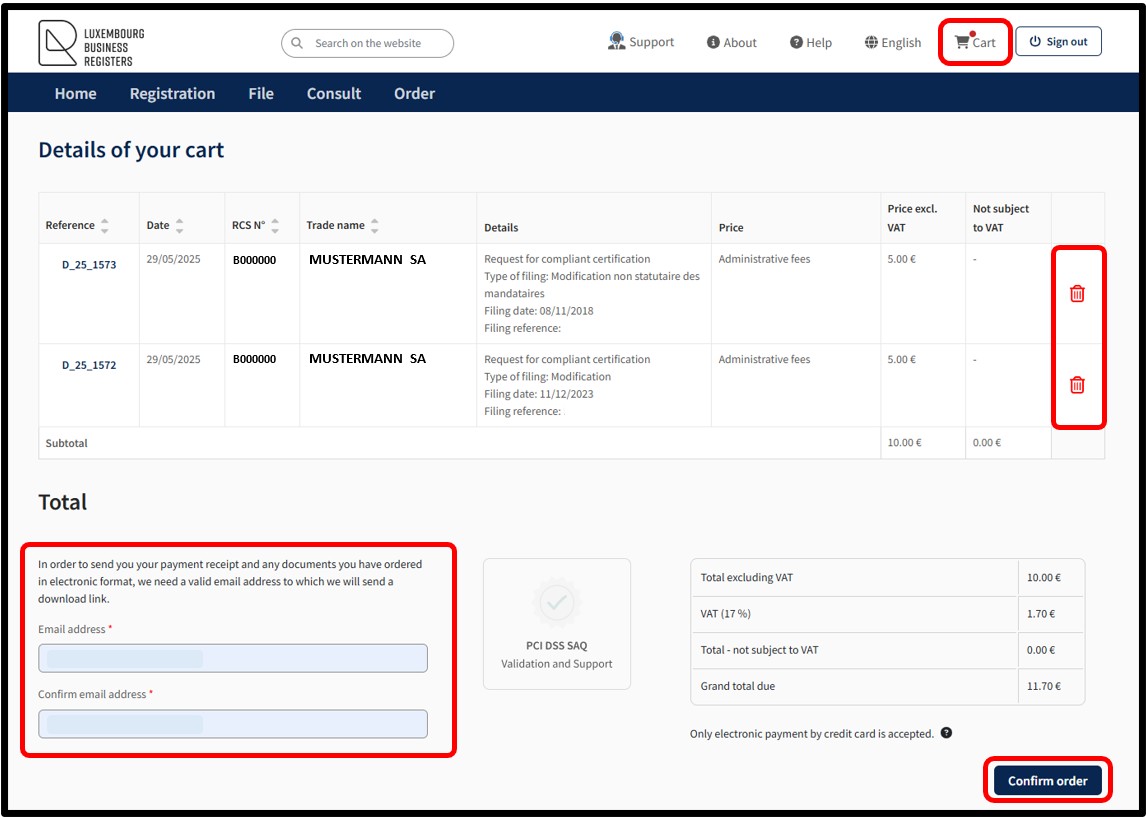
The user can delete an order from their cart by clicking on the Trash icon.
In the case of authentication by anonymous connection, the user must provide a valid email address. A download link will then be submitted to them to enable them to access the payment receipt and the documents ordered in electronic format.
In order to confirm the order, the user has to click on the button Confirm order. By this action, the user indicates their willingness to proceed with the payment of all the requests in the cart. All the requests constitute an order. Payment is made by means of the secured electronic payment platform Saferpay from SIX Card Solutions.
After clicking on the Confirm order button, the user is redirected to the next screen Option to save a credit card, offering the possibility of saving a credit card for future payments. The user has to choose whether or not they wish to register their payment method.
Please note: The functionality of recording credit card data mandatorily requires an authentication by certificate of the user. An authentication by anonymous connection does not allow the use of this functionality.
To do this, the user has to indicate their choice by checking either:
- The Yes box indicating their wish to register their payment method.
- The No box indicating their wish not to register their payment method.
To confirm their choice, the user is invited to click on the button Next step. After clicking Next step, an information pop-up about the payment process will appear on the page.
To continue the payment procedure, click on the button Yes. The user is redirected to the secured payment platform Saferpay. The user simply has to follow the instructions on the page to finalise the payment process. To cancel the payment procedure, click on the No button.
Once the payment process has been finalised and provided that the payment is accepted, the user is then redirected to the Confirmed order form page.
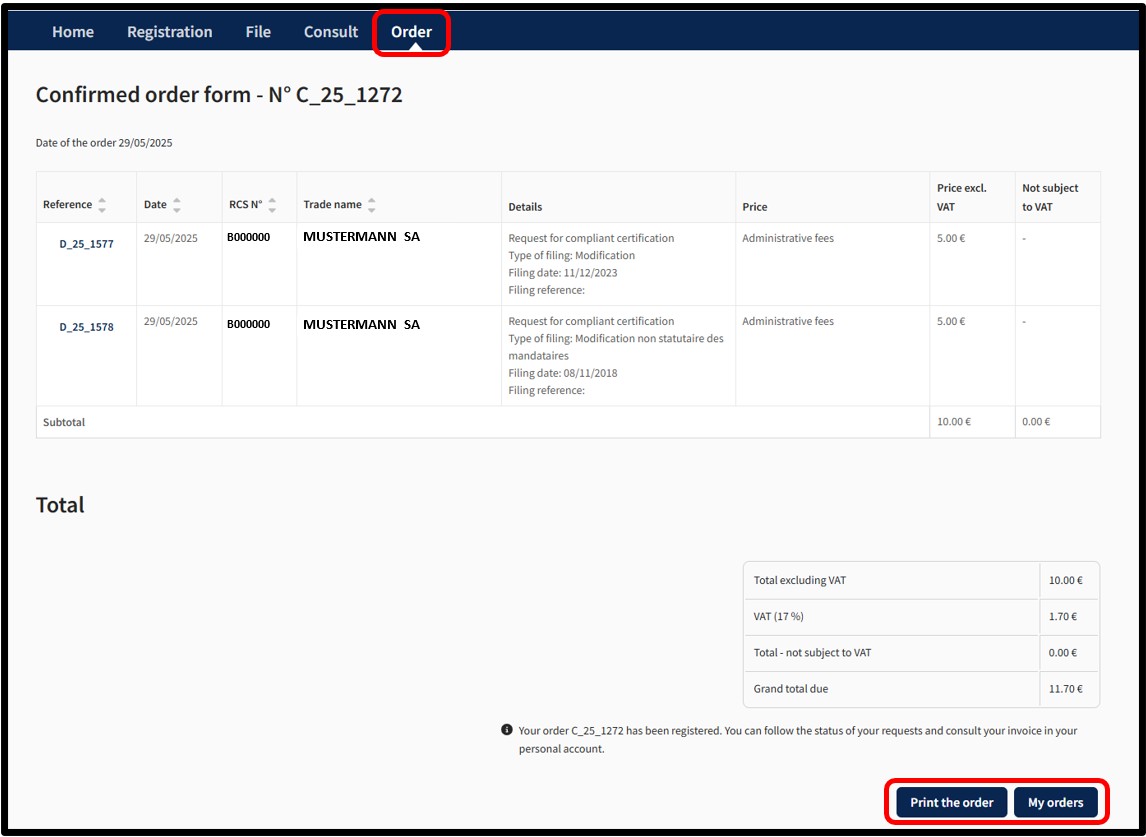
The user can print their Confirmed order form in PDF format by clicking on the Print the order button.
- With an Authentication by Anonymous Connection, the documents ordered will be made available in a temporary space, which will be communicated to the user by email to the address that has been listed when the order was placed.
- With Authentication by Certificate, the documents ordered will be made available in the Tracking my requests section in the customer space, which can be accessed via the menu My Account.
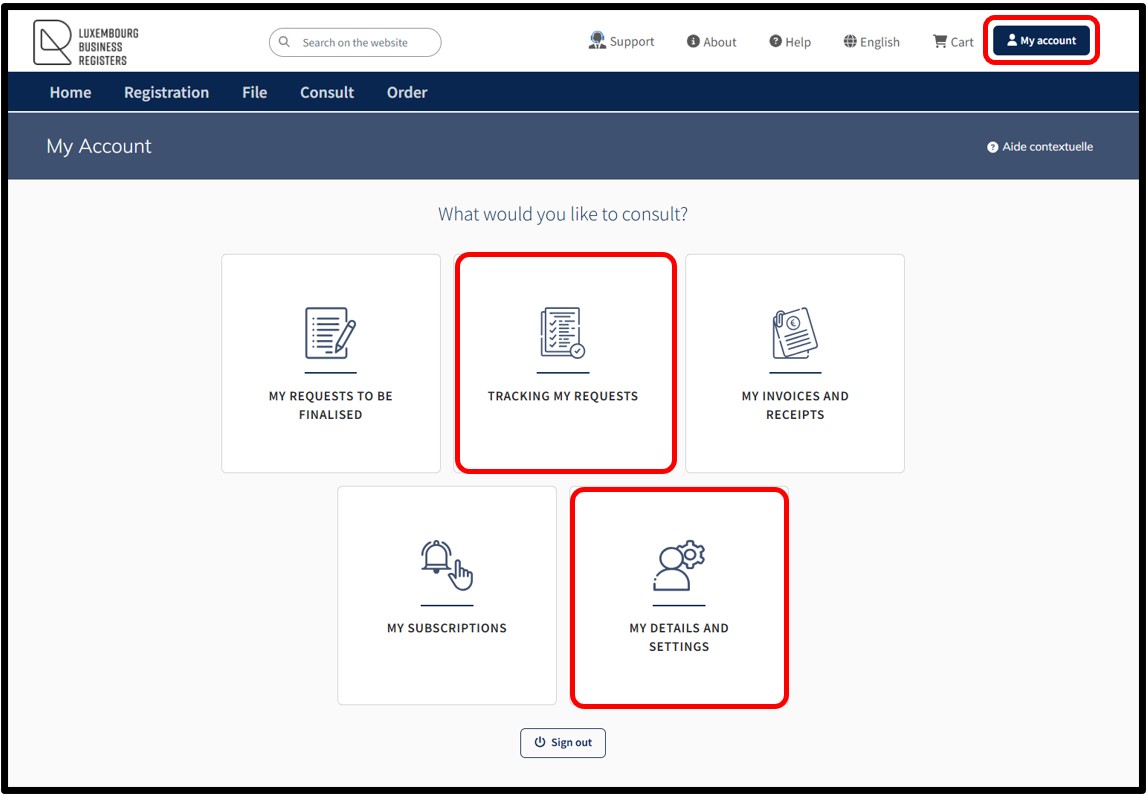
Notifications are automatically sent by email to the user:
- To confirm receipt of their order by LBR.
- To confirm that their order has been processed by LBR.
If the user does not wish to receive these emails, they can disable receipt from the menu My Account and select My details and settings.